
Adding a job to your website
| Recruit So Simple users | MyWebsite only users |
|---|---|
| Go to the vacancy’s Share screen and click ‘Post to MyWesbite’ button. | Click ‘Add New Job’ from the MyWebsite control panel [Jobs] page. |
Removing a job from your website
| Recruit So Simple users | MyWebsite only users |
|---|---|
| Go to the vacancy’s Share screen and click the ‘Remove from MyWesbite’ button.
Important: This action will also delete any applications, so ensure that you download them to Recruit So Simple first. If deleting a vacancy from your database: Click ‘Remove from MyWebsite’ from the vacancy record’s Share screen first. If the vacancy is already deleted: login to your MyWebsite dashboard and delete the vacancy from the Jobs section. |
Selecting the required jobs and click ‘Delete Selected’ from the MyWebsite control panel [Jobs] page.
Important: This action will also delete any applications. |
Managing Job applications
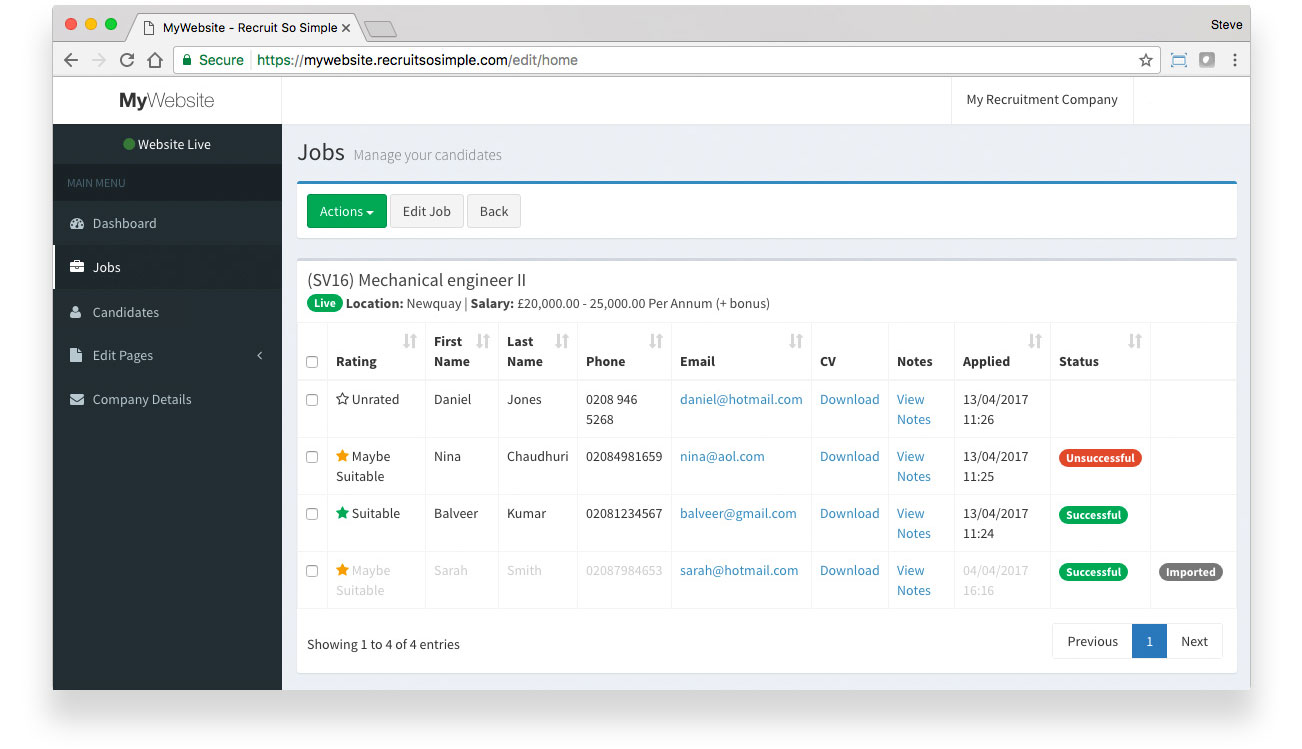
| Recruit So Simple users | MyWebsite only users |
|---|---|
| [Actions > Rating] Add a rating to help identify and sort your applications | [Actions > Rating] Add a rating to help identify and sort your applications |
| [Actions > Status] Not applicable (applications should be imported and managed within Recruit So Simple). | [Actions > Status] Identify applications as successful, unsuccessful or none. |
Other options allow you to delete candidates from MyWebsite. Imported denotes applications that have been downloaded to Recruit So Simple. Deleting an applications from MyWebsite does not delete the candidate from Recruit So Simple if they’ve already been imported.
Managing Registrations
Registrations contain speculative applications sent via the ‘Register with us’ button on MyWebsite. These can be processed in a similar way to job applications.
Importing applications to Recruit So Simple
Recruit So Simple users can import applications from [Candidates > Web Import].