
[Dashboard > Tasks]
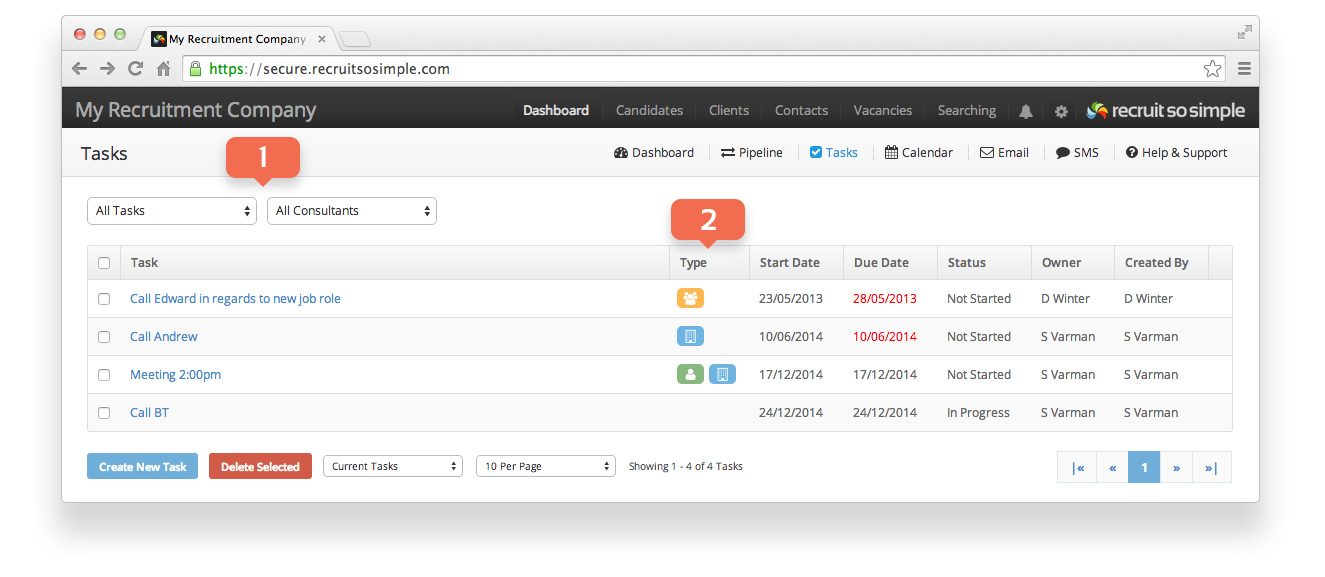
- Options to filter which tasks are displayed
- Icons will indicate if the task is associated with candidates, contacts or vacancies
Adding a Task
- Tasks can also be created from your candidate, client, contact or vacancy overview screens.
- Assign tasks to other users of the system.
- Tasks can be assigned to a maximum of 10 records (candidate, contact, client or vacancy). Icons are used to identify which record types the tasks are assigned to.
- Start date and due date.
- Reminder date and time.
- Sync tasks with your desktop calendar including Outlook, Gmail and Calendar for Mac.
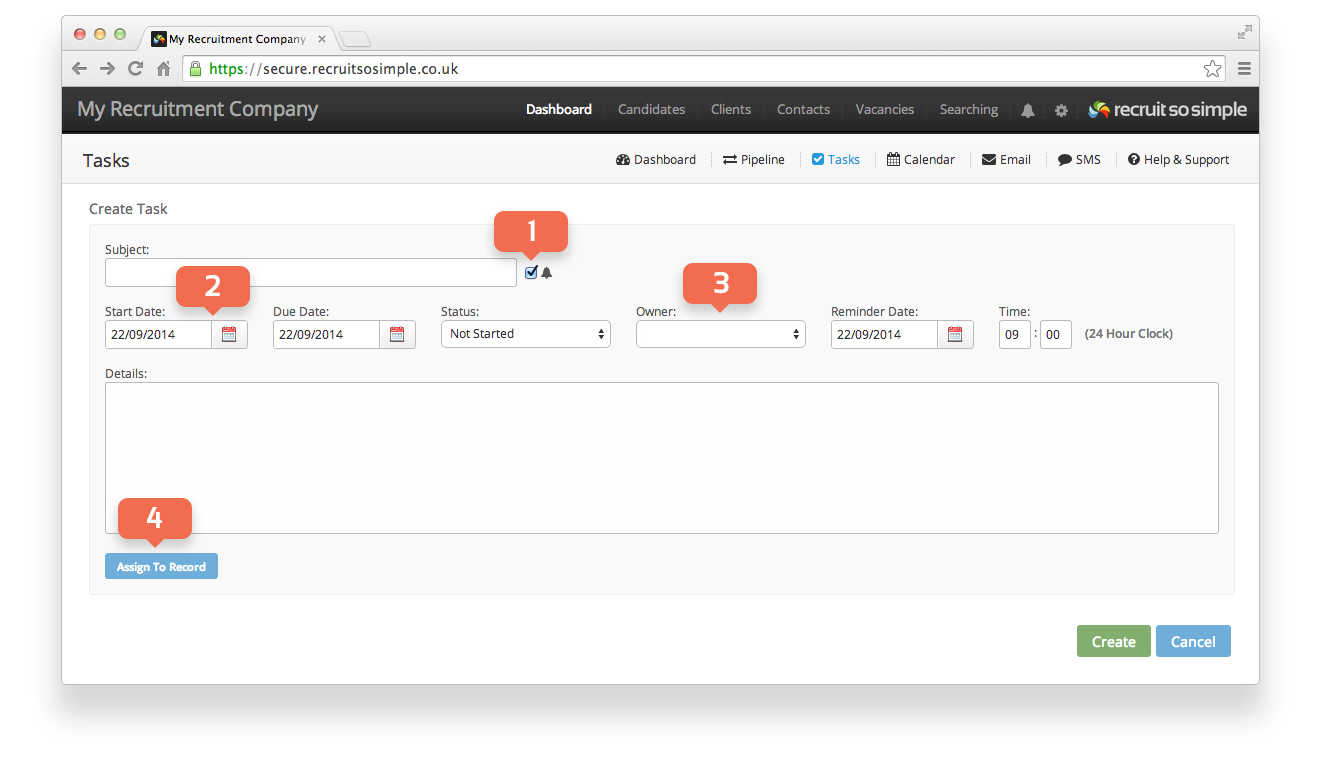
- Tick the checkbox to reveal additional options to set a date and time for your reminder.
- When choosing a start date, the due date and reminder date will adjust themselves so that they are never in the past. The calendar will use the due date when displaying tasks.
- Assign ownership to another user. You will be shown under ‘Created by’ on the main task list [Dashboard > Tasks]
- The task can be assigned to up to 10 candidate, client, contact or vacancy records. The task will then be viewable from each record’s overview screen.
Task Visibility
Administrators will be able to view the tasks of any consultant in the system. By default Standard Users will only be able to see tasks that they have created or own. This permission can be changed from [System Settings > Groups] by checking, “Dashboard > View All Consultants’ Tasks”.
Deleting tasks
You can bulk delete tasks from [Dashboard > Tasks].