
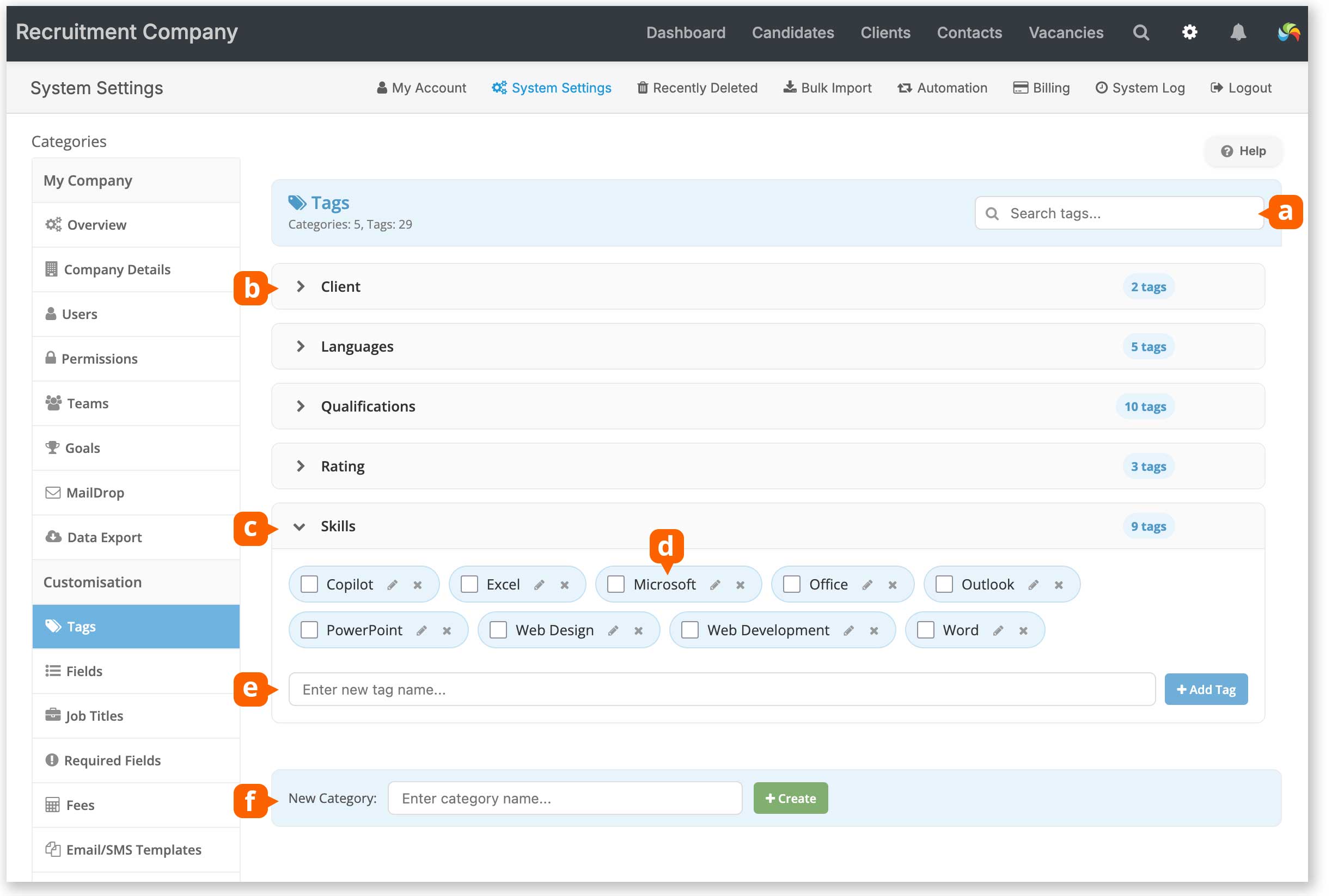
Tags [d] are custom keywords used for searching – for example, you may want to tag candidates with skills, qualifications, or any other attribute that’s useful to you. Tags can be added to candidates, clients, client’s sites (addresses), contacts and vacancies.
To keep things tidy, tags are organised into categories [b].
Where Tags Can Be Added
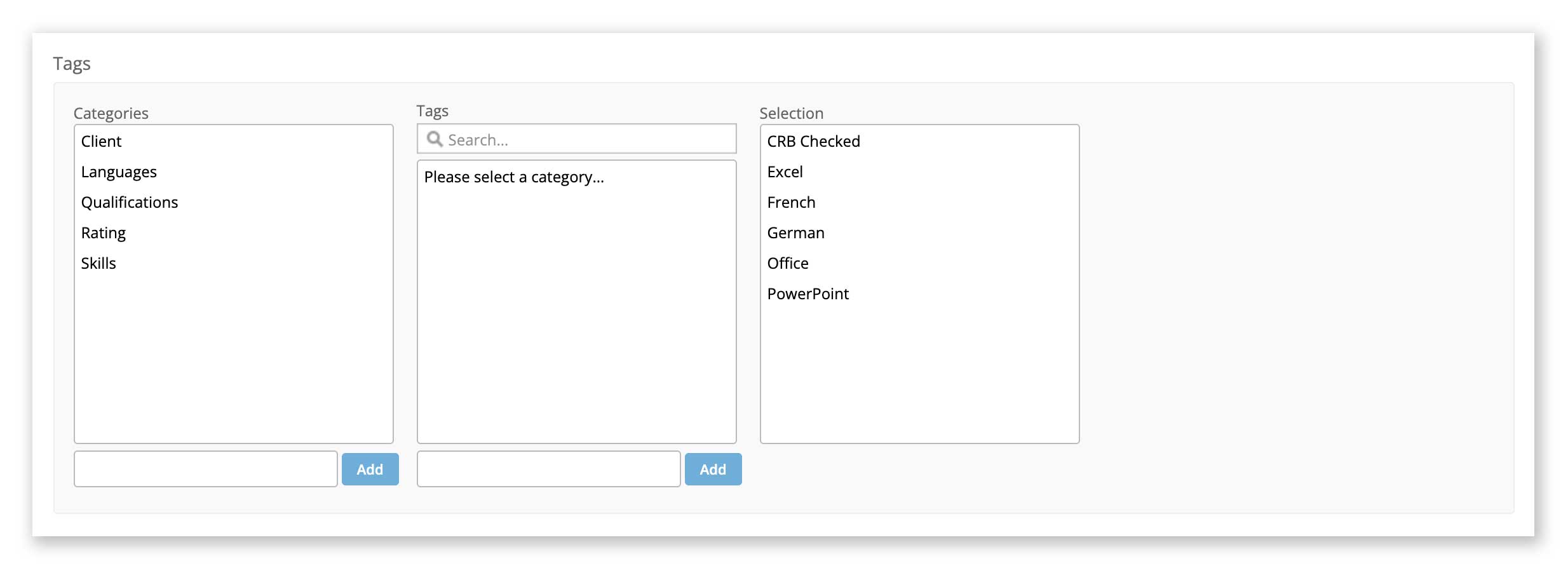
New tags and categories can be added on the Details screen of a Candidate, Client, Contact, or Vacancy record:
- Type a new category name and click ‘Add’ to add a new category.
- Select a category, type the name of a new tag and click ‘Add’ to add a new tag.
- Click a tag to add it to the Selection column to apply the tag to the record (save at the bottom of the page).
Tags can also be added in:
- A Client record’s Sites screen
- [Settings > System Settings > Tags] [e], [f] (see next section).
Managing Tags
Go to [Settings > System Settings > Tags]
This is the best place to manage and organise your tags. From here, you can search for a tag [a], create, edit, reorganise, or delete tags and categories.
Renaming a Tag
Click the Edit [d] icon next to the tag. Any changes will automatically update on all records where the tag is assigned.
Recategorising a Tag
Move a tag to a different category by either:
- Clicking its Edit [d] icon and selecting a new category, or
- Dragging and dropping it into another category.
Deleting a Tag
Deleting a tag [d] will permanently remove it from:
- The system
- All records it is currently assigned to
Managing Categories
Renaming a Category
Hover over a category name [b], [c] to reveal the edit and delete icons. Click the Edit icon to rename a category.
Deleting a Category
Hover over a category name [b], [c] to reveal the edit and delete icons. Click the Delete icon to delete a category. Note that a category can only be deleted if it contains no tags. You must move or delete all tags within the category before removing it.