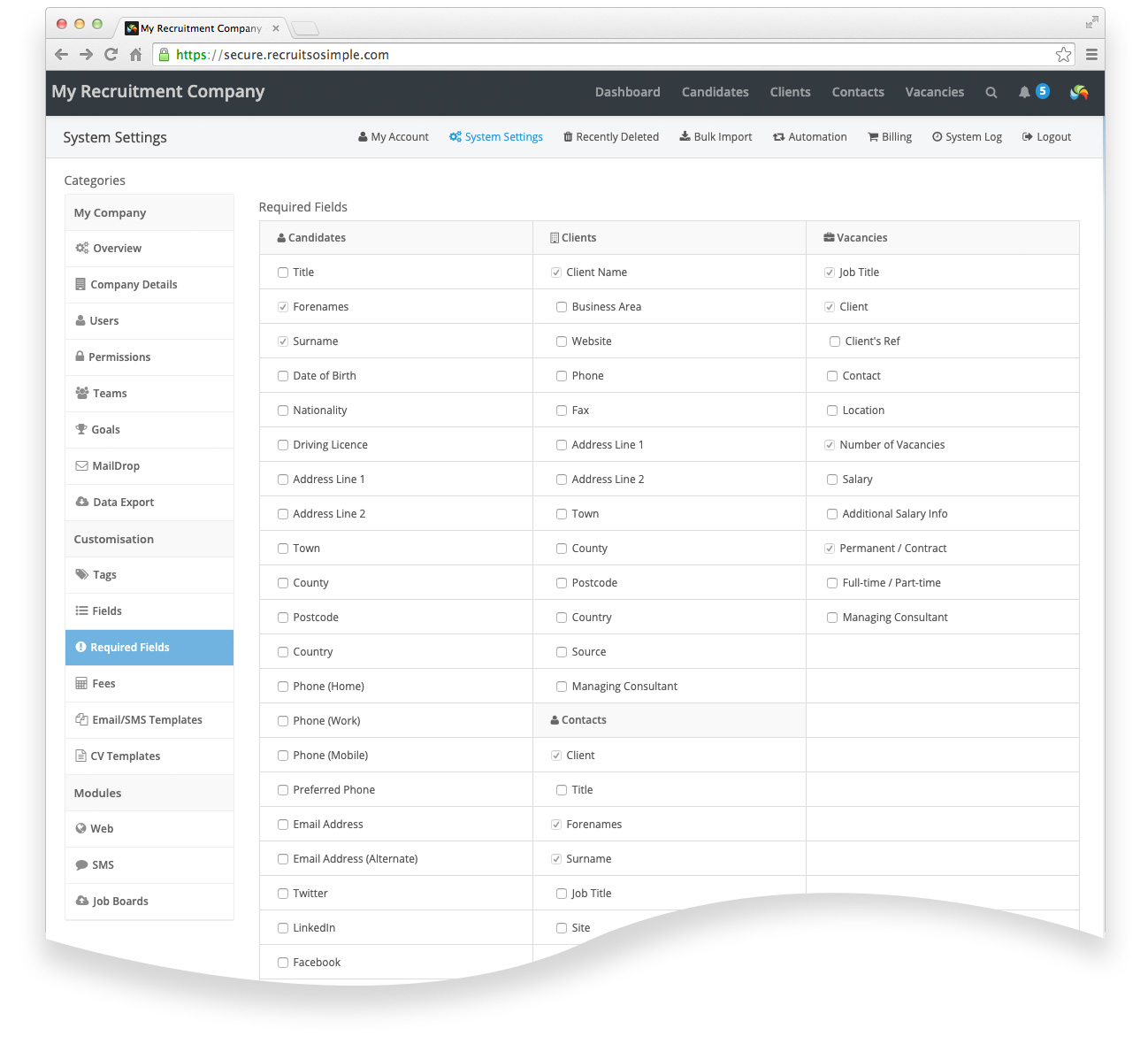
Settings > System Settings > Required Fields
You can use this feature to ensure that certain fields are always filled out when records are added or edited in the system. For example, you may wish to ensure that the ’email’ and ‘mobile phone’ fields are filled out every time a consultant adds a new candidate record.
There are a some fields that are required by the system and are labelled as Mandatory, these cannot be de-selected as required fields.
Select the fields that you want to be required and then click the save button.
If a field is set as required, then any screen that contains that field will require a value. However, if a screen does not contain the field, then no value can be provided and it will not prevent the record from being added/edited. For example, the [Candidates > Web Import > Review] screen does not contain the ‘title’ field, so even if this field is required, a candidate can still be added from this screen without it.
This setting does not affect records added via MailDrop or Bulk Import.
Be aware of how this setting can affect the editing of existing records. For example, if you set the candidate’s ’email’ field to be required, then it won’t be possible to save edits to an existing candidate’s Details screen without entering this.