Candidates > Web Import
Candidates that have applied via your website, or your LogicMelon, Idibu or Broadbean accounts will appear here. The applications can be reviewed before adding them to the database as candidates. When you review an application, you can choose to add the candidate to the vacancy that they’ve applied for.
There is a search option and managing consultant filter at the top to help you find the right candidates if you have a lot. The managing consultant filter will show only candidates that have applied for jobs that are being managed by the chosen consultant.
To receive web applicants you will need to have setup any of the following modules:
- Website Integration module
- Broadbean module
- LogicMelon module
- Idibu module
Candidate applications are stored for a maximum of 90 days. After this time, they will be automatically deleted. This area is intended for you to review your applications before deciding whether to add them as candidates or delete them, so you should do this regularly.
Importing candidates
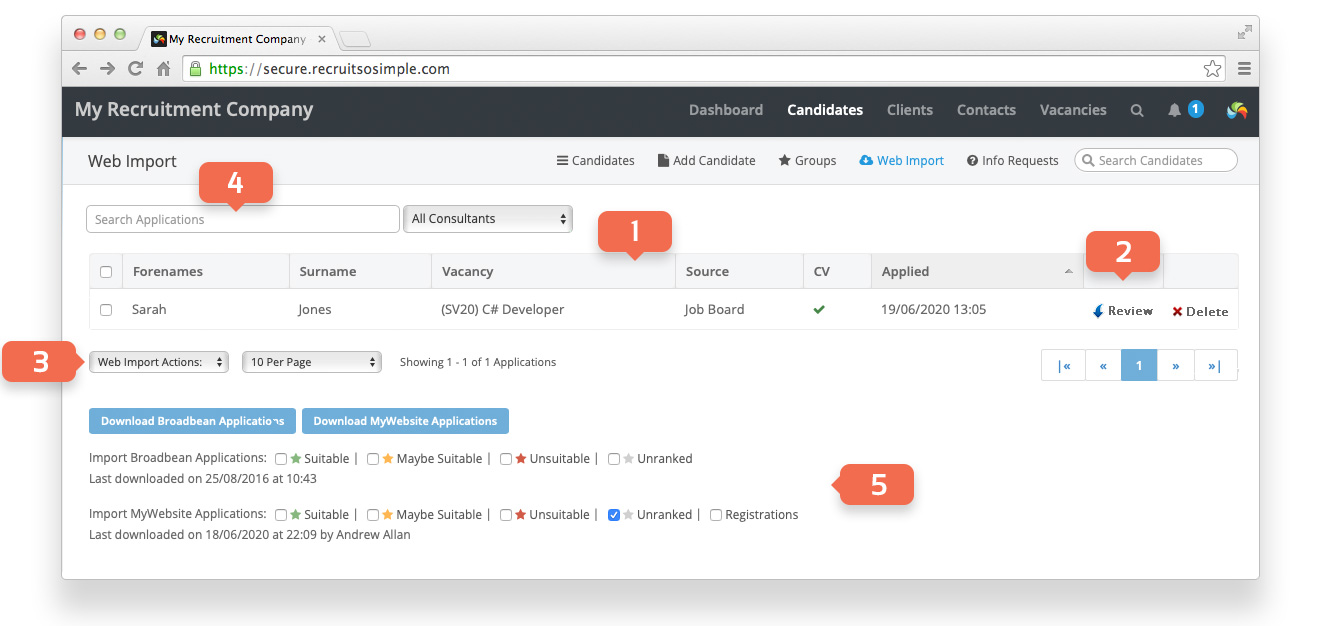
- Candidate applications [1].
- Review candidates before adding to the database and vacancy [2].
- Import or delete selected applications, or select all applications. You can use this method of importing multiple applications at once if you want them imported without being reviewed [3].
- Search Registrations by candidate name, vacancy reference number or title. You can also search by the source of the application (Website, Broadbean, Idibu or LogicMelon) [4].
- Import applications with selected options [5].
The web import screen can also be sorted by clicking on any of the column headings.
 ——————————————————————–
Web Import Review page
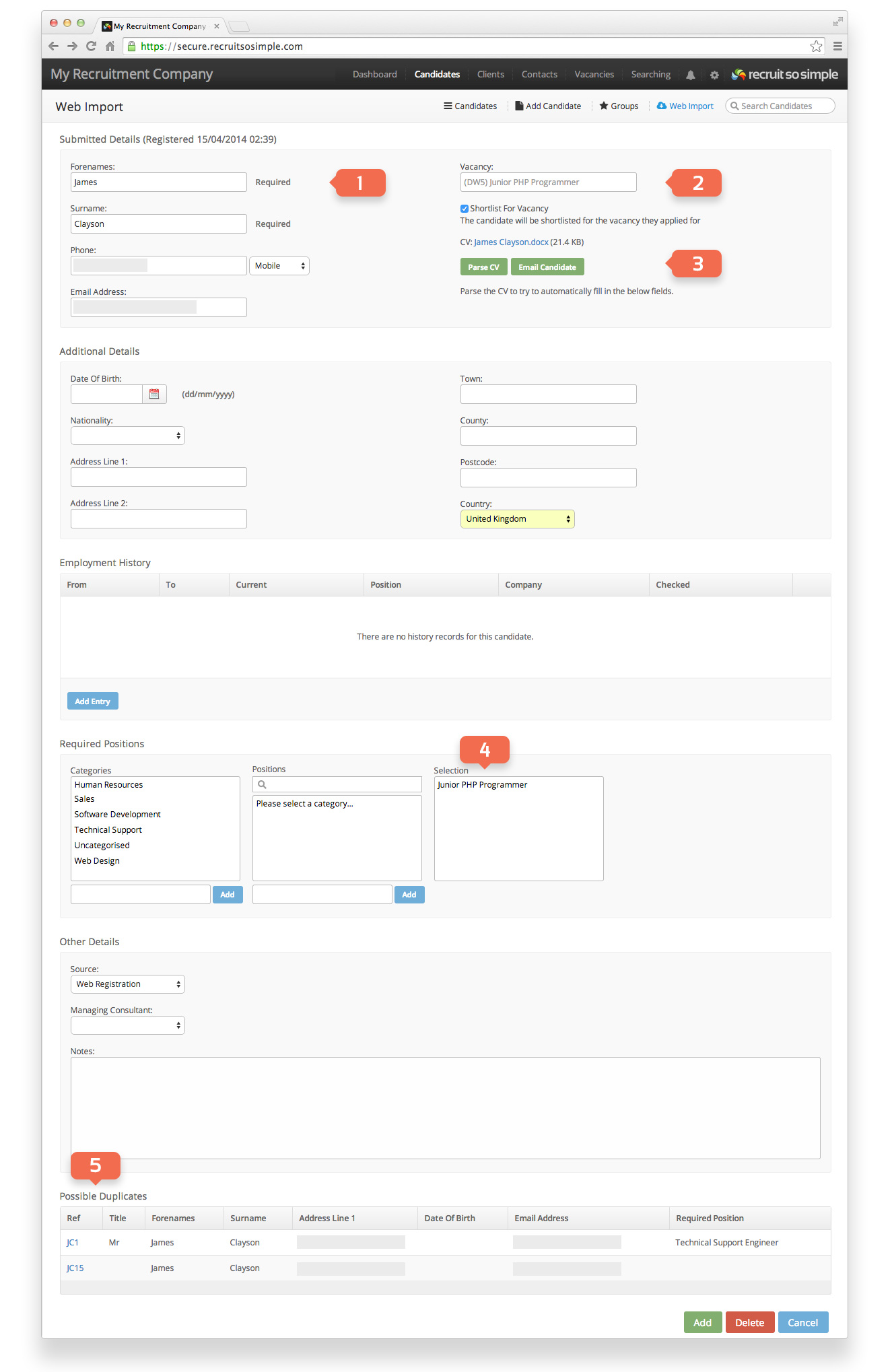
- Information from the website application form [1]:
- Name
- Contact number
- Email address
- The Website Integration Module allows applicants to apply for a vacancy, or to send their CVs speculatively. If a vacancy was applied for it will appear here [2].
- Options when adding the candidate [3]:
- Shortlist the candidate for the vacancy, or just add them to your database.
- Parse the CV or manually add the candidate.
- Email the applicant.
- The job title used to create the vacancy is added to the candidate’s ‘Required Jobs’. You can add additional jobs if you wish [4].
If any potential duplicate candidates are found then you can select to update the existing candidate’s record with a new CV. You can additionally add the existing candidate to the vacancy they’ve applied for (only if the web registration was for a specific vacancy).
AI CV Summary
After parsing a CV, ad AI generated CV summary is generated, and includes: Professional Summary, Current Role, Qualifications, Key Skills, Achievements, and Previous Experience. You can read more about our AI Tools here. This feature requires AI Tools enabling in [System Settings > Company Details].