Use mentions to notify colleagues and tag related candidates, clients, contacts or vacancies within your journals.
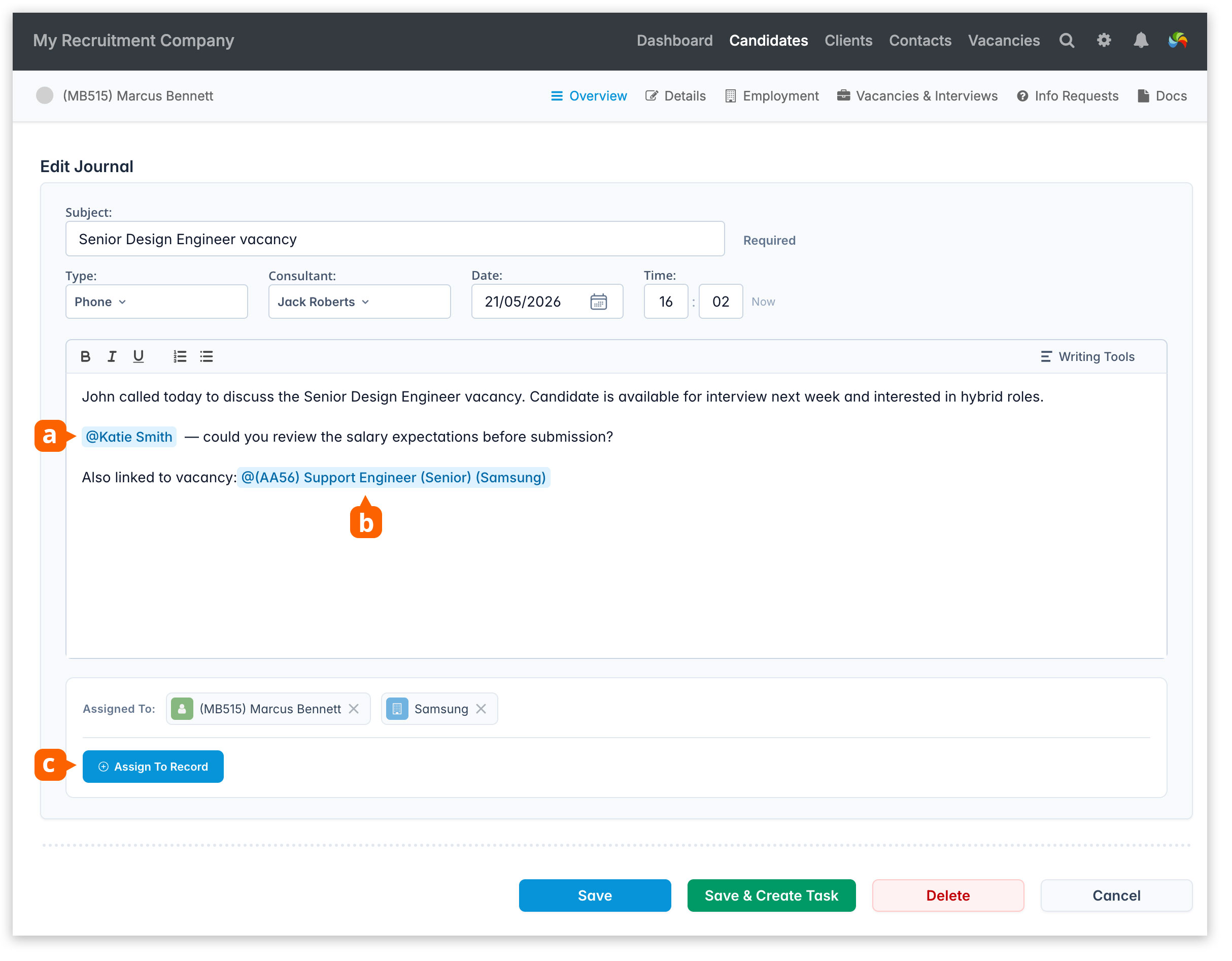
Type @ followed by a name, then choose a colleague or record from the list.
Mentioning a colleague [a] sends an email notification and on-screen alert to that user.
Mentioning a record [b] creates a link to the related record.
Assign To Record [c] allows you to add the same journal to up to 10 additional records. The journal can then be viewed and edited from any of the assigned records.
Enable/Disable mention notifications
You can disable Mention notifications (email and on-screen alert) in [Settings > My Account > General].
Filter Journals by Mentioned Me
On a record’s Overview screen, click the Filter button (located next to New Journal) to show only journals where you are mentioned. If you also select one or more journal types, only mentions within those journal types will be shown.
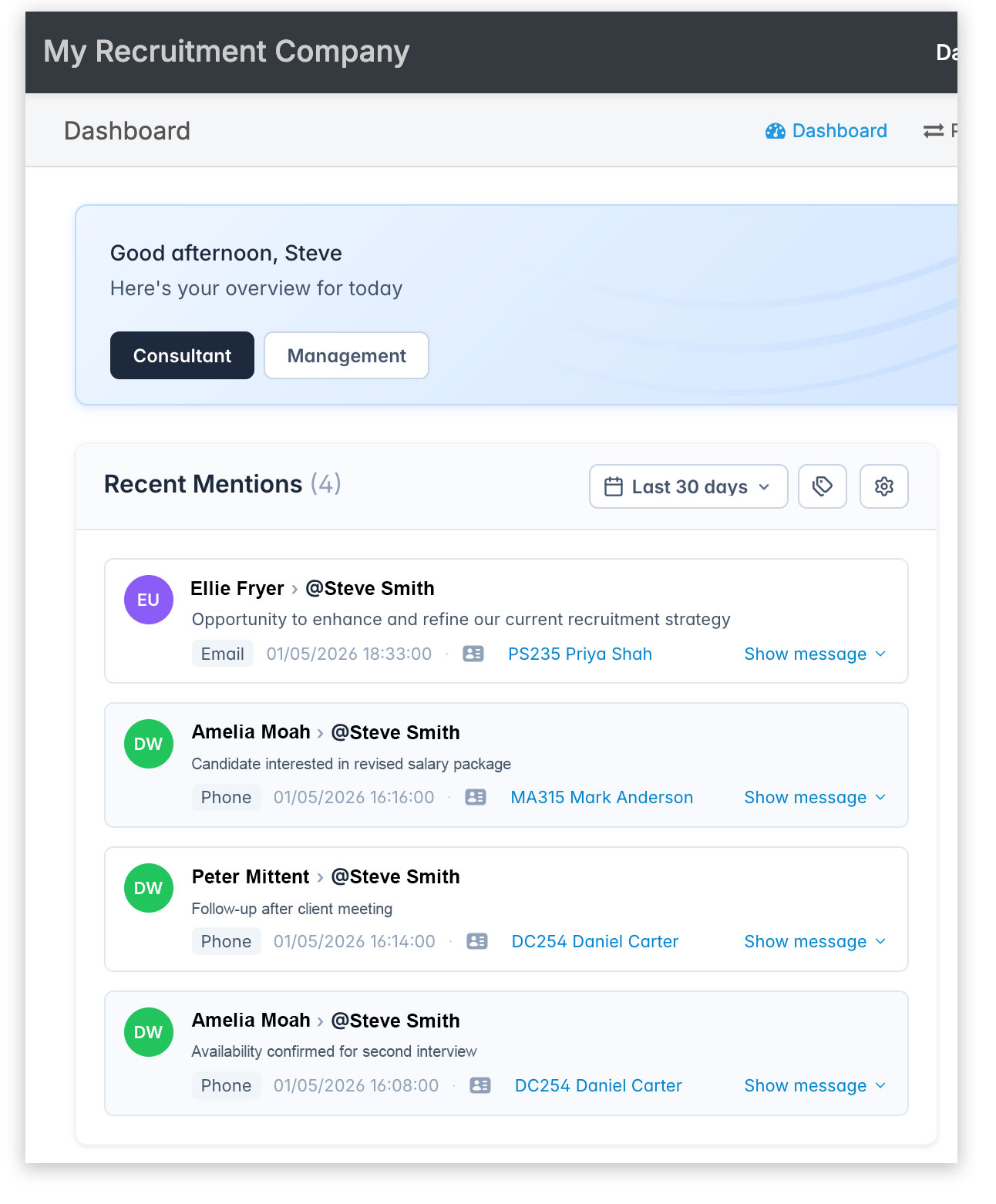
Recent Mentions (dashboard widget)
Add the Recent Mentions dashboard widget, available on the Consultant View, to see who has mentioned you and in which journals.
- Filter by journal type – only journal types containing mentions of you will be shown.
- Click Show Message to view the journal entry.
- Click Quick Preview to preview the candidate’s record.