Settings > System Settings > Job Boards
The Logic Melon Integration module gives you the ability to post your jobs directly to LogicMelon and import candidates directly into the system when they apply. This feature requires you to have a Logic Melon account.
Visit logicmelon.com
Configuring the Module
- Enable the module and enter your Logic Melon administrator username and password under [Settings > System Settings > Job Boards]. The administrator account will be used for importing candidate applications for all users.
- Each user will then need to enter their own Logic Melon username and password under [Settings > My Account > Logic Melon]. The user’s Logic Melon account will be used for posting vacancies.
Sharing a vacancy
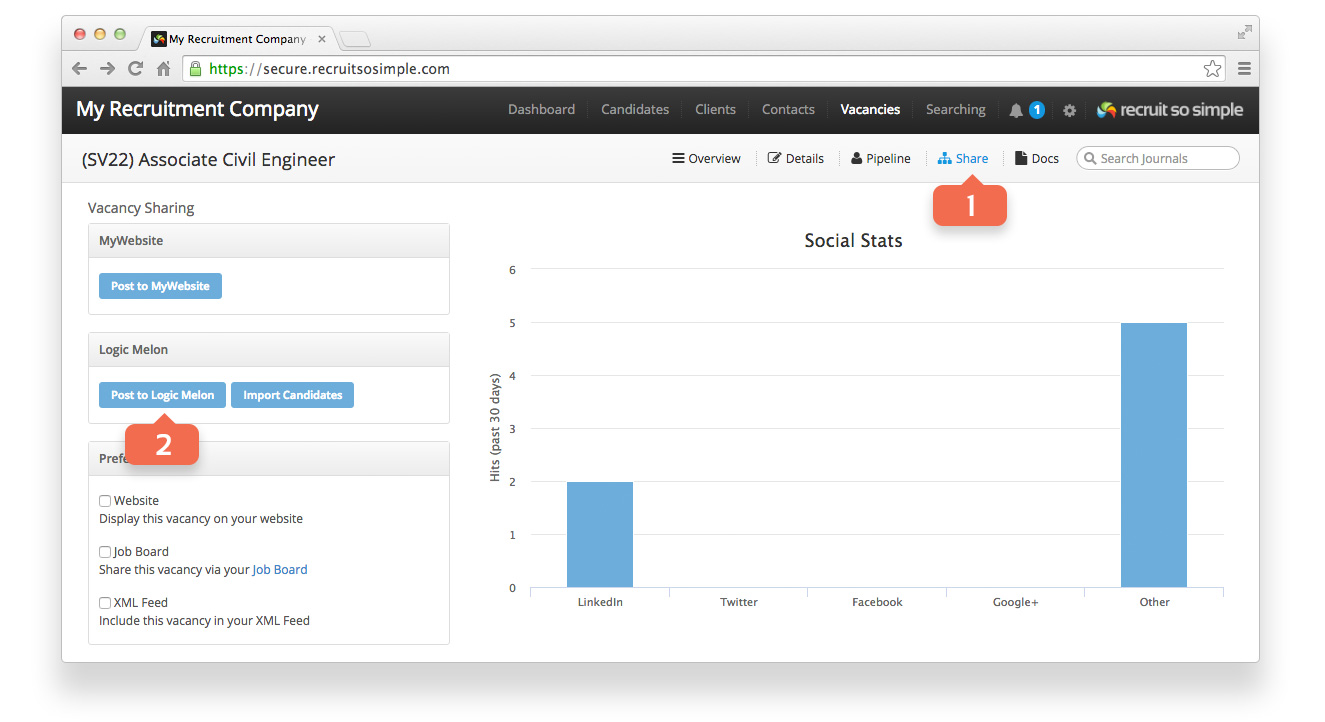
- Open a vacancy record and go to its Share screen.
- Click Post to Logic Melon.
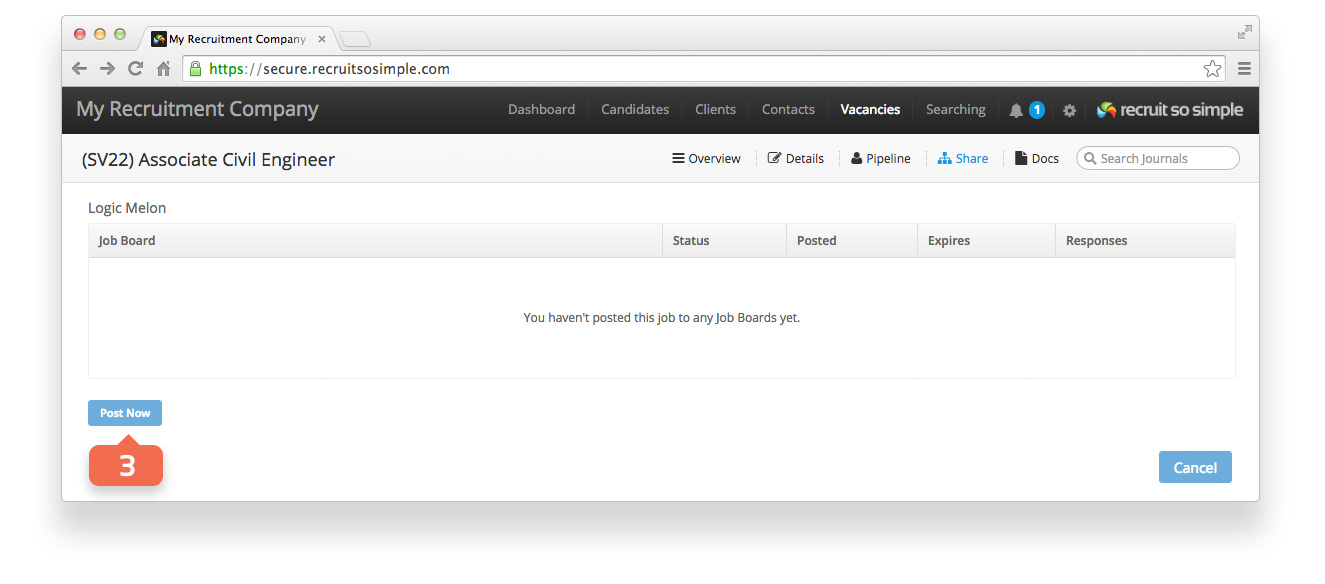
- Click Post Now.
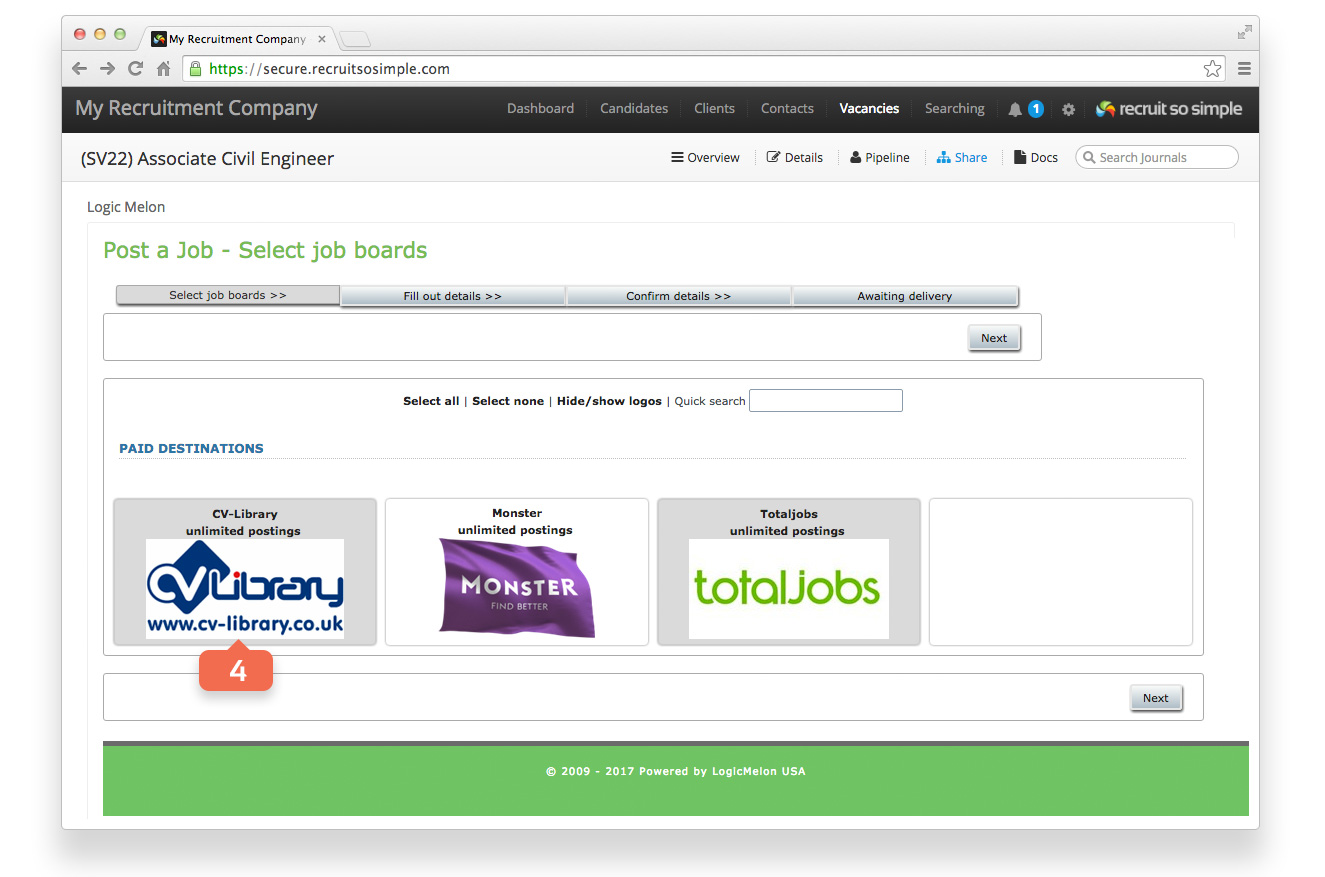
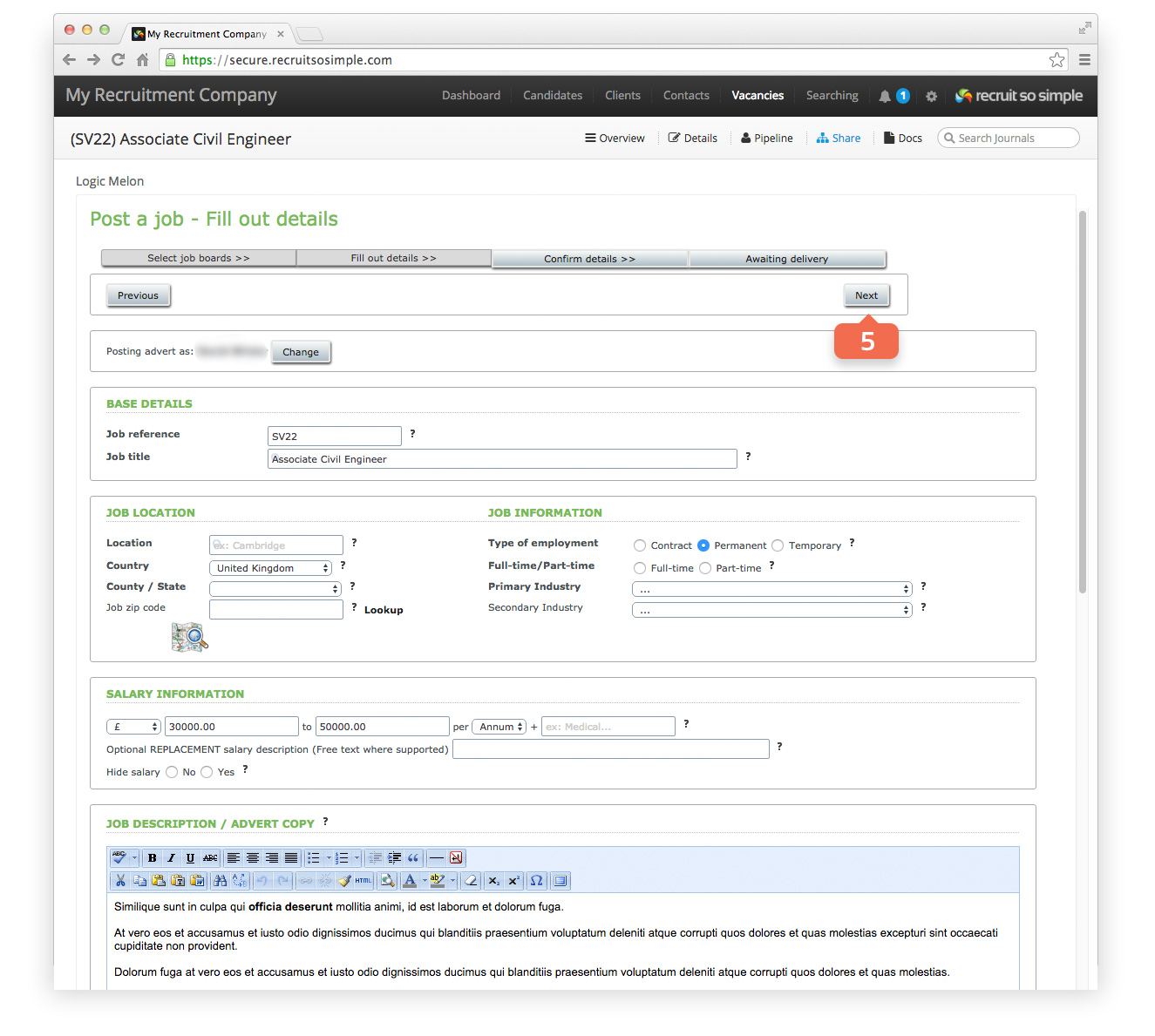
- Select from your subscribed job boards. Note that at this point, you’re using Logic Melon as if you were logged in directly via their website. Important note: Do not change the Job reference, this is used to match the applicant to the correct vacancy.
- Vacancy details will be automatically pulled through. Follow the steps as if logged in to your Logic Melon account.
Importing applications
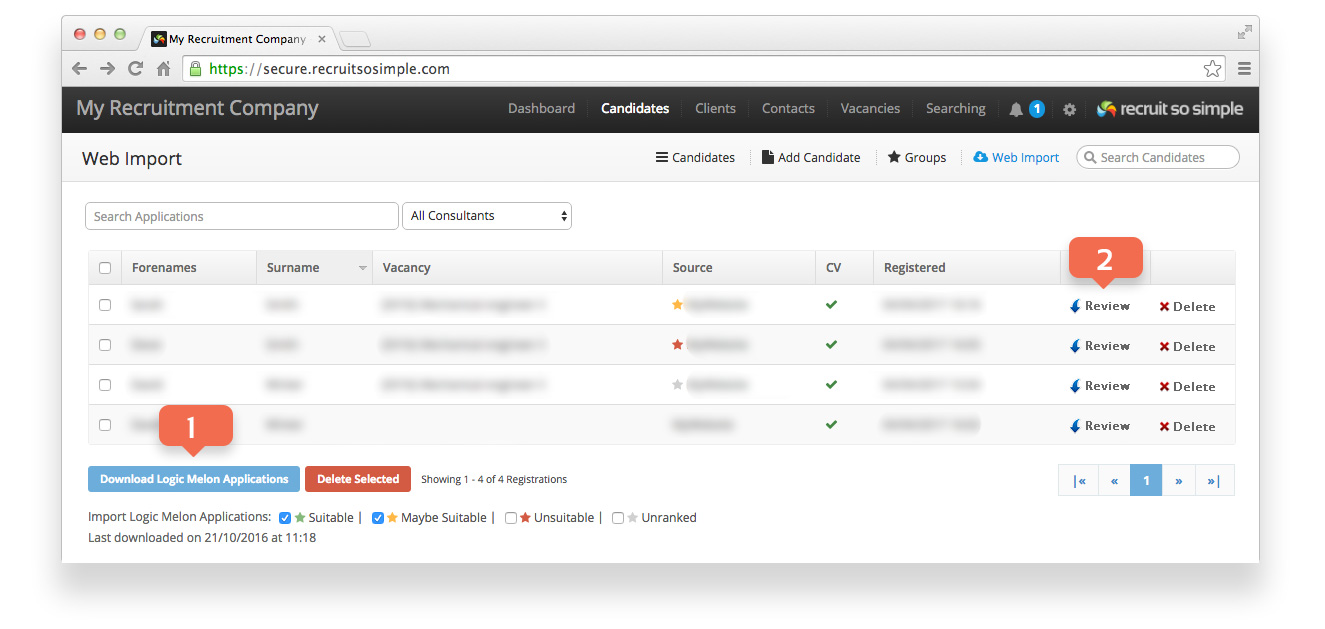
- Download applications from [Candidates > Web Import]. If you wish, you can flag candidates in Logic Melon first, and then choose which to download, for example, ‘Suitable’ and ‘Maybe Suitable’.
- Delete an application or click Review to add a candidate to your database.
The download will be processed in the background and you can continue working. An alert will be generated when the download is finished.