
Settings > System Settings > SMS
The SMS Messaging module gives you the ability to send SMS messages to candidates, contacts and co-workers. All SMS messages sent from the system are deducted from your SMS credit balance.
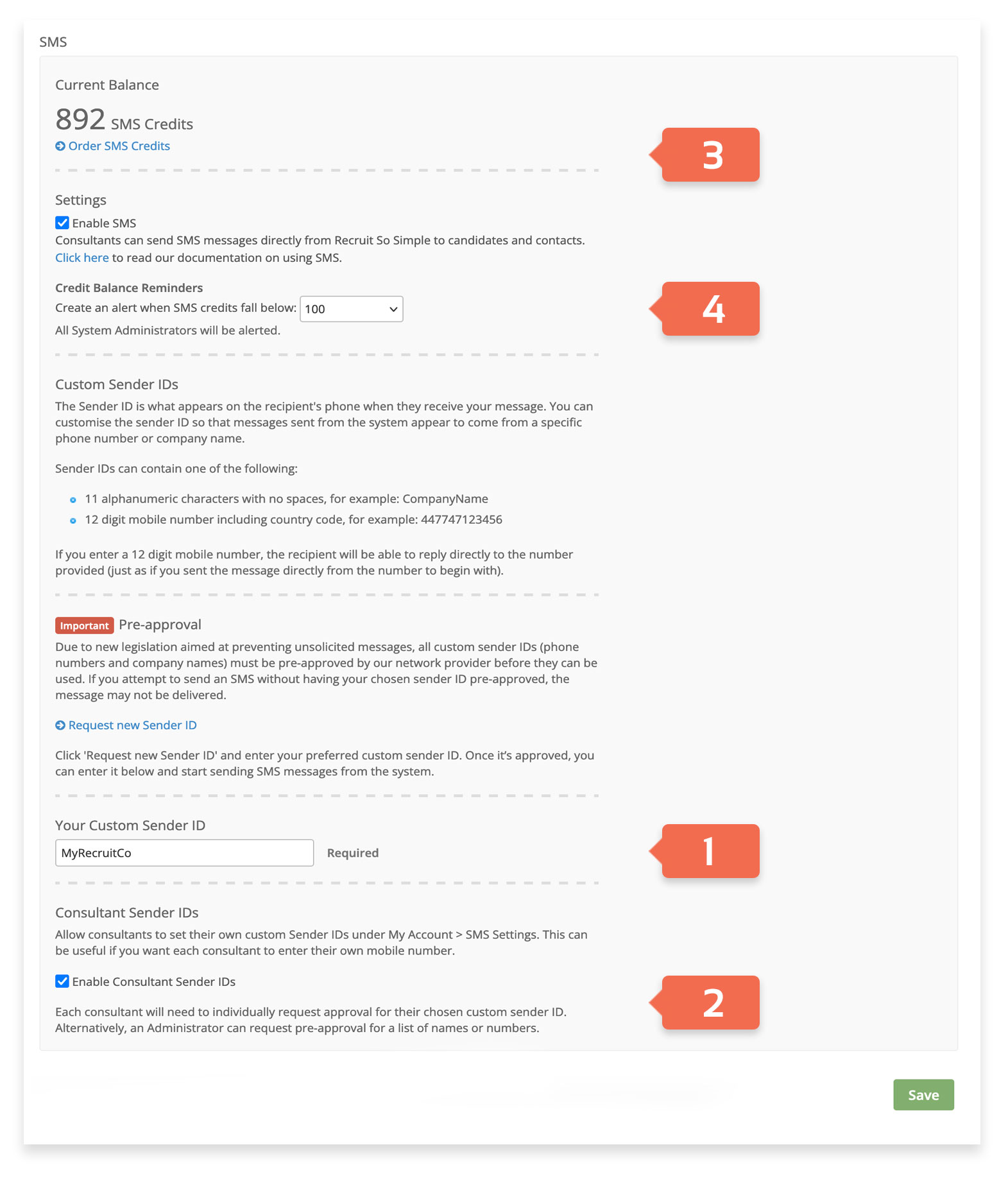
Sender ID
The Sender ID [1] is displayed on the phone when the message is received. This is a global setting that is applied to all messages sent from the system (unless a user has set their own custom Sender ID).
| A sender ID can contain either: | Recipient can reply |
|---|---|
| 11 alphanumeric characters with no spaces (CompanyName). | No |
| 12 digit mobile number including country code (447747123456). | Yes |
Sender ID pre-approval
Due to legislation aimed at preventing unsolicited messages, all custom sender IDs (phone numbers and company names) must be pre-approved by our network provider before they can be used. If you attempt to send an SMS without having your chosen sender ID pre-approved, the message may not be delivered.
You can request approval for your sender ID by opening a support ticket from [Dashboard > Help & Support], and letting us know what your preferred sender ID is.
Enable Custom Sender IDs
The Enable Custom Sender IDs [2] option allows users to set their own custom Sender ID rather than use the account’s default setting. If a number is used, users can receive replies (to messages that they send) to their own mobile phone. Custom IDs can be added from [Settings > My Account > SMS Settings]:
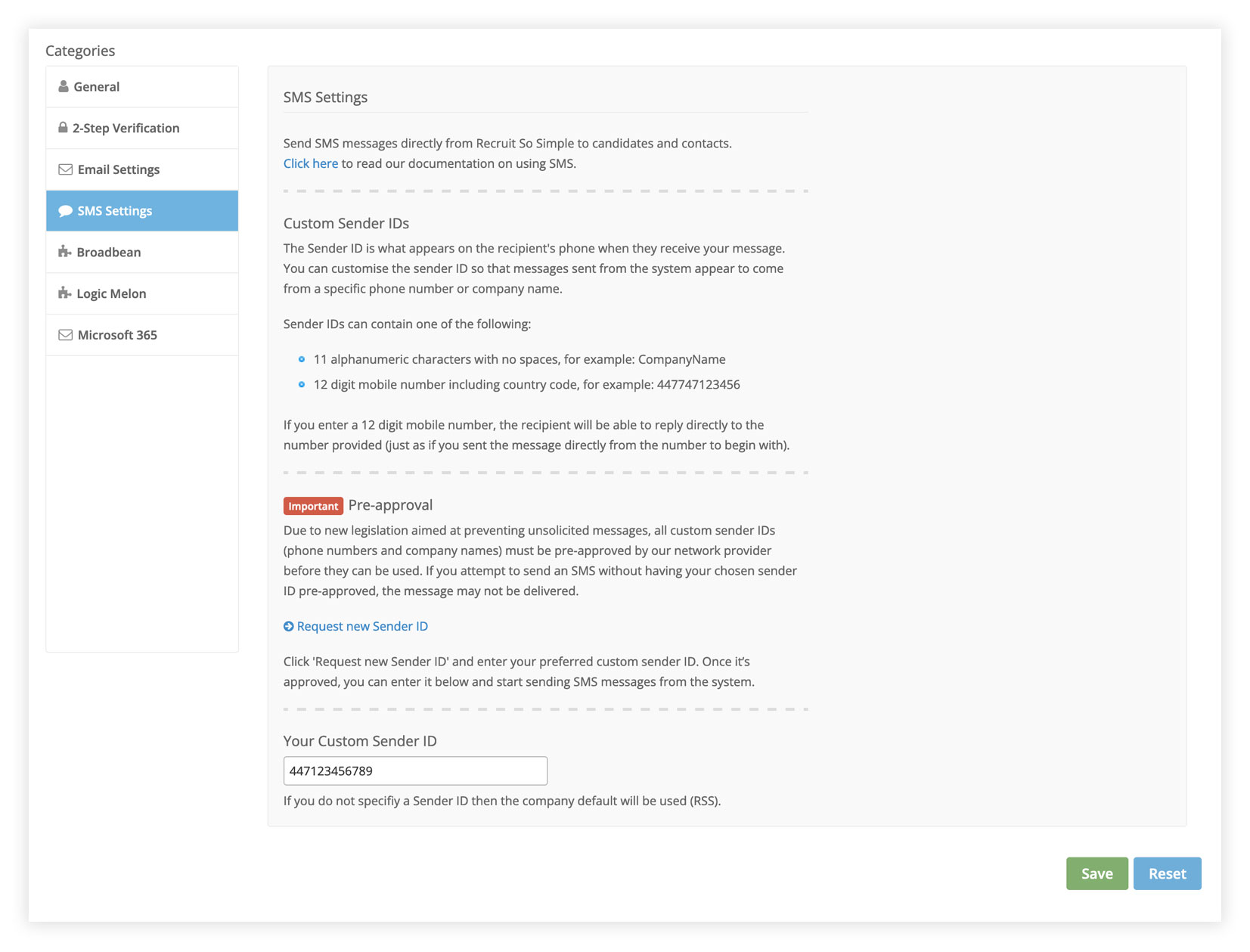
Note: US Telecommunications legislation prohibits the use of custom Sender IDs. If a custom Sender ID is used, it will be replaced with 43704 if sent to recipients in the US.
Ordering SMS Credits
Order more credits as you require [3]. If you have a zero credit balance you will not be able to send any SMS messages.
Credit Reminders
The Current Balance panel [4] will keep track of how many credits you have left and allows you to set an alert for when credits run low.
Composing an SMS Message
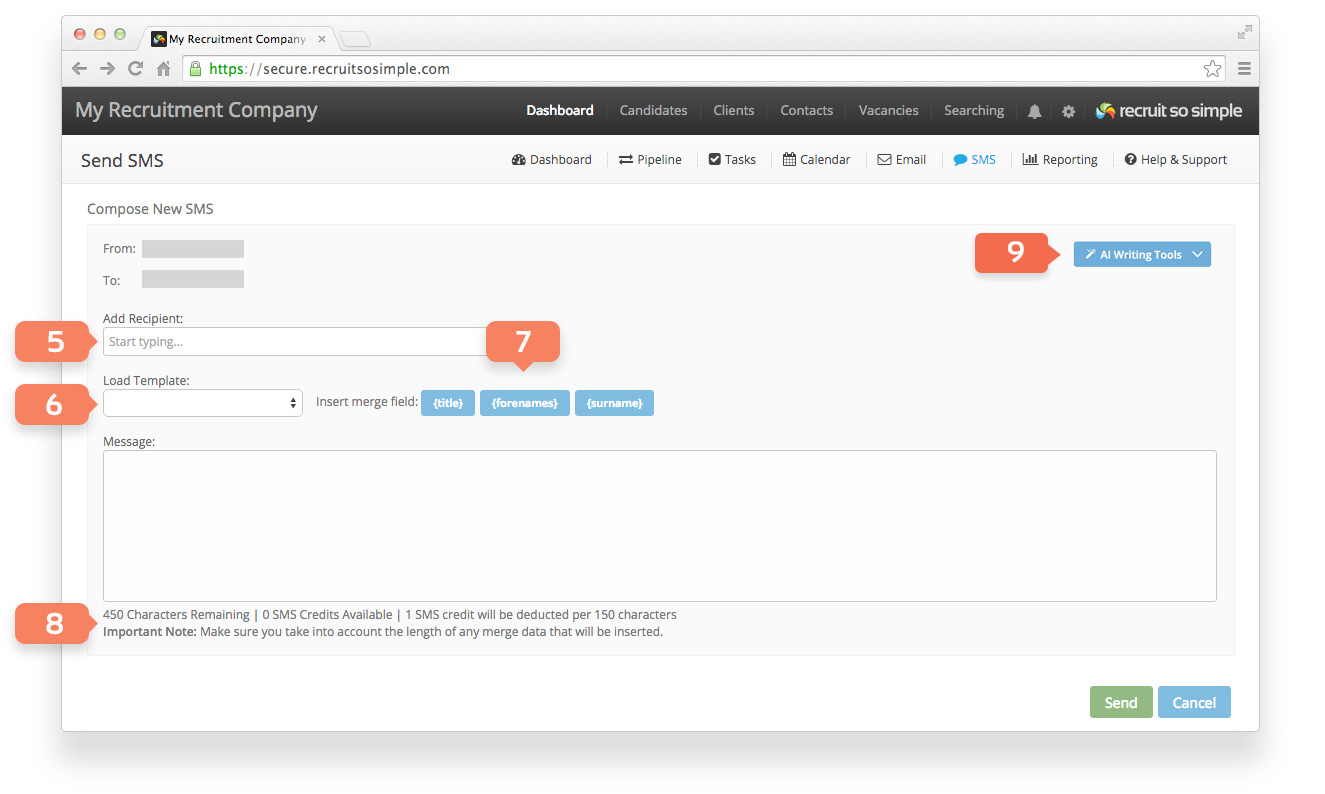
- 1 SMS credit is deducted per 150 characters.
- Maximum characters: 450 (3 credits)
You can send SMS Messages to candidates, contacts and other users. To add a recipient, start typing their name in the Add Recipient box [5]. Suggestions will start to appear while you type – simply select the name of the person you wish you message and they will be added to the list. Recipients must exist on your database, it’s not possible to add a mobile number to the ‘Add Recipient’ field. The SMS message will be added as a journal to the relevant record when sent successfully. Templates [6] can be used to save time with frequently sent messages. SMS templates can be created from [Settings > System Settings > Email/SMS Templates]. Merge fields [7] are available to personalise messages when sending to multiple recipients. When using merge fields, remember that the recipient’s title and name will add characters to your message. The system will count characters as you type [8], so you’ll know how many credits you’ll use.
AI Writing Tools [9] allows you to select text and choose a writing style from: friendly, professional, concise, or key points. You can read about our other AI Tools here.
Bulk SMS messaging: There is a limit of 50 recipients per message to comply with anti-spam policies.
| Allowed SMS Characters | |||||||||||||||
|---|---|---|---|---|---|---|---|---|---|---|---|---|---|---|---|
| @ | £ | $ | ¥ | è | é | ù | ì | ò | Ç | \n | Ø | ø | \r | Å | å |
| Δ | _ | Φ | Γ | Λ | Ω | Π | Ψ | Σ | Θ | Ξ | ESC | Æ | æ | ß | É |
| SP | ! | “ | # | ¤ | % | & | ‘ | ( | ) | * | + | , | – | . | / |
| 0 | 1 | 2 | 3 | 4 | 5 | 6 | 7 | 8 | 9 | : | ; | < | = | > | ? |
| ¡ | A | B | C | D | E | F | G | H | I | J | K | L | M | N | O |
| P | Q | R | S | T | U | V | W | X | Y | Z | Ä | Ö | Ñ | Ü | § |
| ¿ | a | b | c | d | e | f | g | h | i | j | k | l | m | n | o |
| p | q | r | s | t | u | v | w | x | y | z | ä | ö | ñ | ü | à |