
Settings > System Settings > Permissions
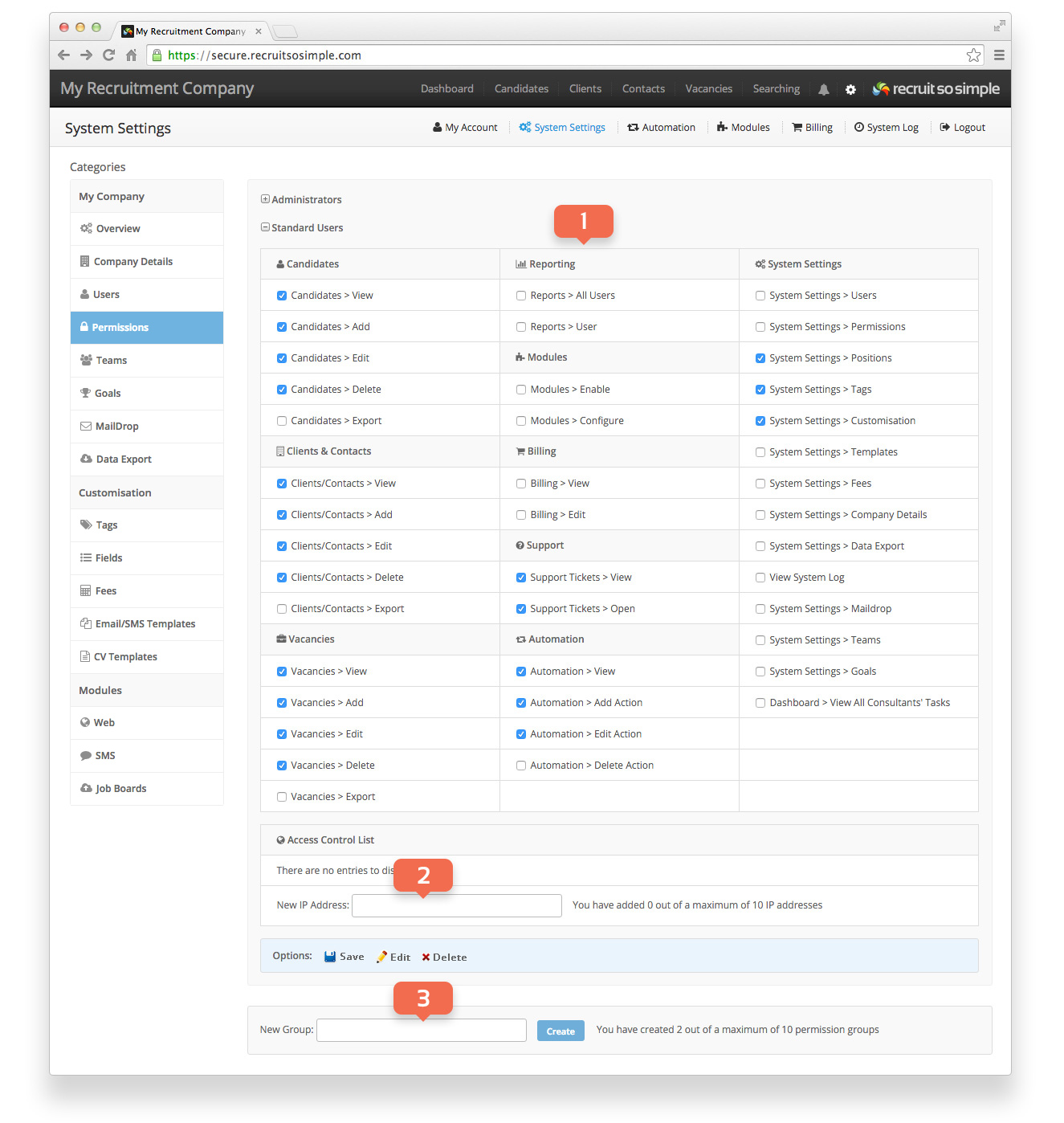
Permissions are used to manage what users can see and do on your database. By default the system provides an Administrators group (full access) and a Standard Users group (limited access).
- Change the permissions for Standard Users by selecting or deselecting the required options.
- Restrict access based on a user’s IP address (See Access Control Lists below).
- New Group: Create custom user groups each with their own permissions.
Users can be assigned to groups from [Settings > System Settings > Users]
Access Control Lists
You can use Access Control Lists to restrict access to the system based on a user’s public IP address. This ensures that users can only access the system from specific locations. For example, you may only want employees to be able to access Recruit So Simple from your main office and not from home.
Important: Note that you can only restrict access if the users have what’s called a “static” IP address. This means that their IP address does not ever change. The home broadband packages that most ISPs provide come with a “dynamic” IP address, this means the IP address can and will change regularly. If you restrict access to a dynamic IP address and then it changes, that user won’t be able to access the system. For this reason, you must only use this feature with static IP addresses.
For additional security, we strongly recommend that you enable 2-step verification for all users.
You can find out what your public IP address is by using a tool such as whatsmyip.org
If no rules have been set (the default) then users will be able to login from any location. Adding a rule means only users originating from the specified IP addresses will be permitted to login. You can not apply rules to the Administrators group.
You can add a maximum of 50 IP addresses per group.
Important Note: This is an advanced feature and should only be used by Administrators who fully understand the basics of networking. If it’s not configured appropriately, you risk blocking your users from accessing the system. This feature requires the use of static IP addresses to work correctly.
The following permissions are available
| General | What it allows |
|---|---|
| Edit/Delete Journals | Journals can be edited and deleted. Note that a journal can always be deleted if the record it is assigned to is deleted from the system. |
| Select All Records | The user can select all of the records that are displayed on the main grids and search results screen from the actions menu. |
| Bulk Actions | Actions can be performed on multiple records at once, this includes deleting records. |
| Candidates | What it allows |
| Select All Records | View the Candidates main grid. |
| Candidates > View | View the Candidates main grid. |
| Candidates > Add | Add new Candidates to the database. |
| Candidates > Edit | Edit Candidate details. |
| Candidates > Delete | Delete Candidates from the database. |
| Candidates > Export | Export Candidates via the main Candidate’s grid. Also see: System Settings > Data Export |
| Candidates > Send Info Request | Send Info Requests to candidates. |
| Clients & Contacts | What it allows |
| Clients/Contacts > View | View the Clients or Contacts main grids |
| Clients/Contacts > Add | Add new Clients or Contacts to your database. |
| Clients/Contacts > Edit | Edit Client or Contact details. |
| Clients/Contacts > Delete | Delete Clients or Contacts from your database. |
| Clients/Contacts > Export | Export Clients or Contacts from the main grids. Also see: System Settings > Data Export |
| Vacancies | What it allows |
| Vacancies > View | View the Vacancies main grid. |
| Vacancies > Add | Add new Vacancies to the database. |
| Vacancies > Edit | Edit Vacancy details. |
| Vacancies > Delete | Delete Vacancies from your database. |
| Vacancies > Export | Export Vacancies from the main grid. Also see: System Settings > Data Export |
| Dashboard | What it allows |
| Dashboard > View All Consultants’ Tasks | See tasks for all consultants from the dashboard. |
| Dashboard > View Pipeline | Access to [Dashboard > Pipeline] |
| Dashboard > View Recent Activity | Allows the Recent Activity feed to be shown on the dashboard. |
| Reporting | What it allows |
| Reports > All Users | Generate reports for all consultants and teams. |
| Reports > User | The consultant can only generate reports for themselves. |
| Billing | What it allows |
| Billing > View | Access to the billing section. |
| Billing > Edit | Change billing details. |
| Support | What it allows |
| Support Tickets > View | View support tickets. |
| Support Tickets > Open | Open a support ticket. |
| Automation | What it allows |
| Automation > View | Access the automation page. |
| Automation > Add Action | Add actions that can be triggered by events in the system. |
| Automation > Edit Action | Edit or change automated actions. |
| Automation > Delete Action | Delete automated actions. |
| System Settings | What it allows |
| System Settings > Users | Access to [Settings > System Settings > Users] |
| System Settings > Groups | Access to [Settings > System Settings > Groups] |
| System Settings > Tags | Access to [Settings > System Settings > Tags] |
| System Settings > Customisation | Access to [Settings > System Settings > Customisation] |
| System Settings> Fees | Access to [Settings > System Settings > Fees] |
| System Settings > Company Details | Access to [Settings > System Settings > Company Details]. |
| System Settings > Data Export | Access to [Settings > System Settings > Data Export] Important: This will enable your entire database to be exported. See other export options above to allow users to export only Client, Contact, Candidate or Vacancy record types. |
| System Settings > Templates | Access to [Settings > System Settings > Email/SMS Templates] Access to [Settings > System Settings > CV Templates] |
| View System Log | Access to [Settings > System Log] |
| System Settings > SMS | Access to [Settings > System Settings > SMS] |
| System Settings > MailDrop | Access to [Settings > System Settings > MailDrop] |
| System Settings > Web | Access to [Settings > System Settings > Web] |
| System Settings > Job Boards | Access to [Settings > System Settings > Job Boards] |
| System Settings > Teams | Access to [Settings > System Settings > Teams] |
| System Settings > Goals | Access to [Settings > System Settings > Goals] |