
Vacancy > Add Vacancy
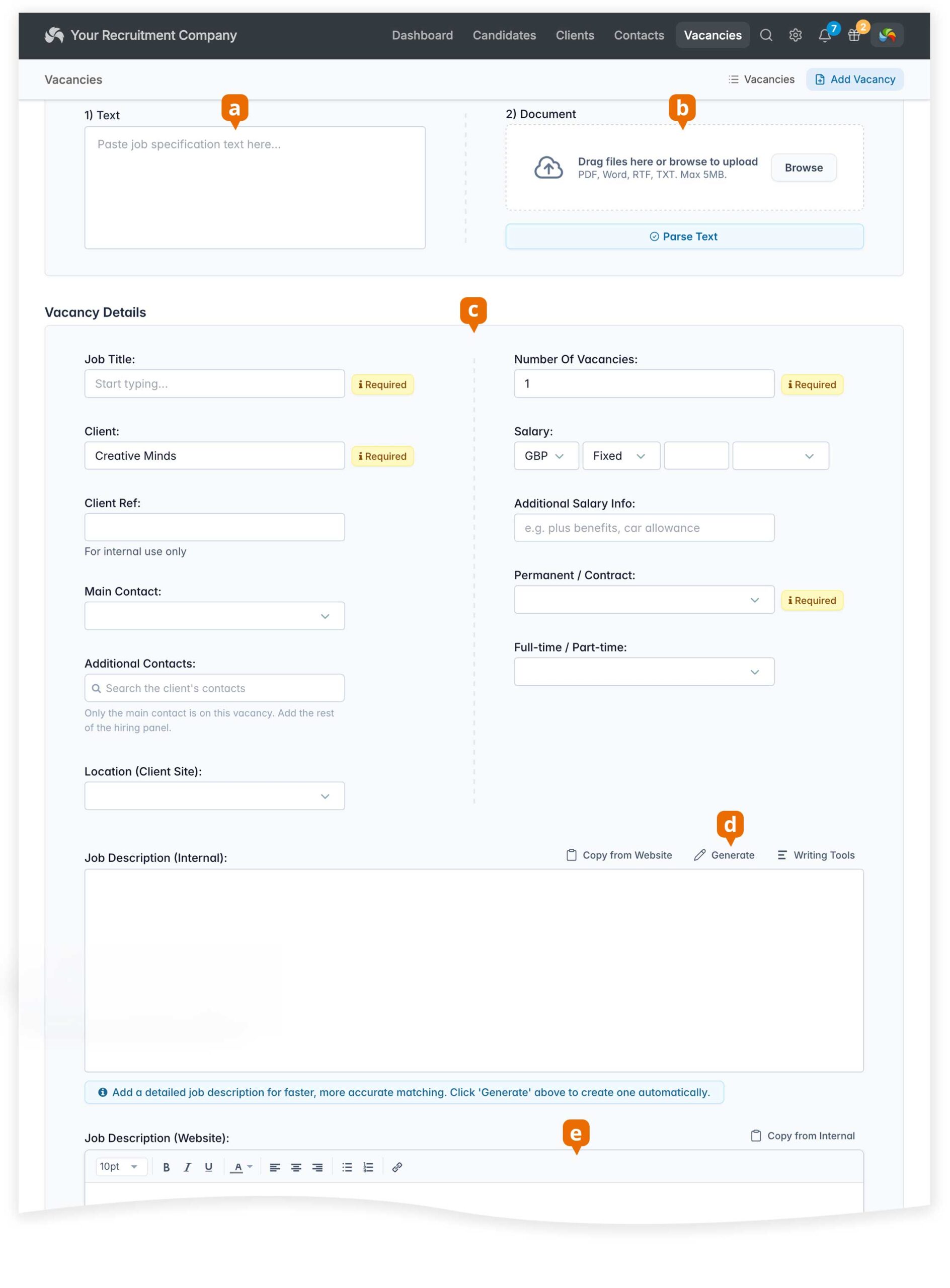
Adding a Job Specification
You can add a job specification by pasting text, uploading a document or adding the details manually:
[a] Paste text
Simply paste the job specification text (including job title, salary, etc.) and click Parse Text.
[b] Upload a document
Upload a job specification (MS Word, PDF or TXT) and click Parse Text.
[c] Review and add details manually
- Job Title (Required): To help with standardisation, as you type you will see a list of similar titles already used on other vacancies or candidate records.
- Client (Required): Start typing the name of an existing client and the system will suggest matching records – and then click from the list.
- Client Ref: For internal use. This is in addition to the reference automatically generated when the vacancy is created. By default, this uses the initials of the user who creates the vacancy. If required, you can change how the vacancy reference is formatted in [Settings > System Settings > Company Details].
- Contact: Choose the main client contact for this vacancy.
- Additional Contacts: Add other contacts from the client. When sending a CV from the vacancy or creating an automated email, such as interview details, you can choose whether to send it to the main contact only or to all contacts for the vacancy.
- Location (Client Site): Select an address associated with your client. The County from the chosen site is used as the vacancy location when posting to websites, job boards and social media. If required, this can be changed to Town in [Settings > System Settings > Web > Website Integration / Job Board].
- Number of Vacancies: You can change the number of positions at any time.
- Salary: Additional currencies can be enabled in [Settings > System Settings > Company Details].
- Permanent / Contract (Required): The system can calculate your fee based on the final salary. You can configure separate fees for permanent and contract placements. Read more about fees and revenue.
- Job Description (Private): It is strongly recommended that you add a job description, as this is used when matching candidates. You can create an AI-generated template [d] to get you started. The private job description is not made public; it is just for internal use and candidate matching. You can also choose to copy the text from the Website description.
- Job Description (Website): This version is used when posting the vacancy to websites, job boards and social media.
- Tags: Adding tags can make it easier to search for vacancies in the future.
- Show on Website: Post the vacancy to your website (requires the Website Integration Module). We also offer both easy and advanced website integration options as standard. If you’re unsure what’s best for you, open a support ticket from [Dashboard > Help & Support] and one of the team will be pleased to help.
- Click Add to add the vacancy to your database.
Managing your Vacancy
See vacancy Pipeline for information on adding candidates, scheduling interviews and placing candidates.