
[Vacancy > Pipeline]
This is where you move candidates through the recruitment process.
Adding a Candidate
You can add a candidate to a vacancy’s pipeline using multiple methods:
- Directly You can use the “Add Candidate” button directly under the pipeline.
- Candidate’s Overview Screen You can use the “Add to Vacancy” button on a candidate’s record.
- Search Results You can select “Add to Vacancy” from the candidates actions menu.
- Candidates Main Grid You can “Add to Vacancy” from the candidates actions menu.
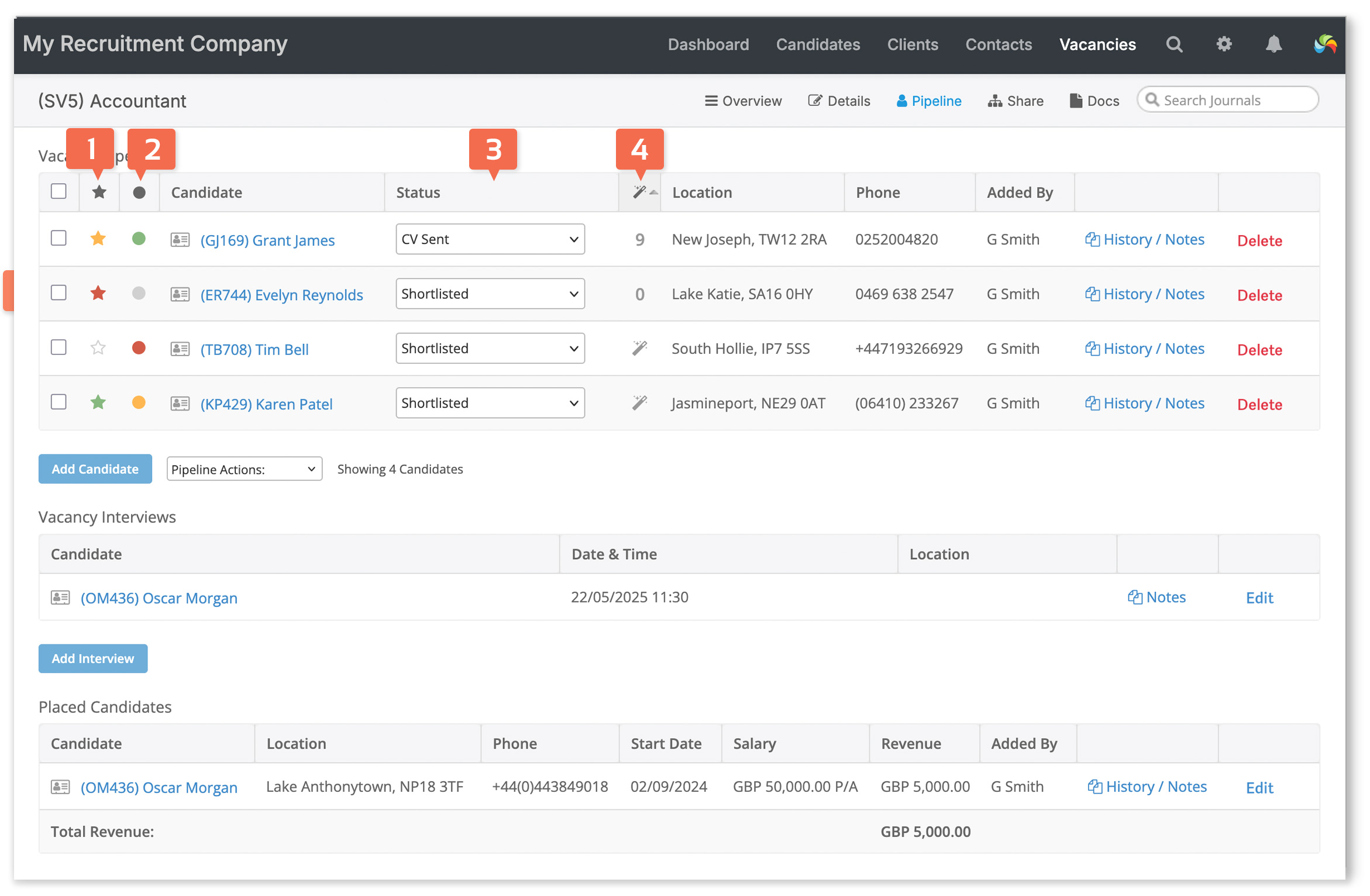
Once a candidate has been added they will be assigned the status of “Shortlisted” by default. The candidate’s phone number and location will be displayed, and you will also be able to view the candidate’s CV, latest journals and any history/notes.
To remove a candidate simply click the “Delete” button.
Pipeline rating system
To help prioritise your shortlisted candidates, you can add a vacancy pipeline rating [1]. Cycle through white, green, amber and red each time it is clicked. Click on the column heading to sort your candidates by their rating. The vacancy pipeline rating is visible to all users.
User Rating
Each user can rate candidates individually [2]. Ratings are user-specific, meaning a candidate’s rating may vary between users. For example, one user might rate a candidate as green, while another might rate the same candidate as amber. Ratings are not shared across users and reflect personal assessments within the CRM.
The user rating is also shown (and can also be changed) in the Candidates Grid, Quick Preview, and the candidate record’s Overview screen.
To clear all ratings, select “Clear All Ratings” from the Actions menu located on the Candidates Grid.
Candidate progression
You can change a candidate’s status in the pipeline by clicking the “Status” [3] dropdown menu and selecting the status you require. The status will update immediately. Candidates are also grouped by status so that you can track them easier. You may add your own statuses from [Settings > System Settings > Customisation].
- Shortlisted *
- CV Sent
- Awaiting Interview
- Interviewed *
- Interviewed (2+) *
- Under Offer *
- Accepted *
- Placed
- Unsuccessful *
- Withdrew *
* Editable statuses [Settings > System Settings > Customisation].
AI Candidate Matching
Click the AI Matching Summary icon [4] to generate a matching score out of 10, along with a summary of pros, cons, and a conclusion. This assessment evaluates the candidate’s suitability for the role by comparing their CV with the job description. You can read more about our AI Tools here.
Pipeline Actions
With selected candidates, you can:
- Email or SMS message selected candidates.
- Email CVs.
- Update the pipeline status.
- Add journals
- Export the candidates to a CSV file.
- Delete candidates from the vacancy.
When emailing candidates, emails will be journaled on the vacancy and the recipients’ records (candidates or contacts). You can add the journal to additional records by editing the journal itself, or by clicking on the email in Sent items [Dashboard > Email].
If you want to add a journal to a single candidate then alternatively you can select Journals in the row for the corresponding candidate, then click the Add Journal button at the bottom of the window.
Adding an Interview
To add an interview for a candidate, click the “Add Interview” button under the Vacancy Interviews section. From here you will be able to select a candidate, enter the location, and set the time and date.
Once you have added an interview, the candidate’s status will automatically change to “Awaiting Interview”. This will only happen if the candidate’s previous status was lower in order than “Awaiting Interview”. If you need to change anything simply click the “Edit” button.
Placing a Candidate
To place a candidate, change their status to “Placed”. A dialog window will appear asking for the following information:
- Start Date This is the date the candidate is due to start their new role.
- Salary The candidate’s final salary.
- Update Employment History This placement will be added to the candidate’s employment history record and set as ‘Current’.
- Archive Candidate By default, once a candidate has been placed they are set to “Placed Internally”. If you would prefer to have them archived instead, select this.
Once a candidate has been placed they will be moved to the “Placed Candidates” section at the bottom. If you have setup your fees, then the revenue from this placement will be calculated automatically for you.
If you need to manually change the revenue or any of the other details, simply click the “Edit” button.