
[System Settings > Email]
You can use MailDrop to automatically store copies of emails sent from your regular email client (such as Microsoft Outlook or Gmail). When composing or replying to an email, simply enter your unique MailDrop address in the Bcc field. Recruit So Simple will then receive a copy of the email, and add it to any matching records found in your database.
If you use Microsoft 365 you can our Email Sync for Microsoft 365 feature to automatically journal your incoming and outgoing email.
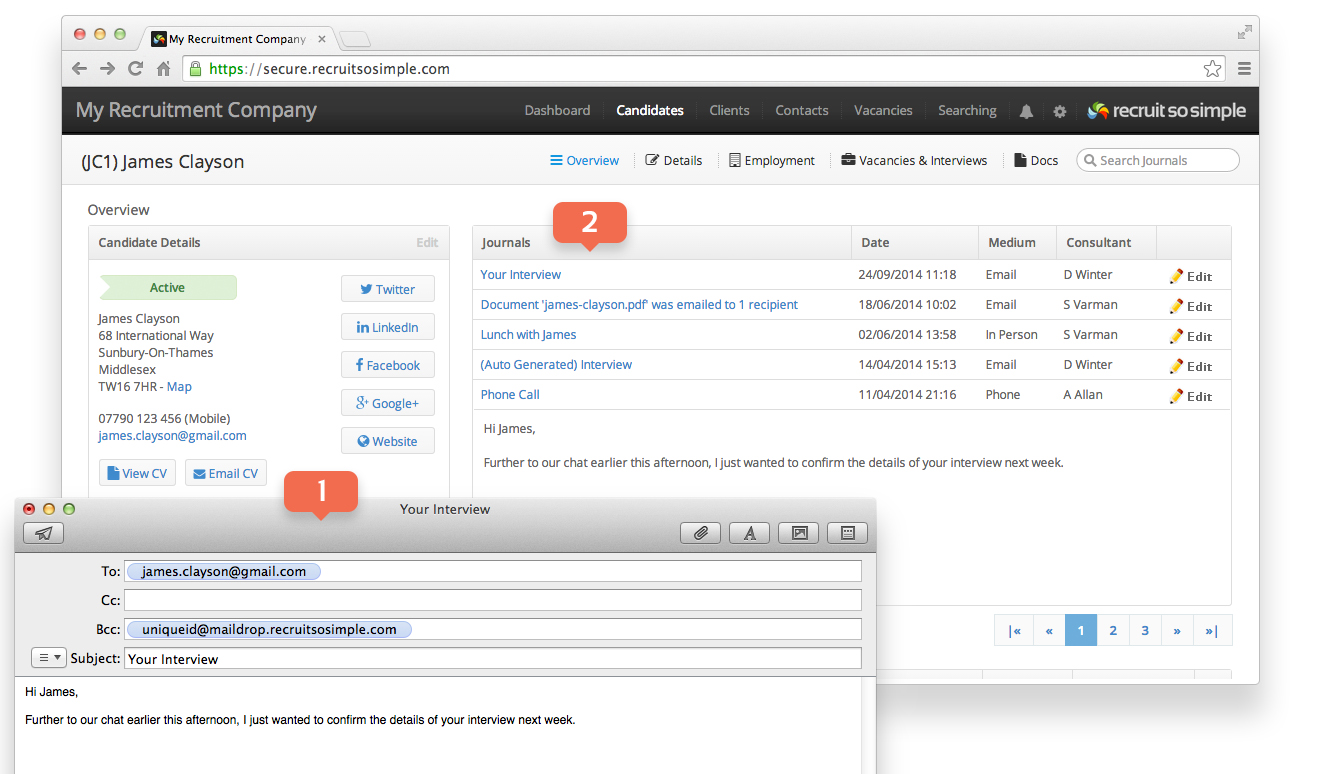
- Bcc the system when sending an email from your regular email client.
- The email will then appear as a Journal on the appropriate record automatically.
Setup
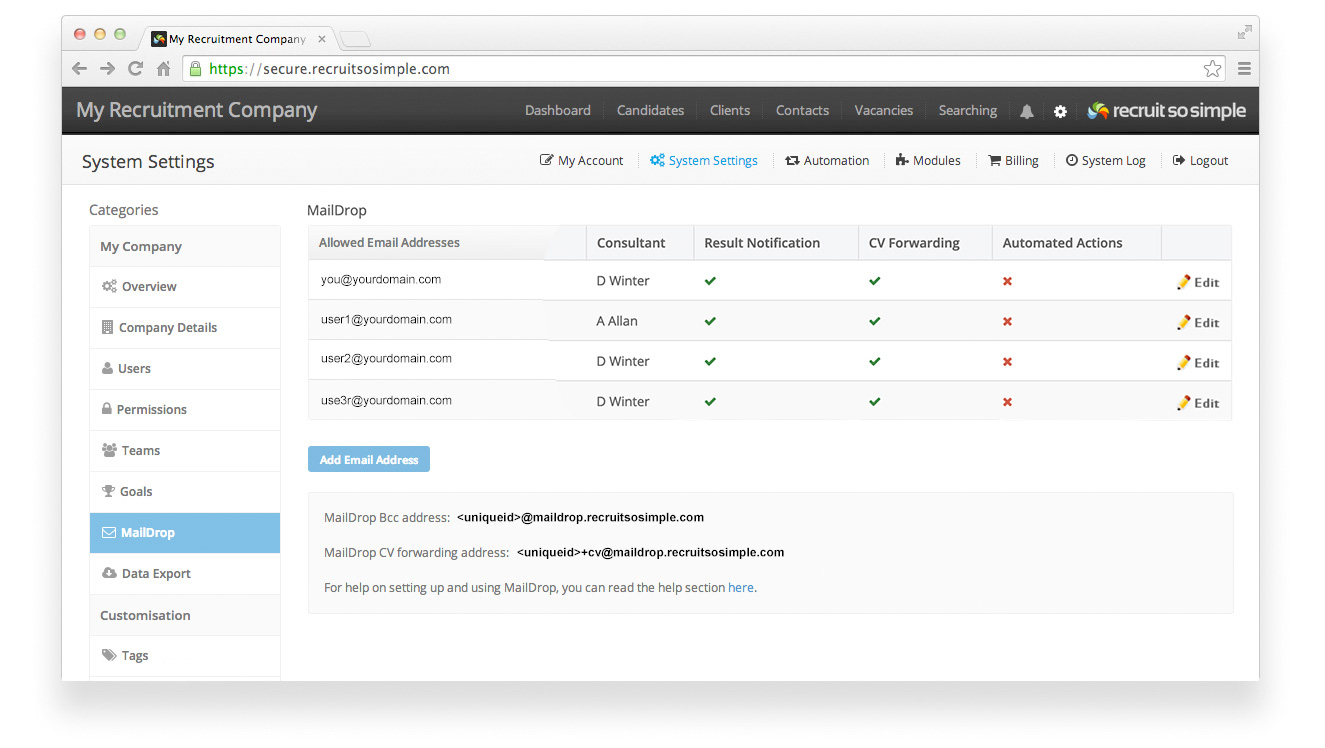
Each email address that you send email from, must be given permission to communicate with MailDrop. Recruit So Simple will only accept emails which have been added to the “Allowed Email Addresses” list. You can do this under System Settings > MailDrop
- Email – Emails received from this address will be accepted by the MailDrop system.
- Consultant – When an email has been received from the email address above, the created journal will be owned by this consultant.
- CV Forwarding – Forwarding CVs to the system will automatically create a new candidate record from the attached document.
- Automated Actions – When enabled, automated actions will be triggered.
- Result Notification – Receive an automated reply from the system letting you know when an email has been successfully/unsuccessfully journaled on a record.
Your Unique Bcc MailDrop Address
Your company’s unique MailDrop address can be found under System Settings > MailDrop
It will be in the following format:
<uniqueid>@maildrop.recruitsosimple.com
The maximum number of email addresses that MailDrop can match is 50. If the combined number of addresses in the To and Cc fields exceeds this limit, MailDrop processes only the first 50 unique addresses in the email.
Your Unique CV Forwarding MailDrop Address
You can also forward CVs to your unique MailDrop CV forwarding address. Recruit So Simple will automatically parse the attachments and create the relevant candidate records. The total size limit for each attachment is 10MB, and the total size of the email can be no more than 25MB.
Your company’s unique CV Forwarding MailDrop address can be found under System Settings > MailDrop
It will be in the following format:
<uniqueid>+cv@maildrop.recruitsosimple.com
Notes
The system supports parsing for the following file formats:
- Microsoft Word (.doc, .docx)
- Adobe PDF .pdf
- Plain text (.txt)
- Rich text (.rtf)
- Web based (.htm, .html)
- Open Office 2.0 (.odt)
Other considerations:
- You can use MailDrop with any standard email client such as Microsoft® Outlook®. You can also use it with webmail services such as Gmail® and Yahoo! Mail®.
- An email address can only be used once across the entire MailDrop system. You will receive an error when trying to add a duplicate email address.
- MailDrop attempts to match the email address found in the To or Cc fields only, with the email address stored against a candidate or contact record.
- Emails are automatically converted into plain text and attachments are not stored (unless you are using the CV forwarding feature).
- Duplicates are detected based on email address and forenames/surname.
- The total size limit for any email is 25MB.