
Table of Contents
- Saved Searches [1]
- Column Picker [2]
- Advanced Search [3]
- CV Search
- AI Search
- Search Builder
- Journal Search
- Clear Search [4]
- Actions [5]
- Search Candidates [6]
- User Rating [7]
- Save Options [8]
- Quick Preview [9]
- Postcode and Postcode Radius
- Tag searching
- Unique to each Grid (Candidates, Clients, Contacts)
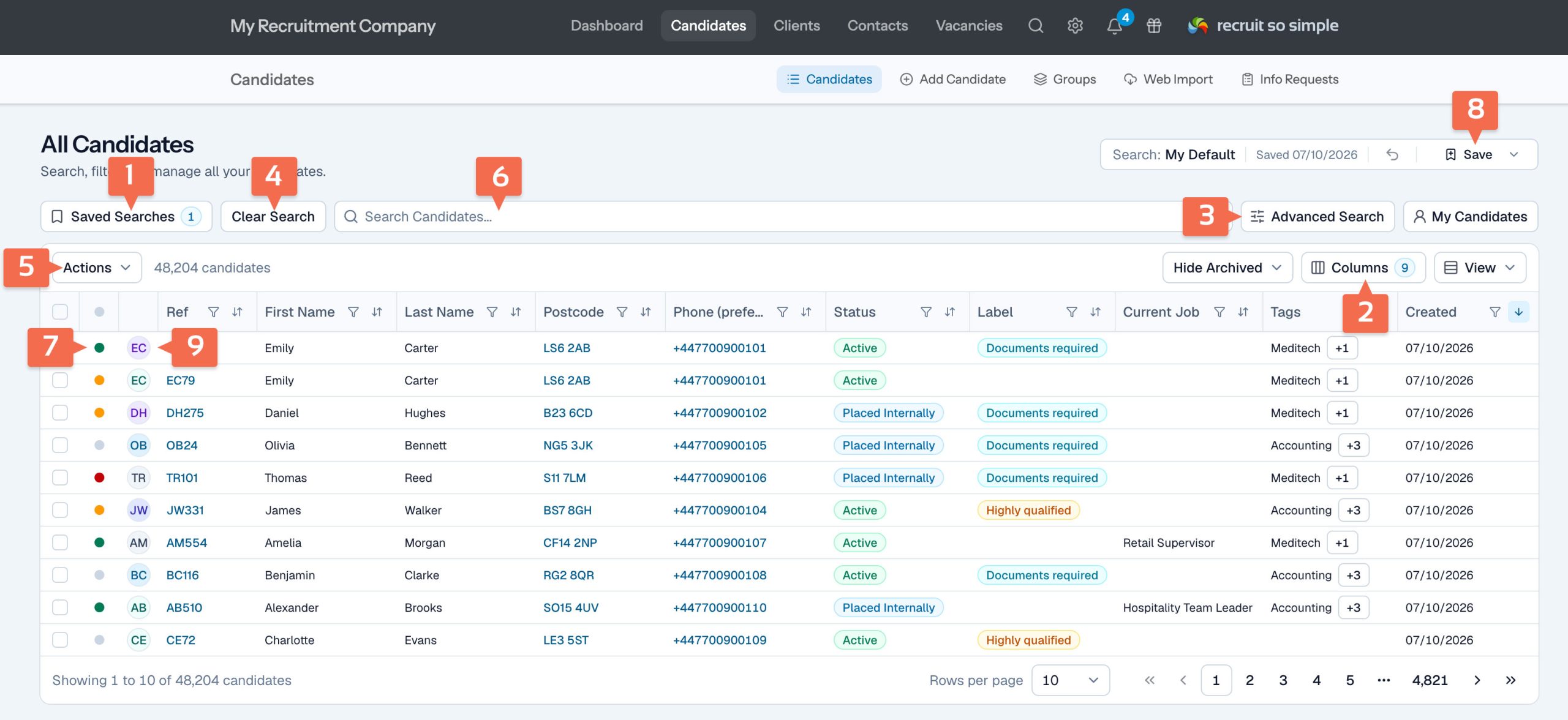
The Main Grids let you customise your columns, along with sorting, filtering, column order and other grid preferences. You can also add search criteria – allowing you to save [8] your preferred layouts and searches, set a default view, and quickly load saved searches whenever needed.
Also see our video tutorials.
[1] Searches
Save columns and searches – set a default layout and load searches whenever you need them. Click on a search to load it.
| Option | Description |
| Create New | Save the current grid (columns, preferences and all search criteria). |
| Update | Update a saved search with the current grid options |
| Rename | Rename a search. |
| Share | Make a search visible to other users. |
| Delete | Delete a search. |
| Search | Find a saved search. |
| Show/hide shared | Show or hide shared searches. |
| Default Search | Make a search your default view. |
| Radar | The search will run automatically each day, and alert you if new candidates are found. |
[2] Column Picker
- Choose a maximum of 12 columns to display in the grid.
- To change the column order, click and drag a columns heading.
- Click and drag between column heading to resize a column.
[3] Advanced Search
Includes:
- CV Searching (search candidate CVs with Boolean)
- AI Search (Natural language searching)
- Search Builder (build complex searches with specific criteria)
- Journal Search (search records by journal type and date)
Also see CV Searching.
| Logic | Description | Example |
| Equals | Exact match, including spaces and special characters |
senior technician |
| Not | Excludes records that exactly match, including spaces and special characters | trainee technician |
| Starts With / Does Not Start With |
Includes spaces and special characters. | senior tech |
| Contains / Does Not Contain |
Includes spaces and special characters. |
C# expert |
| Ends With / Does Not End With |
Including spaces and special characters. | C## |
| Empty / Not Empty |
Returns results with or without data. | Useful for finding records with missing email addresses or postcodes. |
CV Searching
Use AND, OR, NOT Boolean logic, this will be automatically translated into our symbol based syntax (see below) and loaded into the Search Builder:
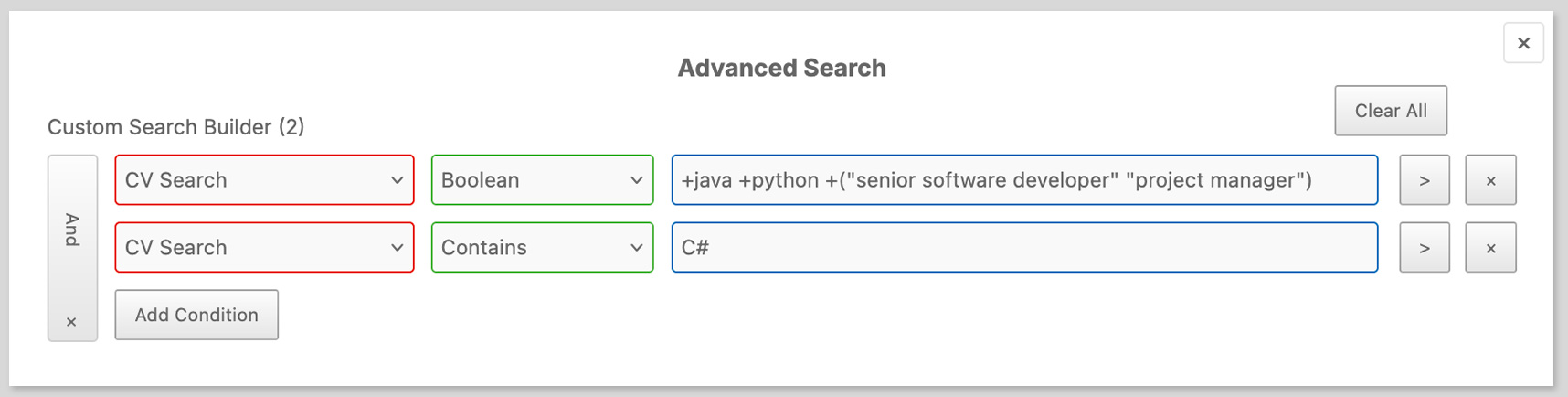
Searches candidate CVs marked as ‘Searchable’. This is set by default when a CV is parsed into the database. You can change which document is searchable by editing it from the Docs screen on the candidate’s record.
| Condition | Description | Example |
|
Boolean Click here for more Boolean examples, or see our video tutorials. |
+ (Plus): must contain |
+linux +java |
|
– (Minus): must not contain |
-windows |
|
|
Space (no operator): Either/or. Best practice is to include a + with parentheses |
+(linux java) |
|
|
Use double quotes for exact phrases. Special characters are ignored – to include special characters, see Contains, below. |
“hr manager” |
|
|
* (Asterisk). Can be appended to a word for a wildcard search |
develop* |
|
|
Use parentheses to group terms and organise your search logic. |
+(linux java) -windows |
|
| Contains / Does Not Contain |
Search for an exact string, including spaces and special characters. | C++ |
| Not Empty / Empty | Return records that do or don’t contain CV Text. | Useful for finding records with or without a searchable CV. |
[4] Clear
Clears all search criteria and column filters. Selected columns, column order and widths are not affected.
[5] Actions
Perform a range of actions on selected records including: Email, Email CVs (requires an Agency CV to be present on the candidate’s Docs), Add to Group, add to Vacancy, Bulk Actions, or Export to CSV.
[6] Quick Search
The Quick Search looks across all columns. A space acts as an AND, so you can find a name from one column and a job title from another in the same search. It also returns partial matches – for example, searching for birm will return results like Birmingham.
[7] User Rating
Each user can rate candidates individually. Ratings are user-specific, meaning a candidate’s rating may vary between users. For example, one user might rate a candidate as green, while another might rate the same candidate as amber.
Use the column filter to find candidates based on their rating – for example, to display only candidates rated as green or amber. You can also sort candidates by rating by clicking the column header.
The user rating is also displayed, and can be changed in the Quick Preview, the candidate’s record, and the Vacancy Pipeline. It is also shown as read only on the Dashboard Pipeline.
To clear all user ratings, select “Clear All Ratings” from the Actions menu.
[8] Save Options
- Save the current grid as a new search, or update the currently loaded search.
- You can also reset the currently loaded search.
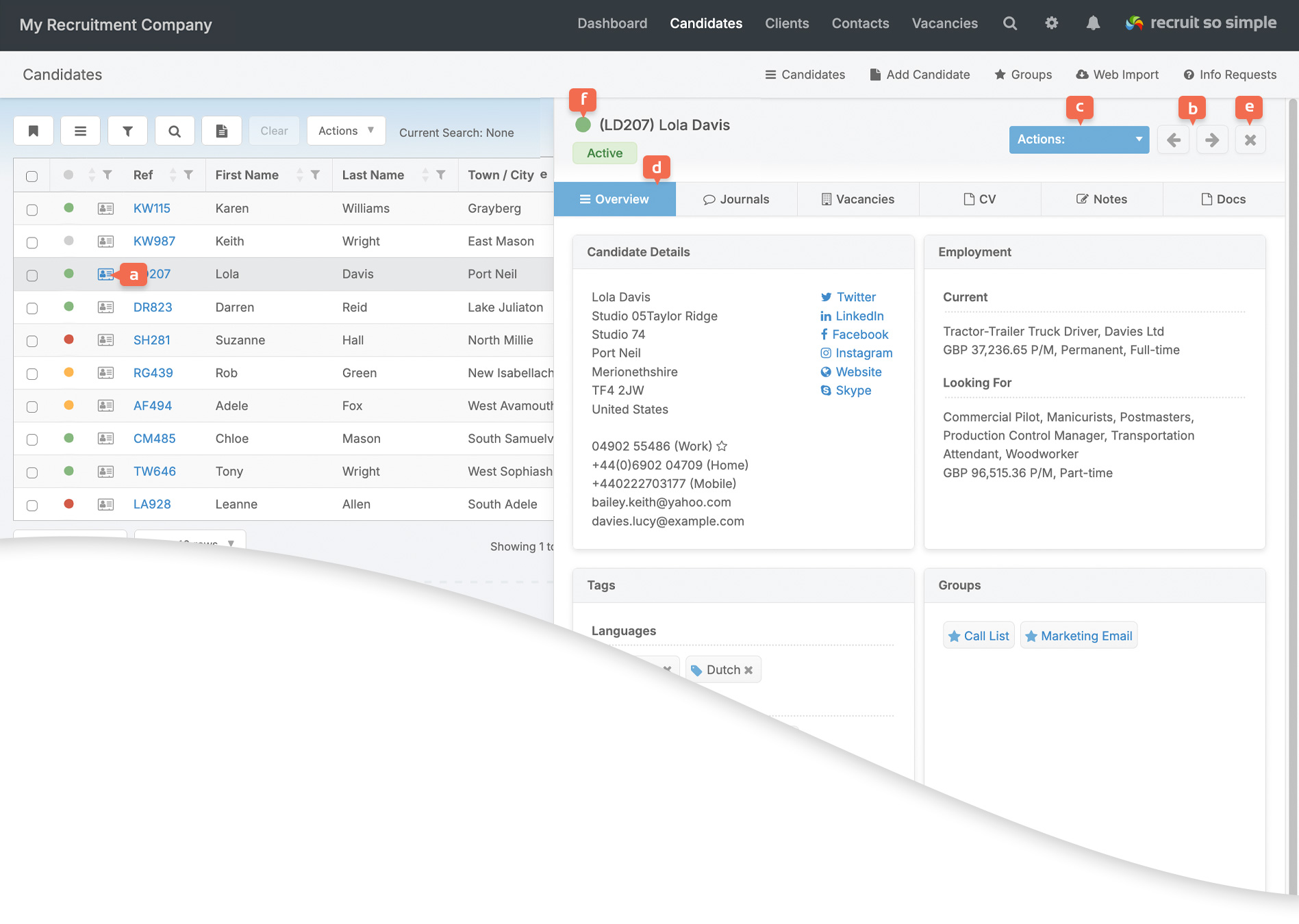
[9] Quick Preview
Quick Preview [a] allows you to see and update a candidate’s record without leaving the grid – useful for working through a list of results.
Choose which page to view [d]. CV is selected by default. If you choose a different page [b], your selection is remembered when viewing different records, until you refresh or leave the Candidates Grid.
- Overview: Key information from the record’s Overview screen
- Journals: You can add a new journal via the ‘Quick Journal‘ option.
- Vacancies: Also shows interviews for the candidate.
- CV: Shows a preview, and will highlight search criteria following a CV Search.
- Notes: View and edit the record’s notes – simply type in the text field and save.
- Docs: See a list of documents on each candidate’s record.
Perform a range of actions [c] (email, text, add to vacancy, add to group and more).
Close the preview [e].
Your user rating can be changed directly in the Quick Preview panel [f].
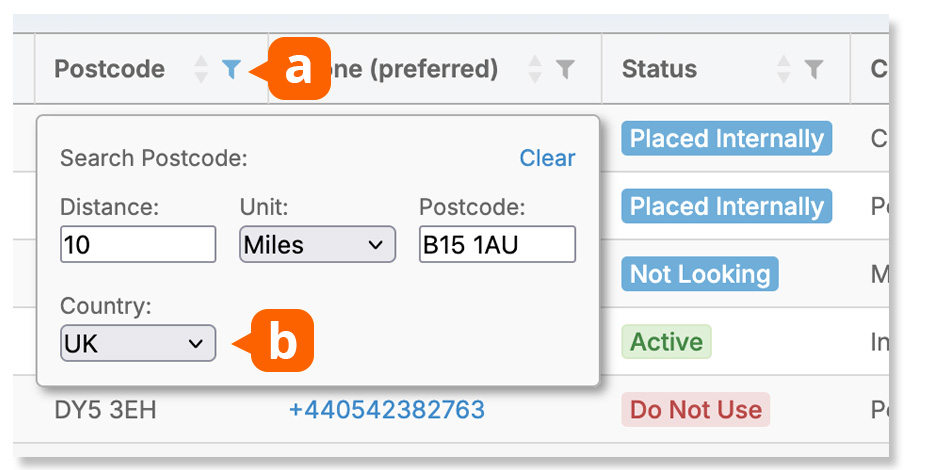
Postcode and Postcode Radius
Ensure ‘Postcode’ has been added to the grid, and click on the column filter [a] to access the Postcode Search. You can search using a full, or partial postcode, for example B15. To filter by a specific postcode, simply leave the distance field empty.
Choose between UK postcodes or US ZIP codes [b]
Tags
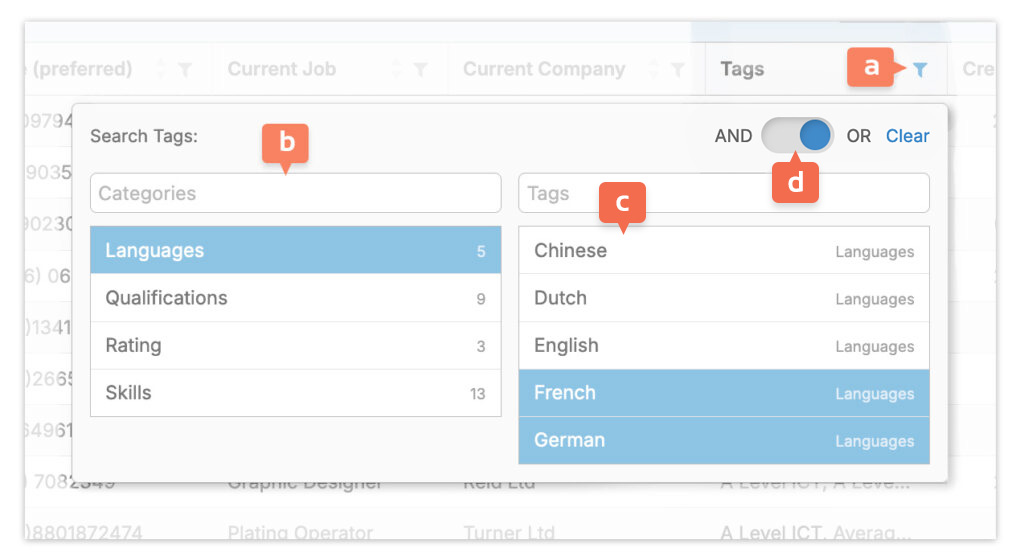
Add Tags to the Grid and click the column filter [a]. If no categories are selected, all tags [c] will be listed, or find tags by category [b].
Choose the Boolean logic [d] for your search: OR returns records with any of the selected tags. AND returns records whose tags include all the selected tags.
Tags with the Advanced Search Builder
Although the column filter (above) should be your primary method for tag searching, you can further refine your tag search with the Advanced Search Builder. The example, below, will return records where a tag includes ‘Adobe’.
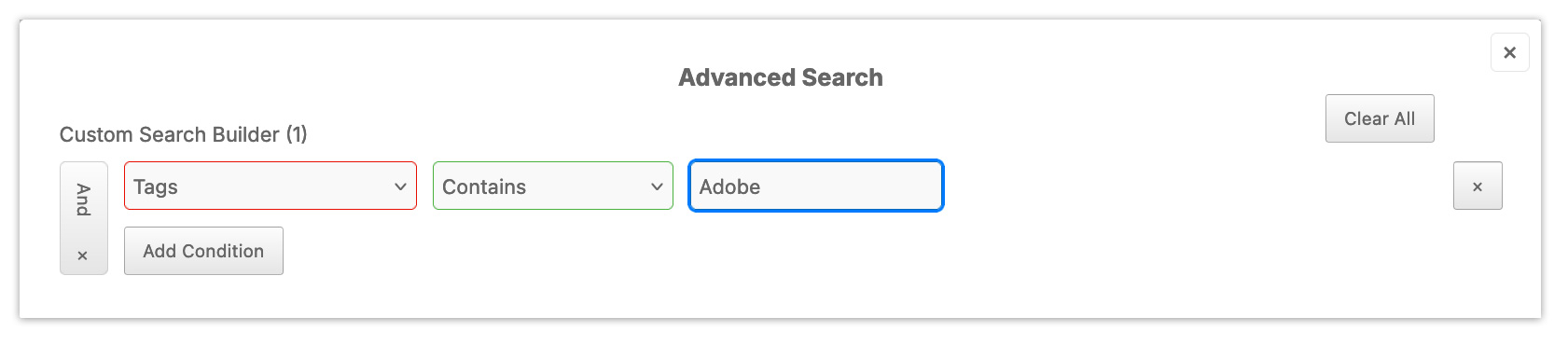
In the example, below, either ‘Adobe Photoshop’ or ‘Adobe Illustrator’ will be returned.
Selecting Records
Select All Records (Actions menu [7]): Select all records returned with current filters and search criteria applied. Excludes archived records if the filter is set to ‘hide archived’.
Select records per page: Records can be selected per page.
Unique To Each Grid
Candidates Grid
Quick Preview
View and update candidate records without leaving the grid.
User Rating
Your personal rating for each candidate. This is private and not visible to other users.
CV Searching
Search the content of candidate CVs.
Clients Grid
Postcode (Sites)
Perform a geographical search based on any of the client’s site addresses.
Tags (Sites)
Search clients by tags applied to their sites. For example, find clients with sites tagged HR Management.
Email Main or All Contacts
When emailing selected clients, choose whether to email only the main contact or all contacts linked to those clients.
Bulk Actions
Update Status, Source, Managing Consultant, Business Area, and toggle the Do Not Contact (DNC) setting. If DNC is enabled on a client, none of its contacts can be emailed or sent SMS messages—even if their individual DNC setting is disabled.
Contacts Grid
Business Area (Client)
Search contacts by the tags applied to their associated client. For example, find contacts belonging to clients tagged with Engineering.
Consultant (Client)
Filter contacts based on the managing consultant assigned to the client (contacts themselves don’t have a management consultant).
Status (Client)
Search contacts by the status of the client, for example, clients with a status of Active.
Tags (Client Sites)
Find contacts based on tags applied to the site they’re linked to.
Tags (Client)
Search contacts by tags assigned to their associated client.