
Settings > My Account > 2-Step Verification
In Recruit So Simple, 2-Step Verification works in conjunction with a smartphone authentication app (we recommend Google Authenticator). The app will provide a randomly generated 6-digit number for you to enter – in addition to your regular password. This means that even if someone found out your password, they still won’t be able to access your account.
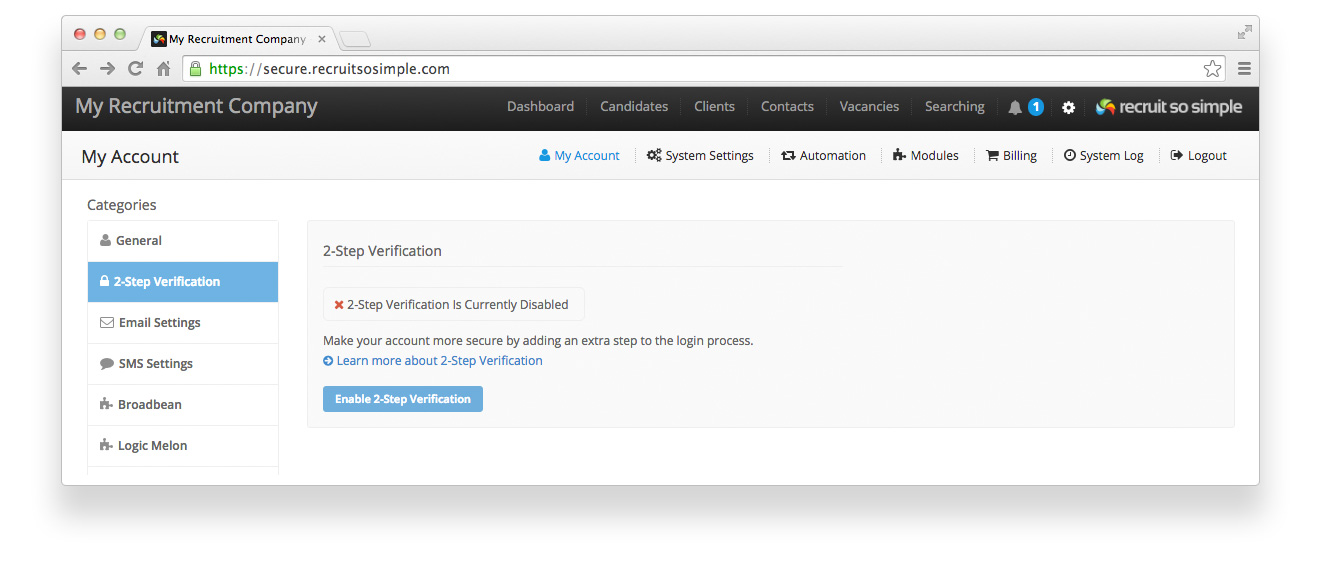
Setting up 2-Step Verification
- Start by downloading an authentication app onto your smartphone, for example Google Authenticator (available for both IOS and Android).
- In Recruit So Simple, switch 2-Step Verification on.
- On your smart phone, use the authentication app to scan the QR code displayed on-screen and enter the 6-digit number provided by the app.
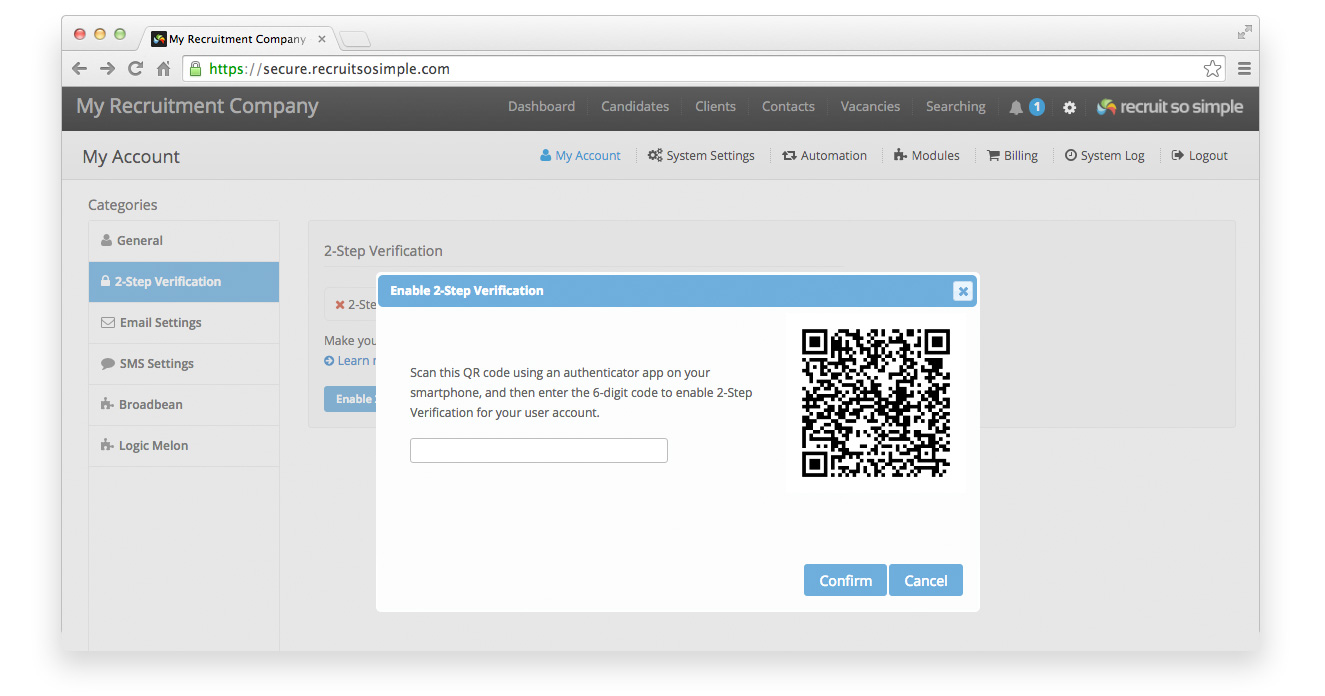
- 2-Step Verification is now setup, and ready for when you login next time.
Logging in with 2-Step Verification
Each time you login to Recruit So Simple, enter your username and password as usual, you’ll then be asked for a 6-digit number, simply launch your authentication app and enter the number it provides.
Managing users
System administrators can see who has 2-Step Verification switched on in [Settings > System Settings > Users]. If required, 2-Step Verification can be switched off for each user.
You can switch off 2-Step Verification at any time from [Settings > My Account > 2-Step Verification].