
Dashboard > Pipeline > CVs Sent
CVs Sent tracks every CV you send to a client and helps you follow it up for feedback. Each CV you email from a candidate’s record appears here automatically, so nothing is forgotten and you can see at a glance which CVs still need a follow-up.
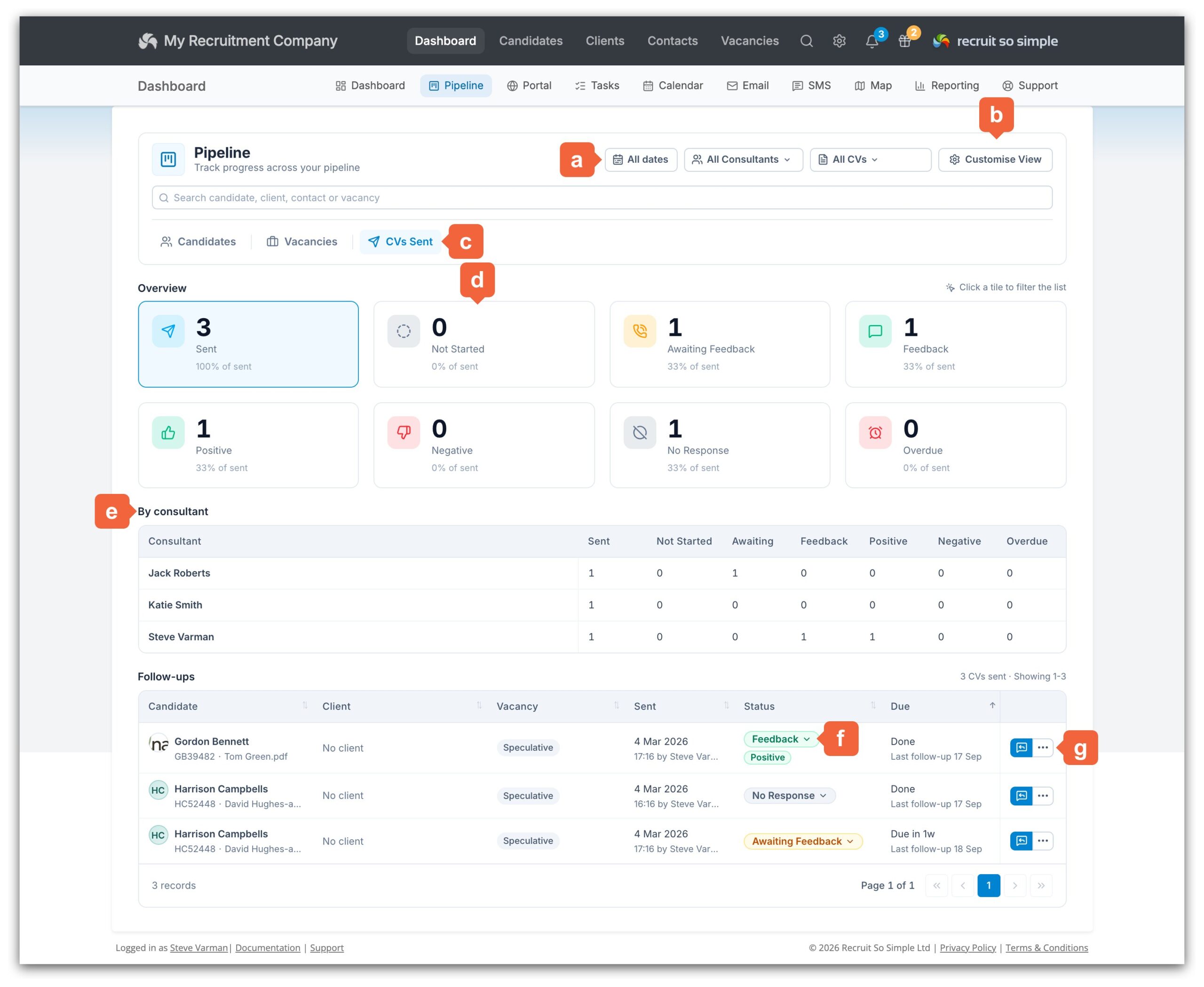
Open it from [Dashboard > Pipeline] and click the CVs Sent tab [c].
The CVs Sent page
- Filters [a]: narrow the list by sent date, by consultant or team, and by CV type (CVs sent for a vacancy, or speculative CVs sent without one). By default all dates are shown, so a CV that is still waiting for feedback never drops off the list. Use the search box to find a particular candidate, client, contact or vacancy. Your filters are remembered, just like the other Pipeline pages.
- Customise View [b]: set the rows per page, your default follow-up interval, and whether the tiles and team table are shown. See Customise View below.
- Overview tiles [d]: a count of CVs in each status. Click a tile to filter the list to just those CVs, and click Sent to show everything again. The Overdue tile shows CVs that are past their follow-up date and still have no feedback.
- By consultant [e]: the same counts broken down for each consultant. Click a consultant’s name to filter the list to their CVs.
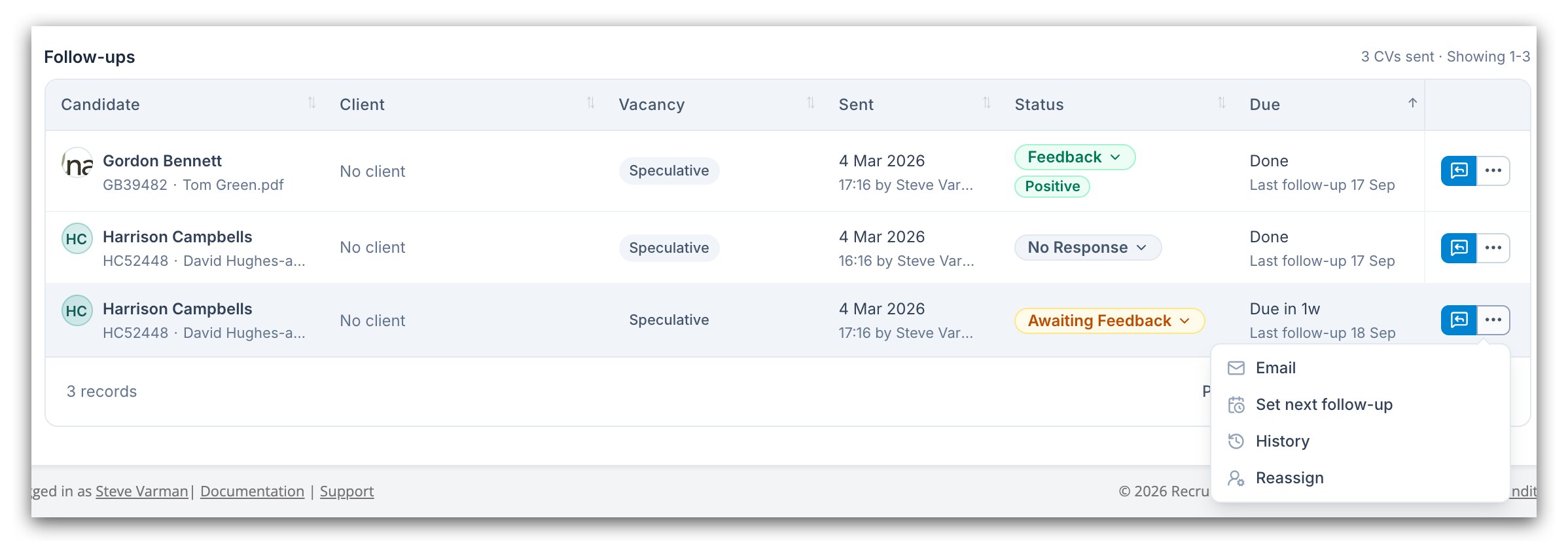
- Follow-ups: one row per CV sent, showing the candidate and the CV file, the client, contact and vacancy it was sent for, when it was sent and by whom, its status [f], and when the next follow-up is due along with the date of the last one. Click a column heading to sort the list; your choice is remembered. Click the candidate’s name or the vacancy to open the record, or click the avatar for a quick preview.
- Update follow-up and the actions menu [g]: log a follow-up or send a follow-up email, or use the menu to set the next follow-up date, view the history or reassign the CV to a colleague.
Statuses
Every CV sent has one of the following statuses:
- Not Started: the CV has been sent and no follow-up has been logged yet.
- Awaiting Feedback: you have followed up and are waiting for the client to respond. The CV becomes due again on its next follow-up date.
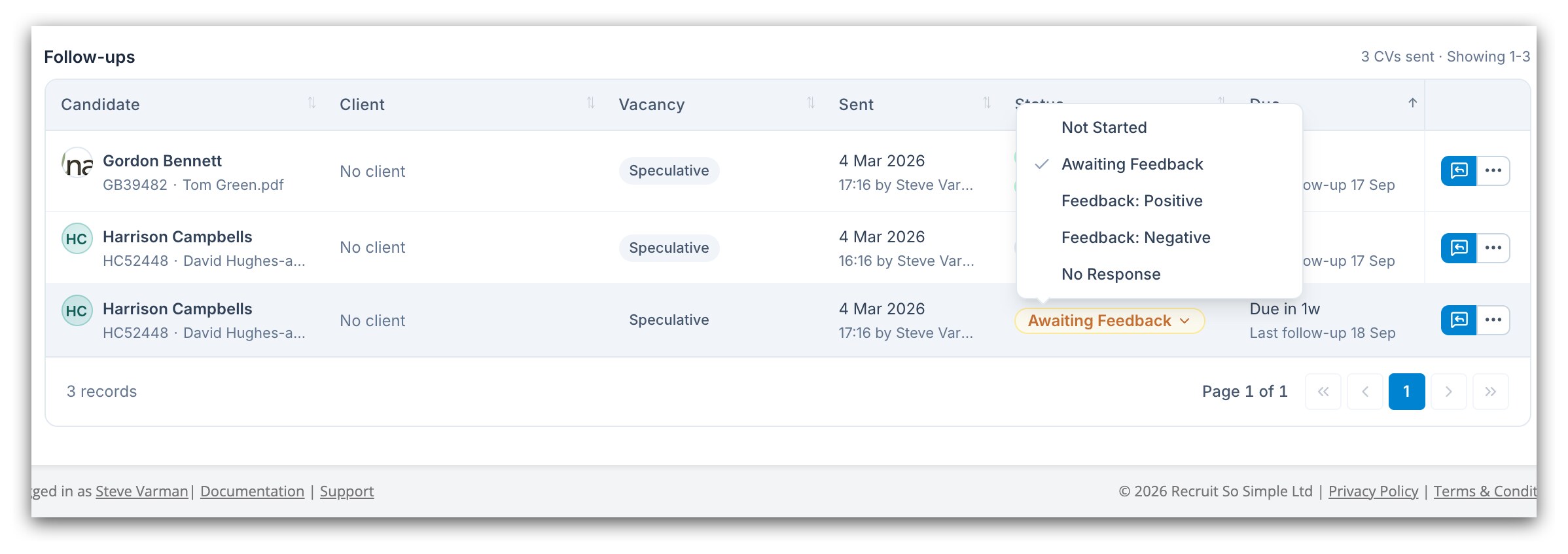
- Feedback: Positive or Feedback: Negative: the client has responded. No further follow-ups are due.
- No Response: you have stopped following up without receiving feedback. No further follow-ups are due.
To change a status quickly without logging a follow-up, click the status in the list and pick the new one. This updates the status only; nothing is added to the candidate’s journal.
Logging a follow-up
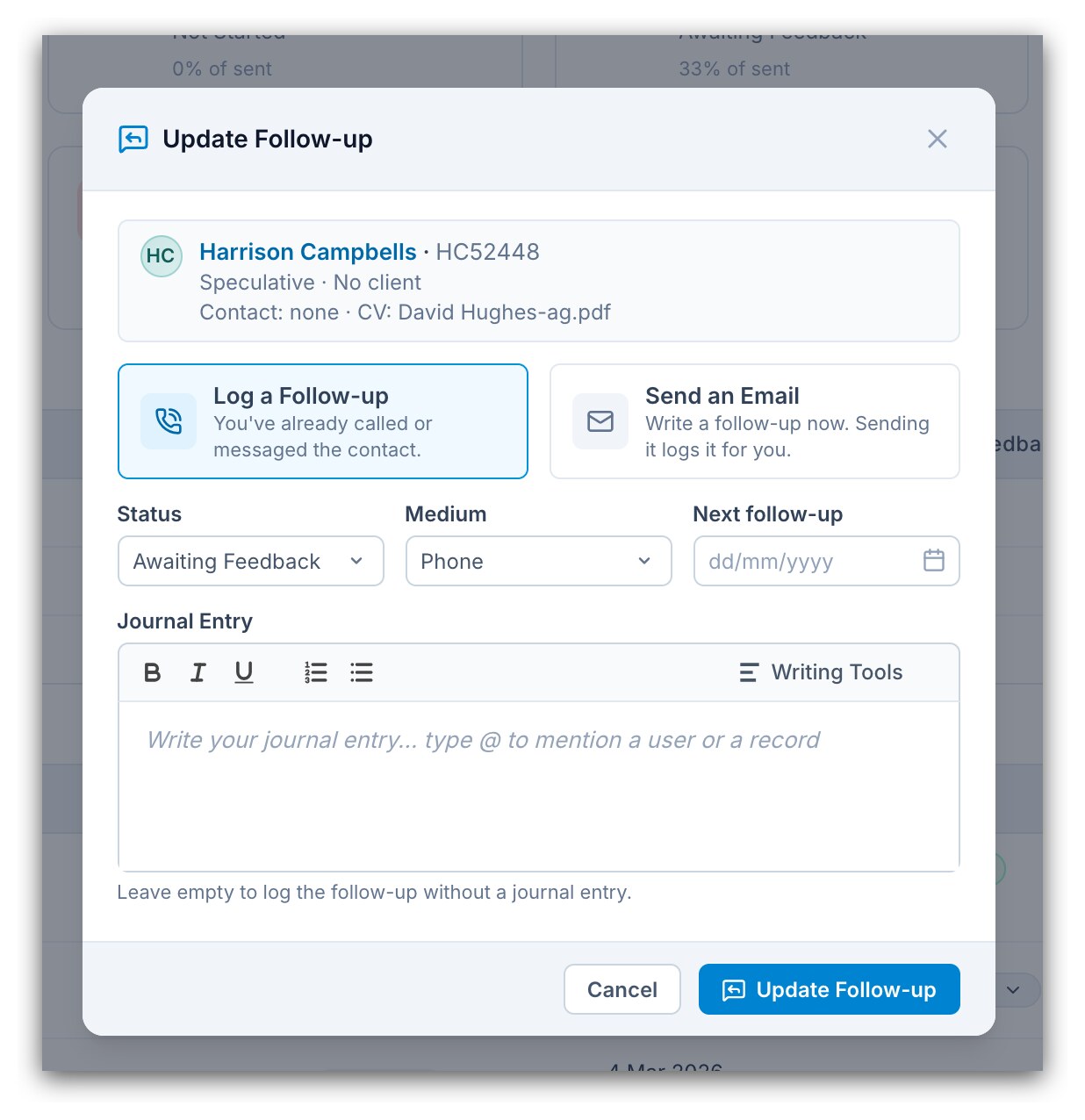
When you have called or messaged the client about a CV, click the Update follow-up button on that row and choose Log a Follow-up:
- Choose the Status: Awaiting Feedback if you are still waiting, Feedback: Positive or Feedback: Negative if the client has responded, or No Response to stop following up without feedback.
- Choose the Medium (Phone, Email and so on). The list matches your journal types.
- If you are still waiting for feedback, optionally set a Next follow-up date. Leave it blank and the CV becomes due again after your default follow-up interval.
- Optionally write a Journal Entry. Type @ to mention a colleague or a record. If you add an entry, it is saved to the candidate’s journal and linked to the contact and vacancy, and any colleagues you mention are alerted. Leave it empty to log the follow-up without a journal entry.
- Click Update Follow-up.
Following up by email
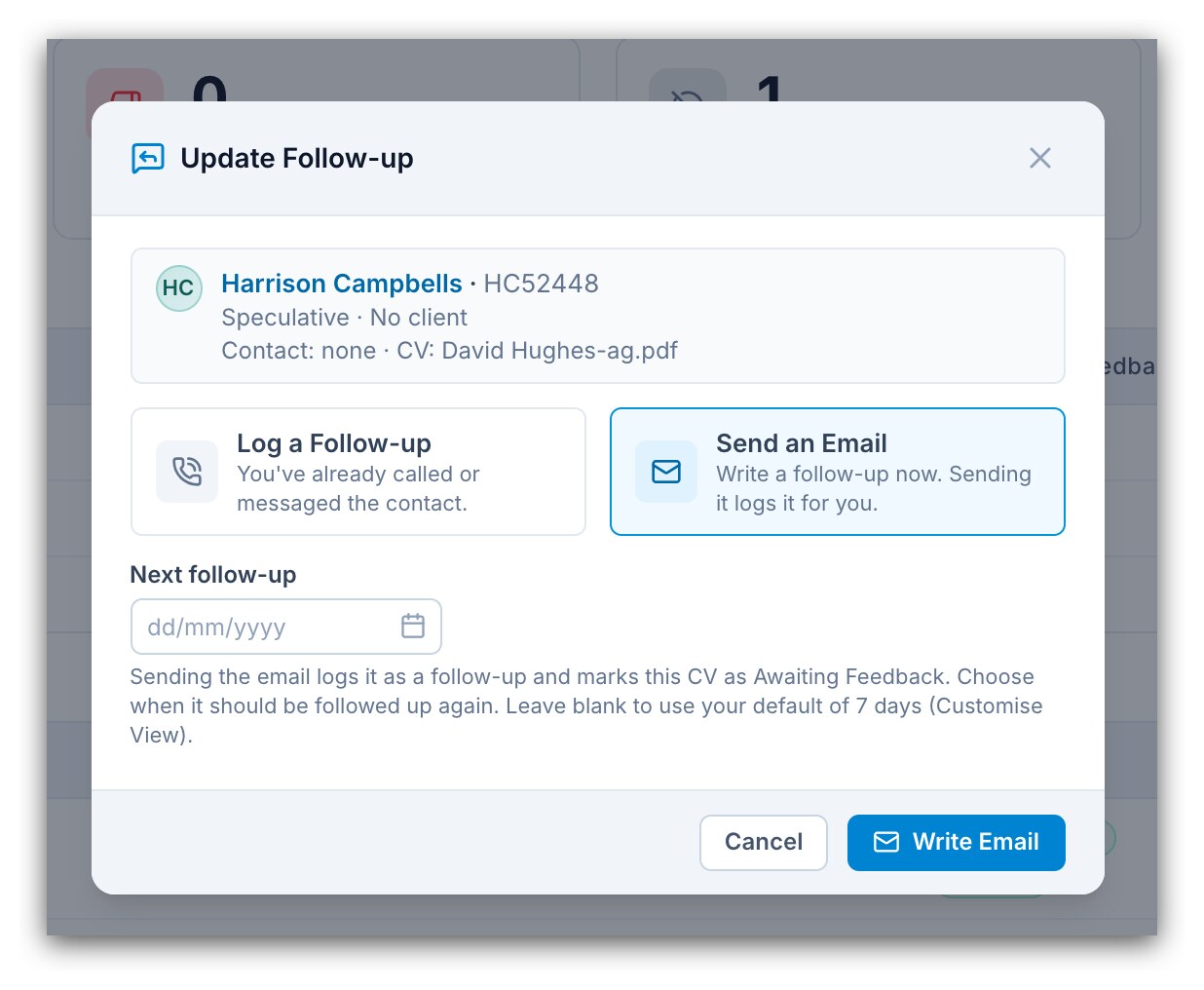
If you would rather write to the client, choose Send an Email instead. Optionally pick the Next follow-up date, then click Write Email to open the email composer with the contact, vacancy and subject already filled in.
Sending the email logs the follow-up for you and sets the status to Awaiting Feedback, so there is no need to log it separately. If you close the composer without sending, nothing is recorded. You can also start an email from the row’s actions menu.
Next follow-up date, history and reassigning
Click the … button next to Update follow-up for more options:
- Email: open the email composer for this CV, as above.
- Set next follow-up: snooze a CV until a date of your choice, for example when the client has asked you to call back next week.
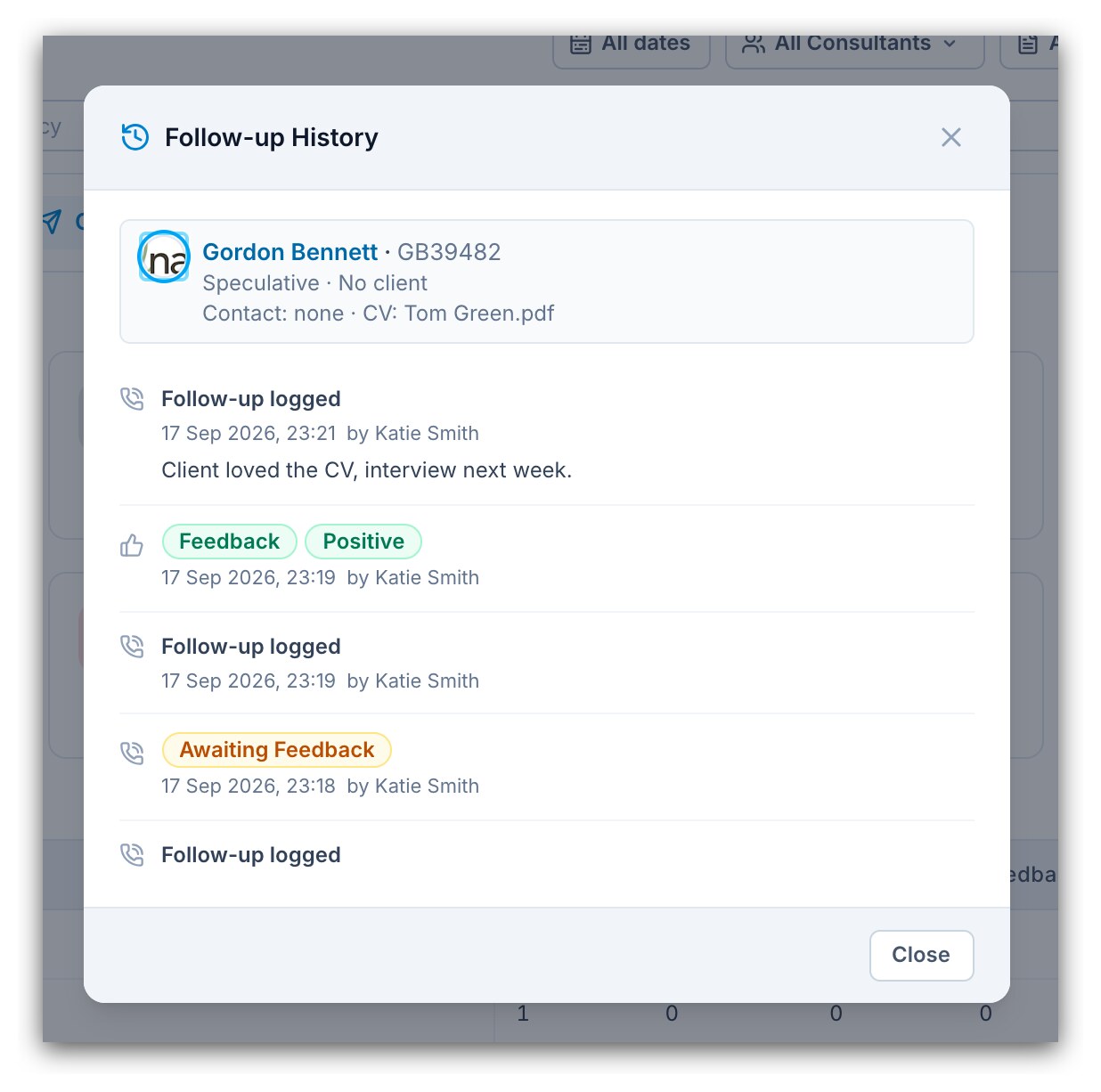
- History: every follow-up logged for the CV, along with each status change, next follow-up date and reassignment, with who made it and when.
- Reassign: hand the CV to a colleague. It then counts against them in the By consultant table and appears when they filter the list to their own CVs.
Customise View
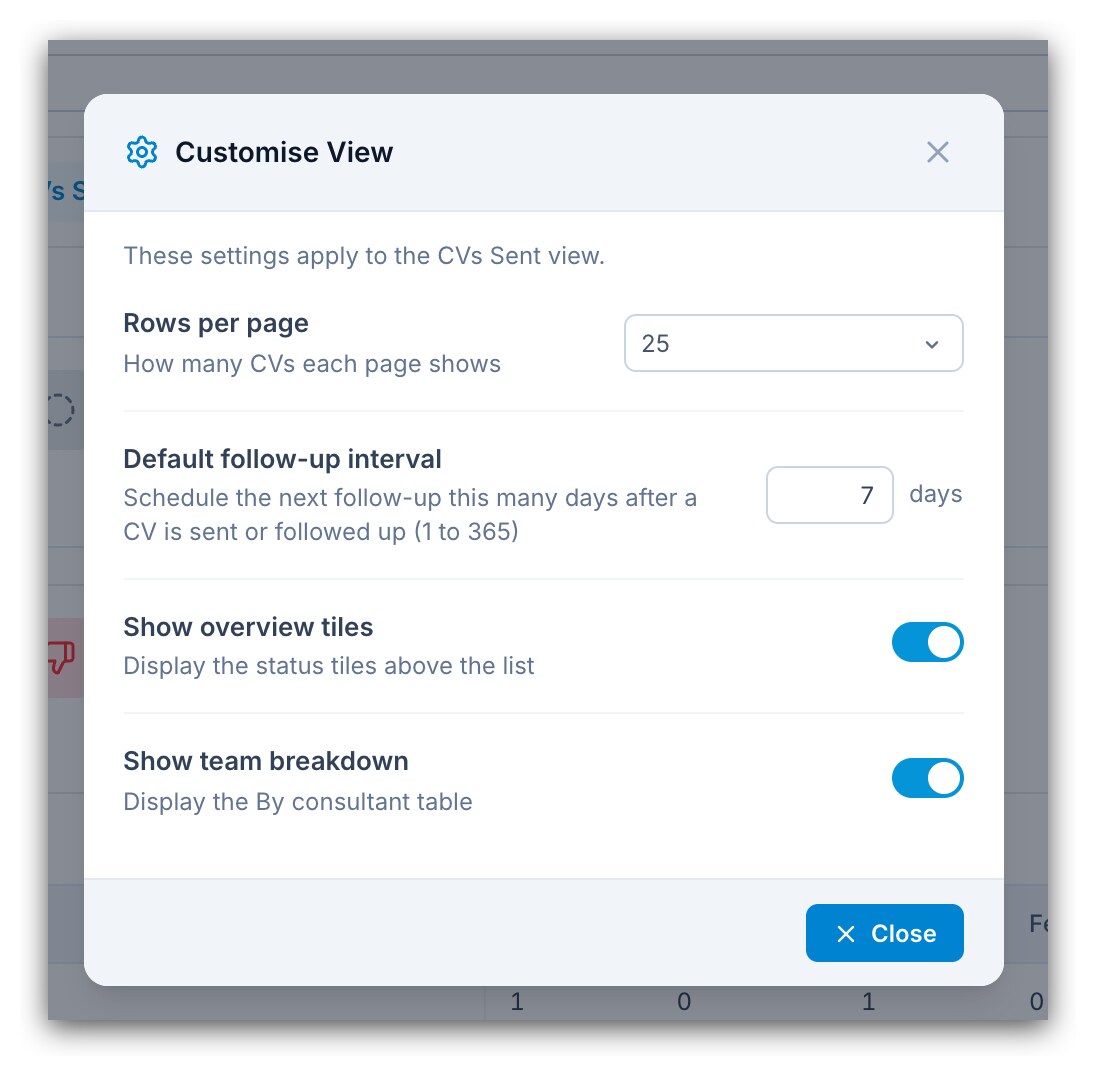
Click Customise View to change how the page works for you. These settings are saved per user:
- Rows per page: how many CVs each page shows.
- Default follow-up interval: how many days after a CV is sent, or last followed up, it becomes due again. The default is 7 days and it can be anything from 1 to 365.
- Show overview tiles and Show team breakdown: hide the tiles or the By consultant table for a more compact page. Hiding the tiles also clears any tile filter.
Permissions
Users need the View CVs Sent permission to see the page and update the CVs they have sent or been assigned. The View All Consultants’ CVs Sent permission additionally lets a user see, filter and update every consultant’s CVs. Both are set in [Settings > System Settings > Permissions].