
[Dashboard > Calendar]
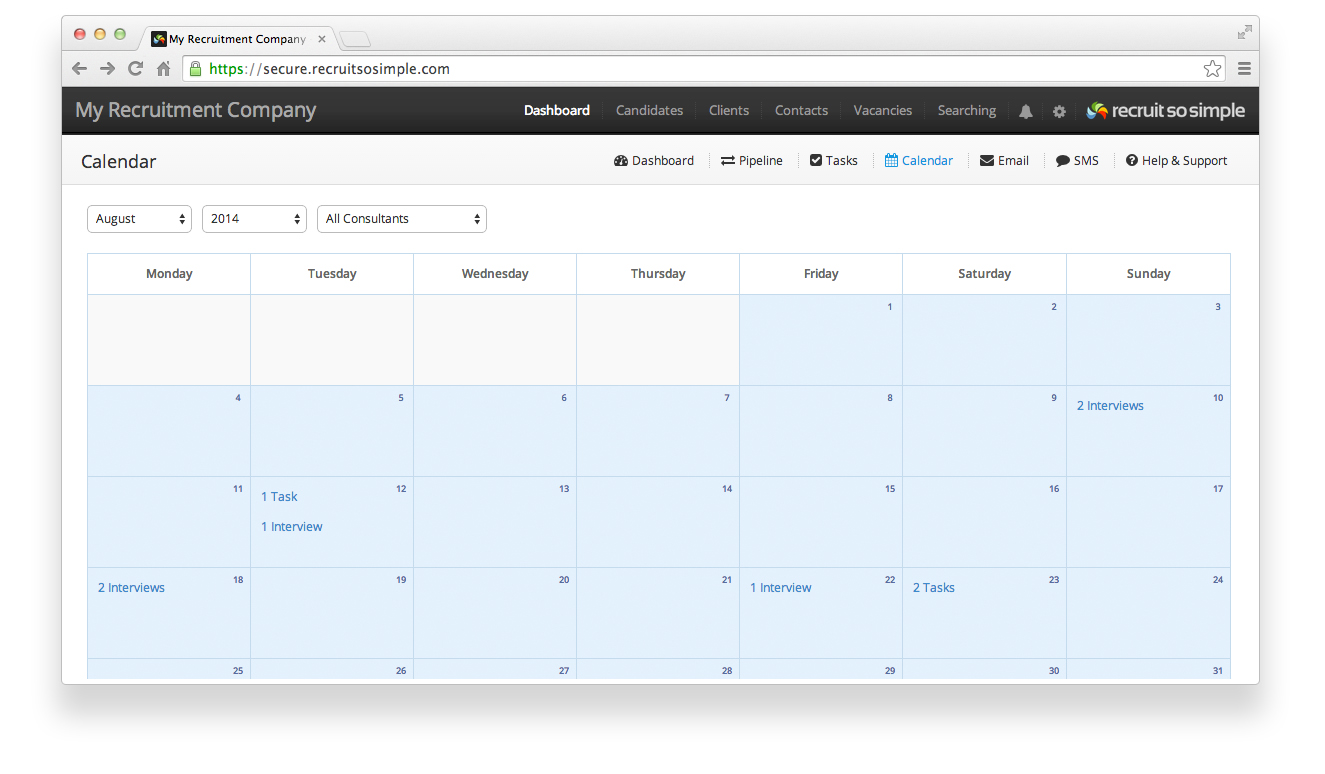
This is where you can view all non-completed tasks and interviews for the selected month.
Navigating
You can use the month and year menu options to navigate through the calendar. If you have the relevant permissions (Dashboard > View All Consultants’ Tasks) you can also view other user’s tasks.
Exporting/Syncing Your Calendar
Requires “Calendar Feed” enabled under My Account.
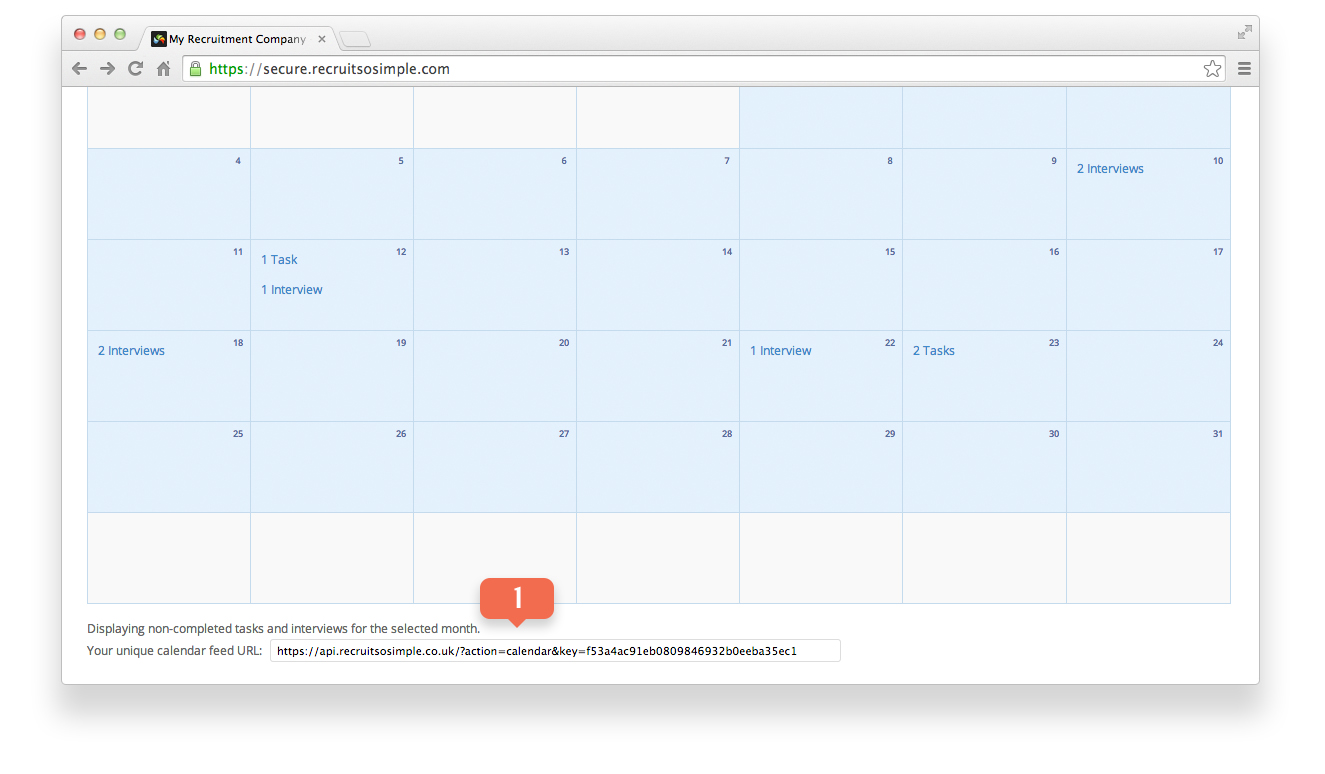
You can sync your tasks and interviews with an external calendar. Copy your “unique calendar feed URL” at the bottom of the calendar page (see figure 1 below) and add it to your favourite calendar application. The following events will be displayed:
- Your personal tasks.
- All interviews on the system.
Entries older than 30 days will automatically disappear from the feed. This is because it is an active sync, rather than a download, and actively syncing thousands of old entries would have a detrimental effect on performance.
Tasks
The following fields are available:
- Date All tasks are exported as “all day events” and are based on the “Due Date”.
- Subject The subject of the task will be displayed.
- Content The content of the task will be displayed if supported.
Interviews
The following fields are available:
- Date & Time The time of the interview will be displayed if supported.
- Candidate & Job The candidate and the job they are interviewing for will be displayed.
- Location The location of the interview will be displayed if supported.
Although every calendar feed has a long, unique URL which would be hard to guess – your tasks, interviews and any data contained within them will be accessible to anyone with the link.
Importing/Syncing Your Calendar
See below for instructions on adding the URL to the most common calendar applications:
Office 365 (Outlook Web App)
- Select the Calendar.
- Within the Navigation Pane, right-click Other calendars.
- Select Open calendar.
- Enter the URL in the Internet calendar box, and then select Open.
Office 365 refreshes the calendar once every 24-48 hours.
Gmail (Google Apps)
- Open the calendar App.
- Under the “Other calendars” drop down menu, select “Add by URL”
- Enter the URL, and select “Add Calendar”.
Gmail refreshes the calendar once every 24-48 hours.
Calendar for Mac
- Select File > New Calendar Subscription…
- Enter the URL and then click Subscribe.
Outlook 2011 (for Mac)
- Click on the calendar section of Outlook.
- Add a new calendar (sometimes called a folder) from the ‘Organise’ tab.
- Rename the folder as RSS (or similar) for easy identification.
- Download your calendar.ics file by pasting your calendar URL into your web browser’s address bar.
- Drag and drop your calendar.ics file out of your downloads folder and onto your Outlook calendar folder.
If you’re using an Exchange Server, you can sync your calendar feed as follows:
- Login to Outlook Web Access.
- Go to ‘Calendar’.
- Right click ‘My Calendars’, then left-click ‘Add Calendars’.
- Paste in your calendar URL to the ‘.ics’ feed.
Outlook 2010
- In Outlook, click on Calendar in the bottom left.
- Along the top, click on Open Calendar.
- On the submenu that opens, choose From Internet.
- Enter the URL and then click OK.
- When prompted to Add this Internet Calendar to Outlook and subscribe to updates, choose Yes.
Outlook 2007
- Go to “File” and select “Data File Management” from the resulting menu.
- Click on the “Internet Calendars” tab, and select “New.”
- Enter the URL, and select “Add”.