
Candidate, client, contact and vacancy records all have their own document storage area. This is accessed by opening the record and going to its Docs screen.
20GB of document storage as standard – enough for around 400,000 average sized CVs and documents (based on 50KB files).
Easily upload and store important files against any record type. Examples include candidate CVs, compliance certificates, driving licences, right-to-work documents, and contracts. Each document is securely stored and can be viewed, managed, and tracked in one place.
A record’s Docs screen:
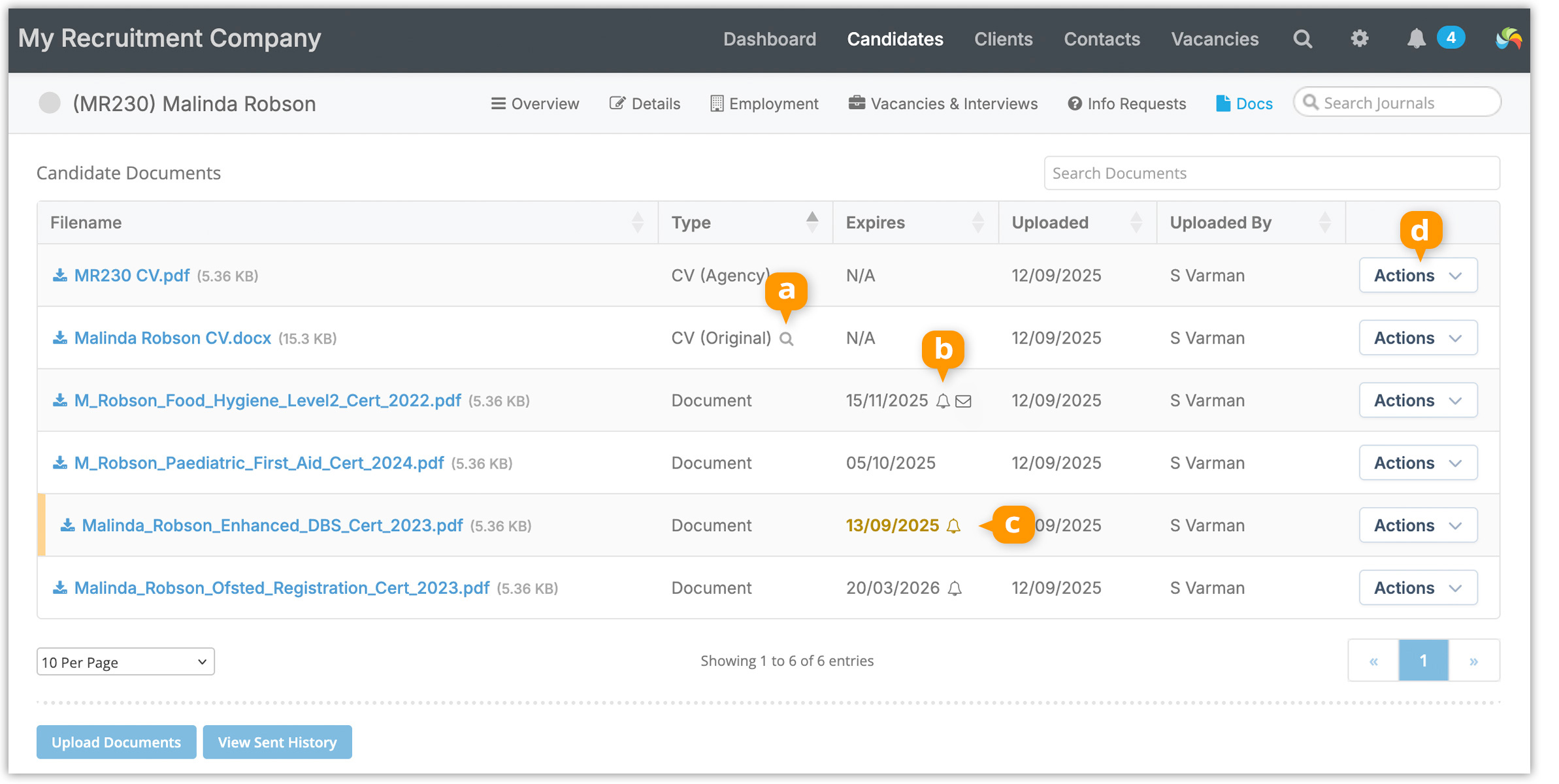
[a] Denotes this document is used for Boolean CV Searches.
[b] This document has an expiry reminder task, and email reminder set.
[c] Orange colour denotes document is expiring, and red for expired.
[d] Document actions:
- Edit to change document type, make a CV searchable, set or edit an expiry date, add notes and additional details.
- Email the document.
- Delete the document.
Uploading documents
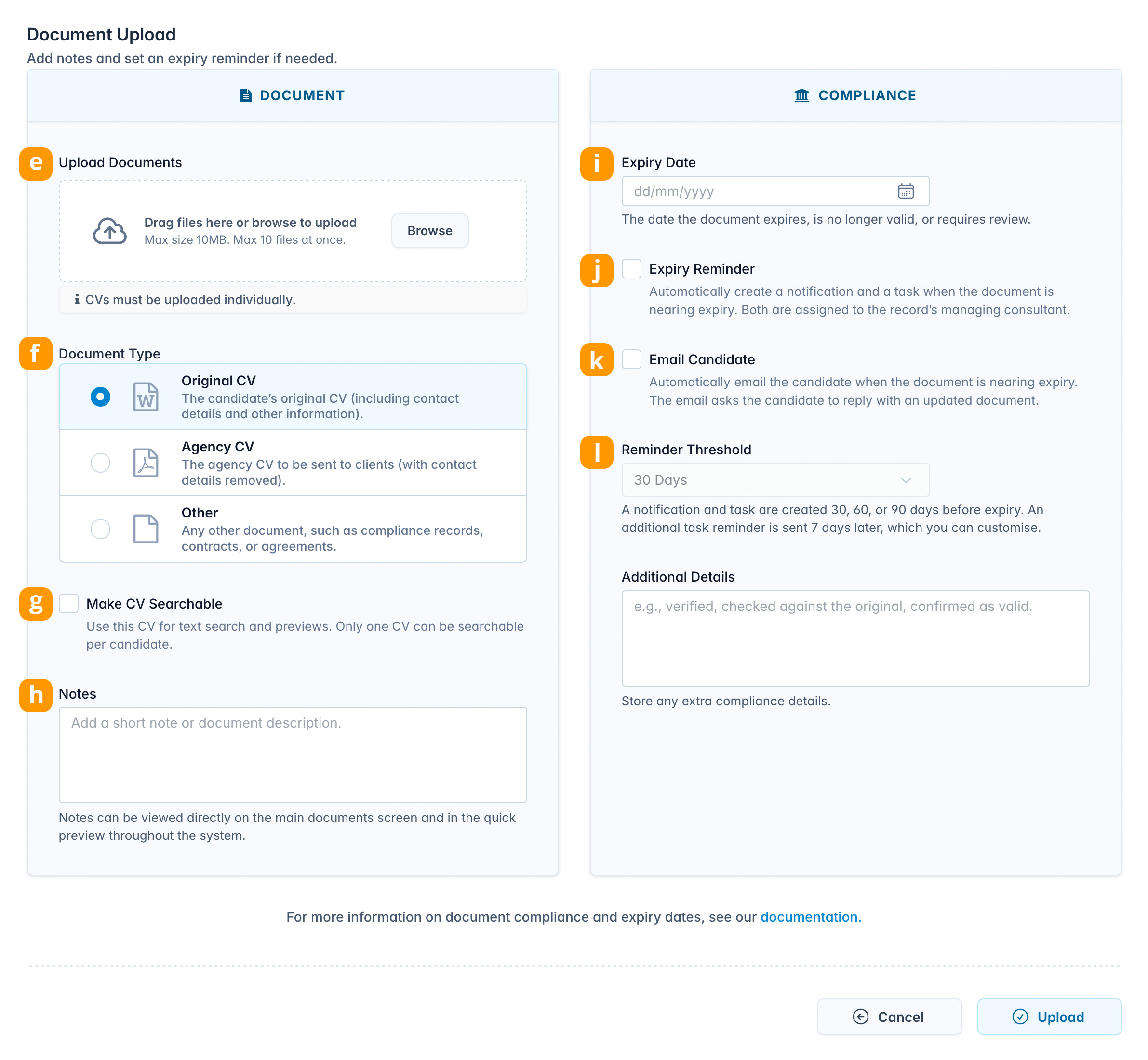
You can bulk upload up to 10 files at a time [e]
Document Types
Choose what type of file(s) you are uploading [f]:
Original CV
The candidate’s unedited original CV.
Agency CV
Your branded version of the CV.
Whenever you use an Email CV option, only the Agency CV is sent. If no Agency CV is present, you’ll see a warning message.
Other
For certificates, contracts, driving licences, and other compliance-related documents. Expiry dates and reminders can be set where applicable (see next section).
Notes
Add a short note [h] for each document, this will be shown on the Docs screen
Make Searchable
When selecting either Original CV and Agency CV, you’ll have the option to Make Searchable [g]. This parses the contents of the CV so it can be used when searching candidates by CV text. Only one document can be made searchable per candidate.
Compliance
Add an expiry date for a document [i].
Expiry reminders
Enabling Expiry Reminder [j] will automatically create a task on the record when the selected reminder threshold is reached [l].
A follow-up reminder is also set for 7 days after the threshold date.
- The task is assigned to the managing consultant of the record.
- For contact records, the task is assigned to the managing consultant of the client.
Emailing the candidate
Enabling Email Candidate [k] will automatically send an email to the candidate notifying them that a document is about to expire.
The email:
- Includes the document name and expiry date
- Asks the candidate to provide an updated version of the document
Important notes
- An Expiry Reminder task is only created if the record (or client record, for contacts) has an active managing consultant.
- If the managing consultant has been archived when the expiry date is reached, no task can be created.
- An expiry email to the candidate or contact will not be sent if any of the following apply:
- Do Not Contact is enabled
- The record does not have a valid email address
(alternative email addresses are not used) - The record’s status is Archived
- There is no managing consultant, or the managing consultant has been archived
On-screen notifications
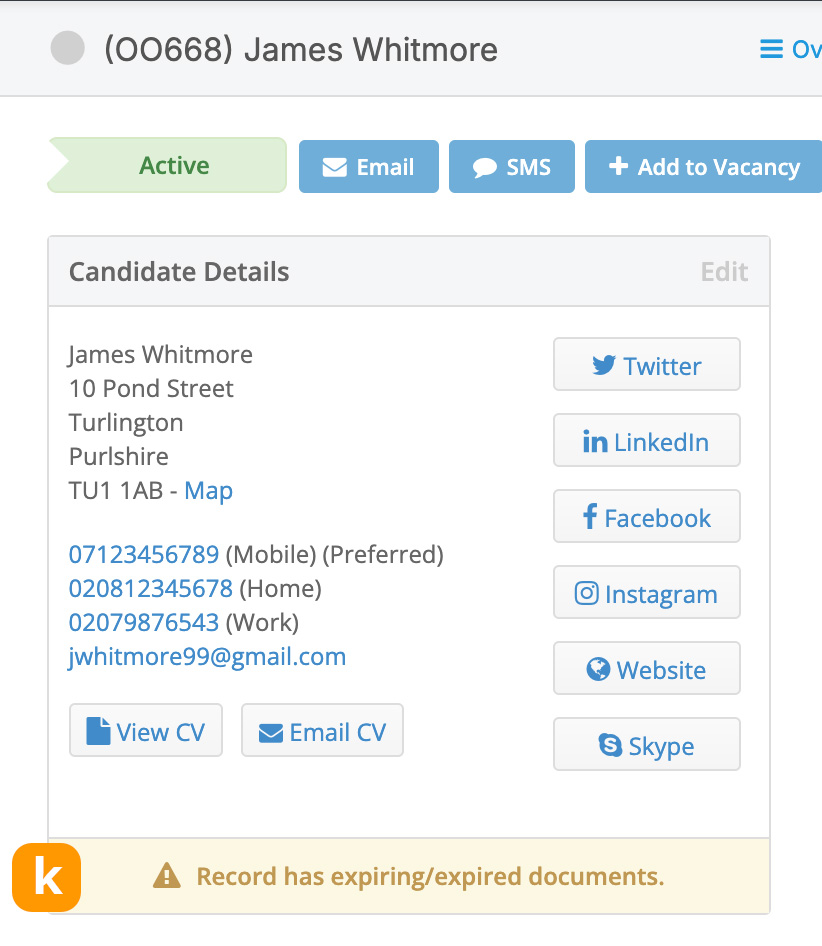
On-screen warning messages [k] are always displayed and are independent of expiry reminder tasks and email notifications.
This ensures that any system user viewing the record’s Overview screen can see when a document is expiring or has already expired, regardless of other settings.
Document Storage
You can view your document storage usage in [Settings > System Settings > Company Details].
A warning will be shown to administrators on the Dashboard once 95% is used. If 100% is used then no more documents can be uploaded to the account.
Additional storage space can be purchased by opening a support ticket from [Dashboard > Help & Support]. Please check the Pricing page on our website for costs.