Settings > System Settings > Goals
You can set a range of goals that can be used for measuring the performance of the consultants in the system. You can have a maximum of 30 goals at any one time. You can set the following goals:
- Candidates Added To Vacancies
- Candidates Progressed
- CVs Sent
- Interviews Added
- Journals Added
- New Candidates
- New Clients
- New Contacts
- New Vacancies
- Placements
- Revenue
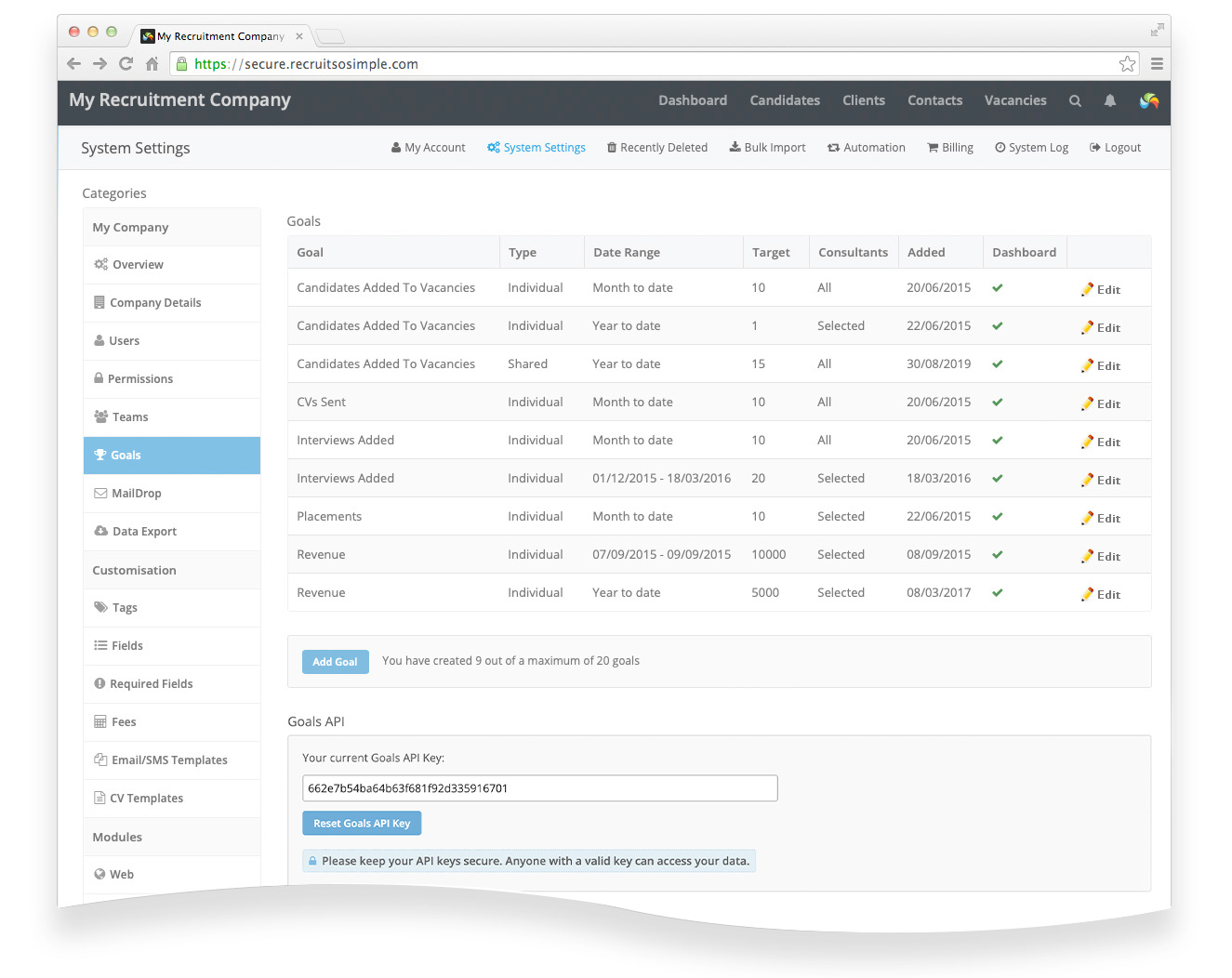 Goals API Key
You can display goals in full screen mode, ideal for TV screens in an office. Each full-screen goal has a unique URL containing your Goals API Key. Use the URL in any web browser on any device. To revoke access to previously generated full-screen goals, you can reset your Goals API Key.
How goals work
Individual or Shared
Each goal can either be individual or shared. With an individual goal, each consultant has their own separate target. With a shared goal, each consultant contributes to a shared target.
Example 1 – Monitoring CVs Sent
You could create an individual goal that is assigned to all consultants, with a target of 50 CVs to be sent in the current month. Each consultant will be able to view their progress on their own dashboard (if you enable this option), but managers can view the progress of all consultants by looking at the Goals Report.
Example 2 – Monitoring Interviews Added (For a team)
In this example, you would create a shared goal. Each consultant in the team would then be contributing towards the shared target for the team. Managers can view the progress of the entire team by looking at the Goals Report.
Adding a goal
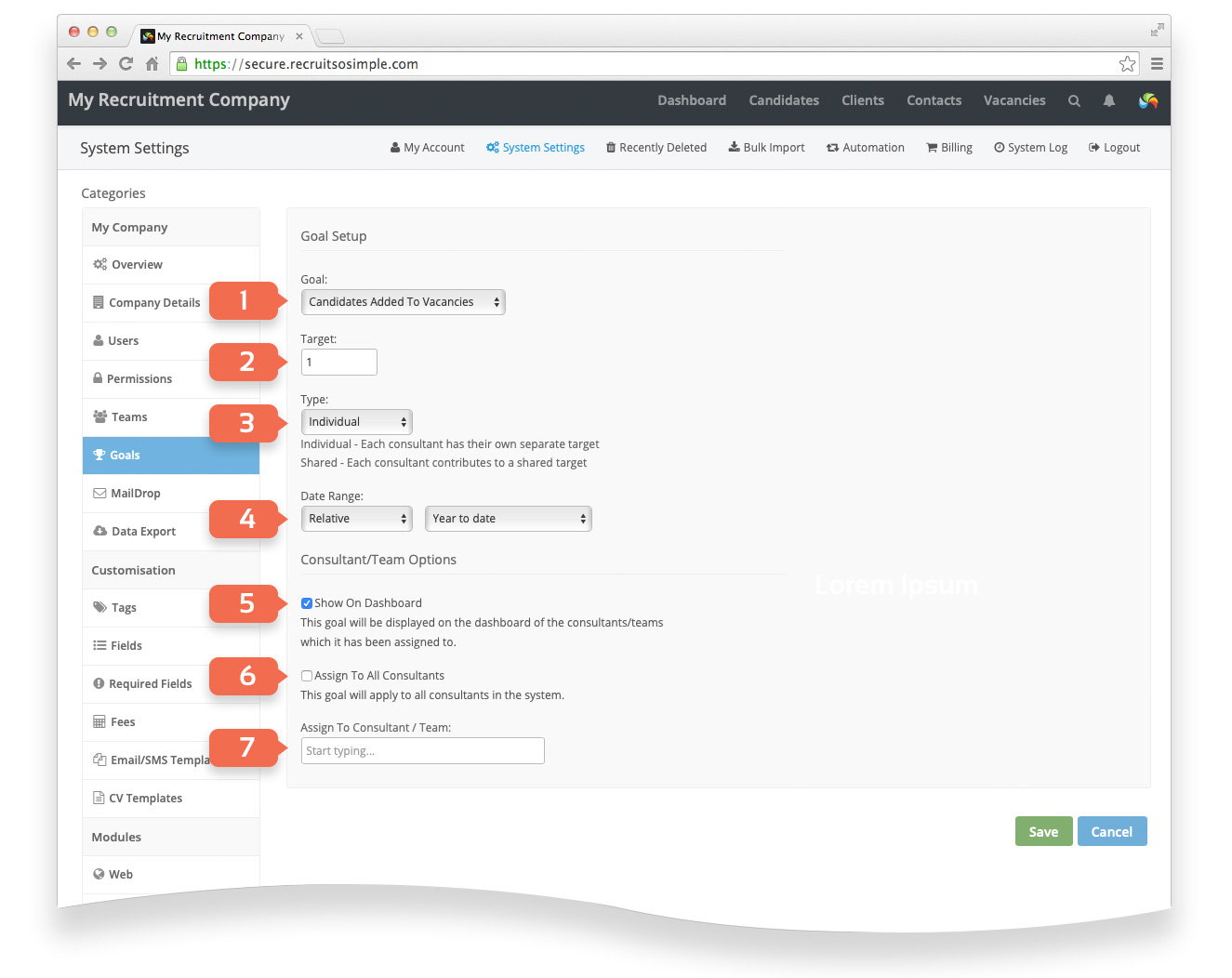
- Goal Choose a goal from the available list.
- Add a Target.
- Select either Individual or Shared.
- Date Range Choose from the date options.
- Show on dashboard will display the goal on the dashboard of the consultants/teams
which it has been assigned to. - Assign to all consultants will apply a goal to all of your consultants.
- Assign to consultant or team can be used to assign the goal to only specific consultants/teams.