
Rebate periods can be used to track the rebate terms that apply to a vacancy or placement.
You can add any number of rebate tiers by entering the number of weeks and the rebate percentage. The candidate’s start date is used as the reference point for calculating where the placement sits within the rebate period.
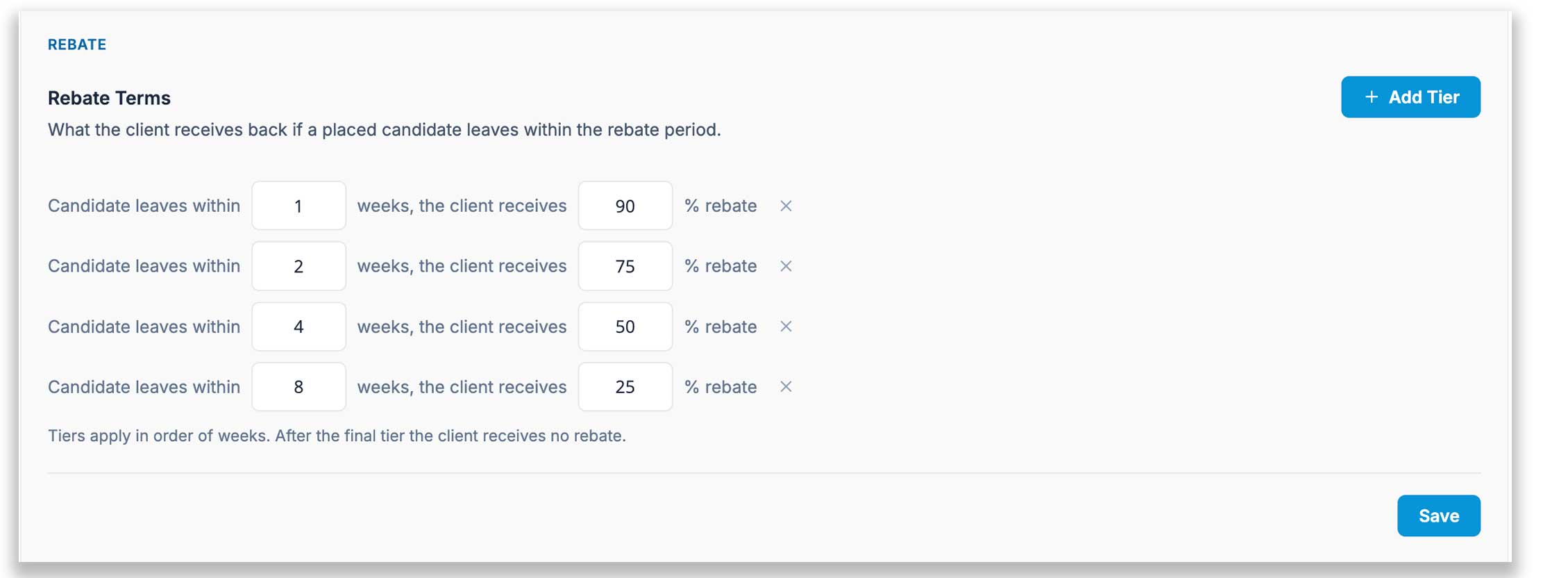
In this example, a candidate who leaves within the first week would fall into the 90% rebate tier. After that, the applicable rebate percentage reduces as the placement moves through each tier.
Where rebate periods can be set
Rebate periods can be set at different levels:
- Globally, from [Settings > Fees & Rebates]
- Against a client, from the client record’s Details screen
- Against a vacancy, from the vacancy record’s Details screen
This allows you to set standard rebate terms for your database, while still allowing different terms for specific clients or vacancies where needed.
How rebate settings are inherited
New records inherit the rebate settings that apply at the time they are created.
For example, if you add rebate tiers in [Settings > Fees & Rebates], new clients created after that point can inherit those global rebate settings.
If rebate settings are changed later, the changes only apply to new records, vacancies and placements going forward. Existing records are not automatically updated, keeping historical data accurate.
Vacancy rebate information
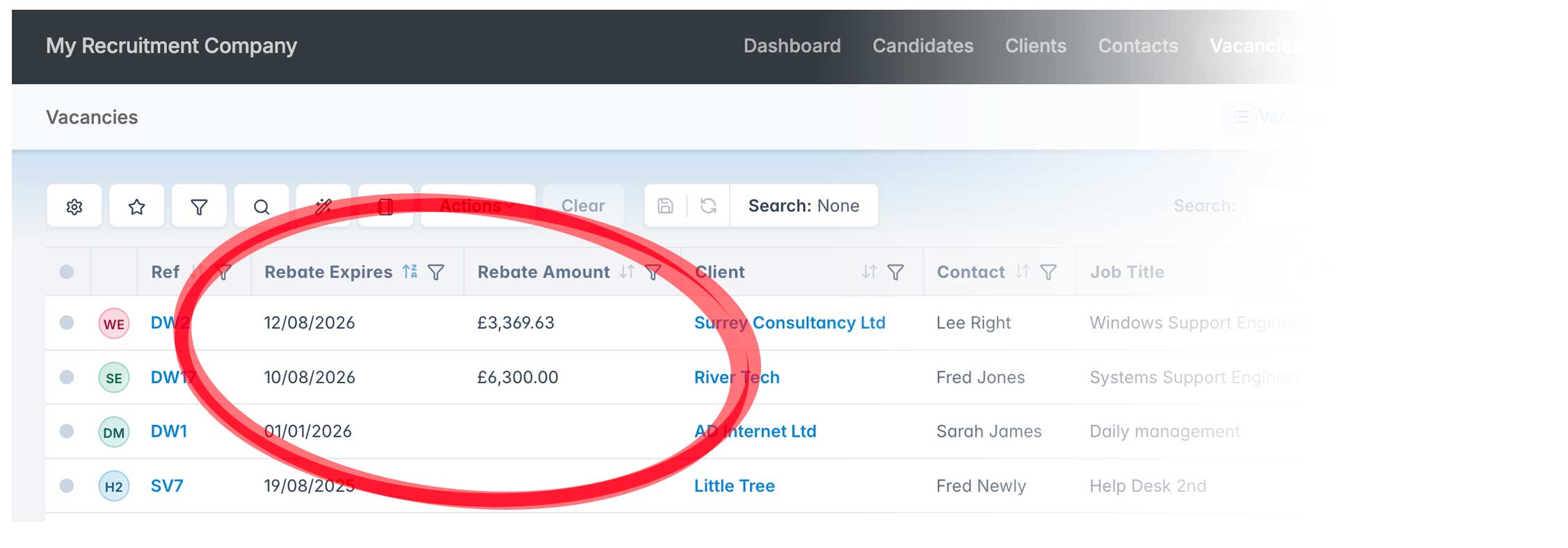
The rebate period end date and current rebate amount can be shown on the Vacancies grid, making it easier to keep track of active rebate periods at a glance.
Vacancies with multiple placements
If two or more candidates are placed on the same vacancy, the rebate expiry date is based on the candidate with the latest start date.
The rebate amount shown is the combined total for all placed candidates. Each candidate is calculated against the rebate tier they are currently in, using their own start date.
Updating Revenue
If a rebate has been paid to a client, update the placement amount so your revenue figures remain accurate.
To do this, edit the placement from the vacancy record’s Pipeline screen and adjust the amount accordingly.