
The Candidate Portal provides candidates with a secure login where they can update their personal details, upload CVs and documents, manage their privacy and consent preferences, complete questionnaires, provide Right to Work information and, coming soon, electronically sign documents.
You can create custom questionnaires, request specific documents from candidates, and create document packs for groups of documents that you frequently request together.
Important: Before you can use the Candidate Portal, you must first add your branding and links to your website, Privacy Policy and Terms & Conditions. You can do this from [Settings > Branding].
Candidate Portal at a Glance
The Candidate Portal has three main areas:
- Candidate Portal Settings – Choose which portal features are available, customise your messages, and create questionnaires and Document Sets.
- Portal tab on a candidate record – Invite a candidate to their portal, assign questionnaires and document requests, and review their uploaded documents and answers.
- [Dashboard > Portal] – Review Candidate Portal activity across your database, including outstanding requests and candidate responses.
Contents
- Candidate Portal Settings
- Candidate record’s Portal page
- Dashboard Portal
- Candidate Portal (candidate view)
- Automation
- Managing Email, SMS and GDPR consent
Candidate Portal Settings
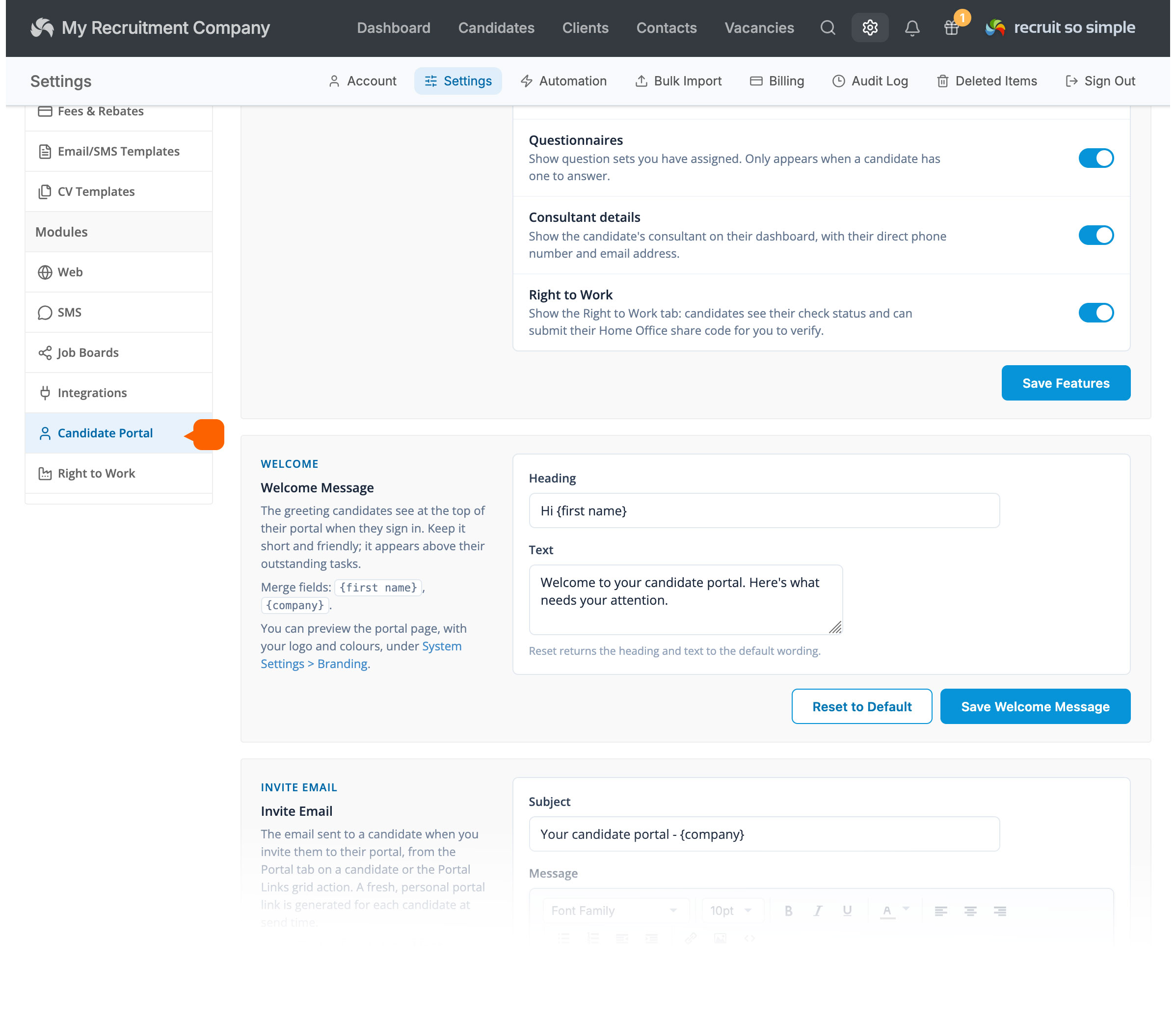
Settings > Candidate Portal
Status
Enable or disable Candidate Portal access globally for all candidates.
Portal Features
Personal Details
Allow candidates to review and update their own contact details. Their name remains read-only. If a candidate needs to change their name, this can be updated by a consultant directly on the candidate’s record.
CV Upload
Allow candidates to upload a new or replacement CV. You can choose whether previous CVs are kept or automatically deleted using the Delete Replaced CVs option below.
Delete Replaced CVs
Choose what happens to an existing CV when a candidate uploads a replacement. When enabled, the previous CV is deleted. When disabled, previous CVs are retained and marked as Other.
Document Uploads
Allow candidates to upload documents through their portal. This includes documents you have specifically requested, as well as other documents the candidate chooses to provide.
Privacy & Consent
Show the Privacy tab in the Candidate Portal.
Candidates can manage their marketing preferences for email and SMS, provide consent for you to store their information, and request deletion of their data.
Document Signing
Feature coming soon
Show documents that you have sent to the candidate for electronic signature. This option only appears in the candidate’s portal when they have a document waiting to be signed.
Questionnaires
Allow candidates to complete questionnaires that you have created and sent to them.
Consultant Details
Show the candidate’s managing consultant’s name, email address and phone number on the Candidate Portal home page.
Right to Work
Show the Right to Work tab in the Candidate Portal.
Candidates can review their Right to Work status and submit a Home Office share code for you to verify.
Welcome Message
The greeting candidates see at the top of their portal when they sign in. This is intended to be kept short and friendly.
Merge fields can be used to personalise the message with the candidate’s name and your company name.
Invite Email
The email sent to a candidate when you invite them to access their portal.
Invitations can be sent from the Portal tab on an individual candidate’s record, or from an Actions menu, for example after selecting one or more candidates from the Candidates grid.
A fresh, personalised portal link is generated for each candidate at the time the invitation is sent.
Questionnaires
Create reusable sets of questions for candidates to complete in their portal.
Creating a questionnaire set does not automatically make it visible to candidates. A set only appears in a candidate’s portal once it has been assigned to them from the Portal tab on their candidate record. This is also where you can view their submitted answers.
Questionnaire sets that have already been assigned can be made inactive, but cannot be deleted, as their answers form part of the candidate’s record.
Individual questions can be made required, and you can choose whether candidates are allowed to change their answers after submission or whether they are locked.
The following question types are available:
- Short Answer
- Long Answer
- Yes/No
- Multiple Choice
- Date
- File Upload
- Acknowledgement – a checkbox for the candidate to confirm or agree to something
Documents
Create reusable document requests for candidates and group frequently requested documents together into Document Sets.
Document Sets can be assigned to a candidate from the Portal tab on their candidate record. The requested documents will then appear in their portal, ready for them to upload.
Individual document requests can be marked as required where necessary.
Privacy
Configure the consent and marketing preferences available from the Privacy tab in the Candidate Portal.
You can request candidates to provide or update:
- GDPR consent
- Marketing by email consent
- Marketing by SMS consent
Candidate record’s Portal page
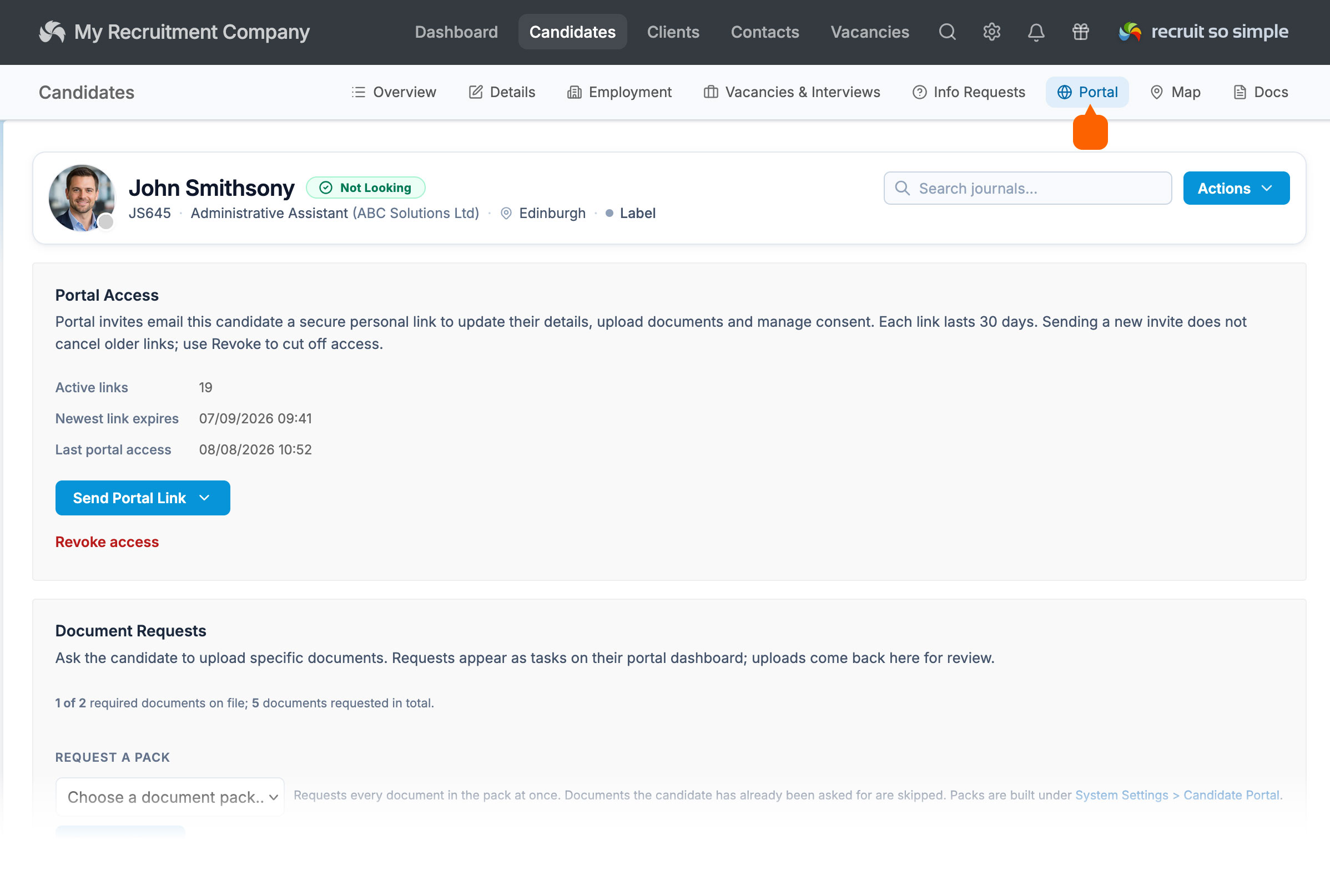
The Portal page on a candidate’s record is where you manage their individual Candidate Portal activity.
From here, you can send the candidate an invitation to access their portal, request individual documents or assign Document Sets. Document Sets are groups of commonly requested documents that you can create in [Settings > Candidate Portal].
You can also assign questionnaires that you have created in [Settings > Candidate Portal].
The candidate record’s Portal page lets you review:
- Uploaded documents
- Questionnaire answers
- Marketing preferences and GDPR consent
- Portal activity
Portal Activity shows a history of activity between the candidate and their portal, including what happened, when it happened, and whether the action was performed by the candidate or a consultant.
Activity can be filtered by event type, making it easy to find specific actions, such as Signed a document.*
*Document signing is coming soon.
Dashboard Portal
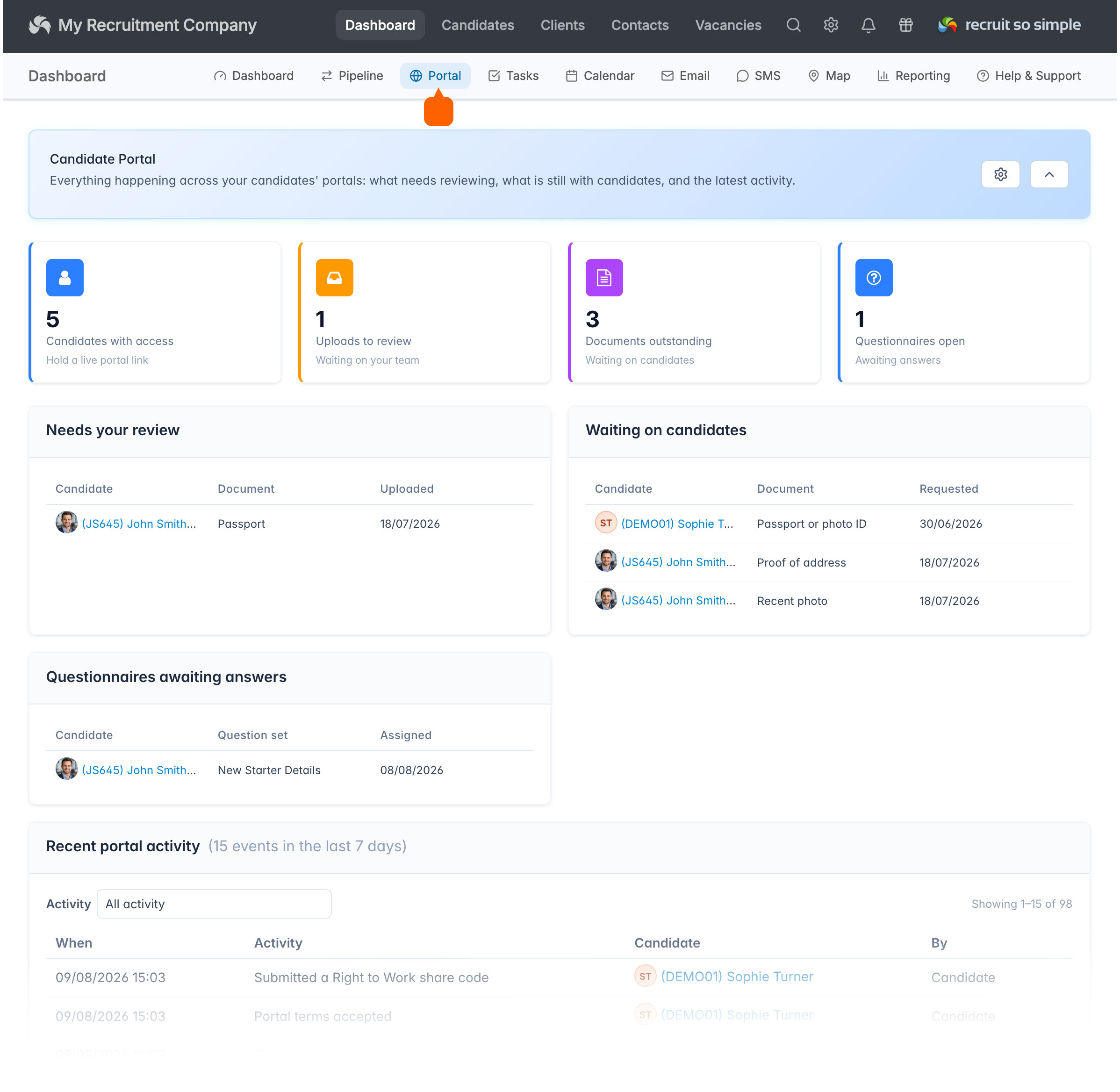
The [Dashboard > Portal] page gives you an overview of Candidate Portal activity across your database.
At a glance, you can see information including:
- Outstanding document requests
- Open questionnaires
- Candidates with portal access
- Uploaded documents waiting to be reviewed
Similar to the main Dashboard, the Portal Dashboard can be customised. You can choose which widgets to display and arrange them on the page to suit the way you work.
Candidate Portal (candidate view)
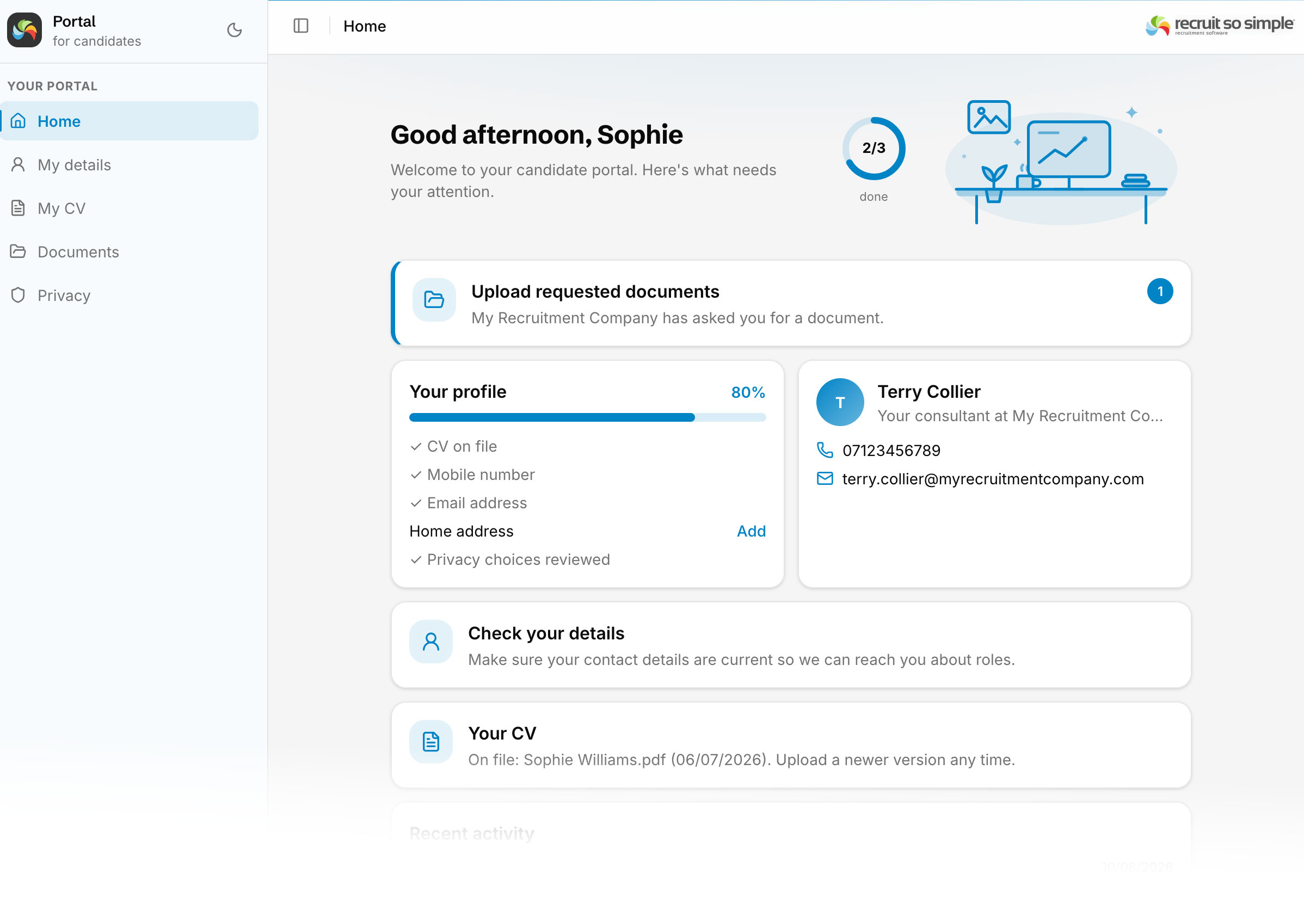
When a candidate receives an invitation, they can use their personal portal link to log in to a secure area.
You can revoke a candidate’s access or issue a new portal link at any time from the Portal page on their candidate record.
A portal link is valid for 30 days.
The Candidate Portal consists of several pages, depending on the features you have enabled in [Settings > Candidate Portal].
Home
The Home page gives the candidate an overview of their information and any actions that require their attention.
This includes alerts for missing information, such as their address or contact details, as well as outstanding document and questionnaire requests.
If a managing consultant has been assigned on the candidate’s Details page, their name and contact details can also be displayed here. You can choose whether to show the managing consultant card from [Settings > Candidate Portal].
My Details
Allows the candidate to review and update their address, phone numbers and email address.
The candidate’s name cannot be changed through the portal. If a name change is required, a consultant can update it directly on the candidate’s record.
My CV
Allows the candidate to upload a new or replacement CV.
In [Settings > Candidate Portal], you can choose whether previous CVs are deleted when a replacement is uploaded or retained and marked as Other.
Documents
This is where candidates can view document requests and upload documents.
You can request individual documents from the Portal page on a candidate’s record, or create reusable Document Sets in [Settings > Candidate Portal] for groups of documents you commonly request together.
Candidates can also upload additional documents that have not been specifically requested.
Privacy
Allows candidates to manage their marketing preferences and GDPR consent for storing and using their personal information.
Candidates can also request deletion of their data from this page.
Automation
In [Settings > Automation], you can create automated tasks, alerts, notifications and other actions triggered by Candidate Portal activity.
For example, you could automatically create a task whenever a candidate updates their marketing preferences or GDPR consent. The task can be assigned to the appropriate consultant or user, allowing them to review the change and take any necessary action.
Automations can help you keep track of important portal activity without having to manually monitor individual candidate records.
Managing Candidate Email, SMS and GDPR Consent
You can use the Candidates Grid to find and manage candidates based on their Email or SMS marketing consent, or GDPR consent. There are two ways to filter candidates by their consent status:
Using Column Filters
On the Candidates Grid, use Show/Hide Columns (from the toolbar above the grid) to add the Email Consent and/or SMS Consent and GDPR Consent columns.
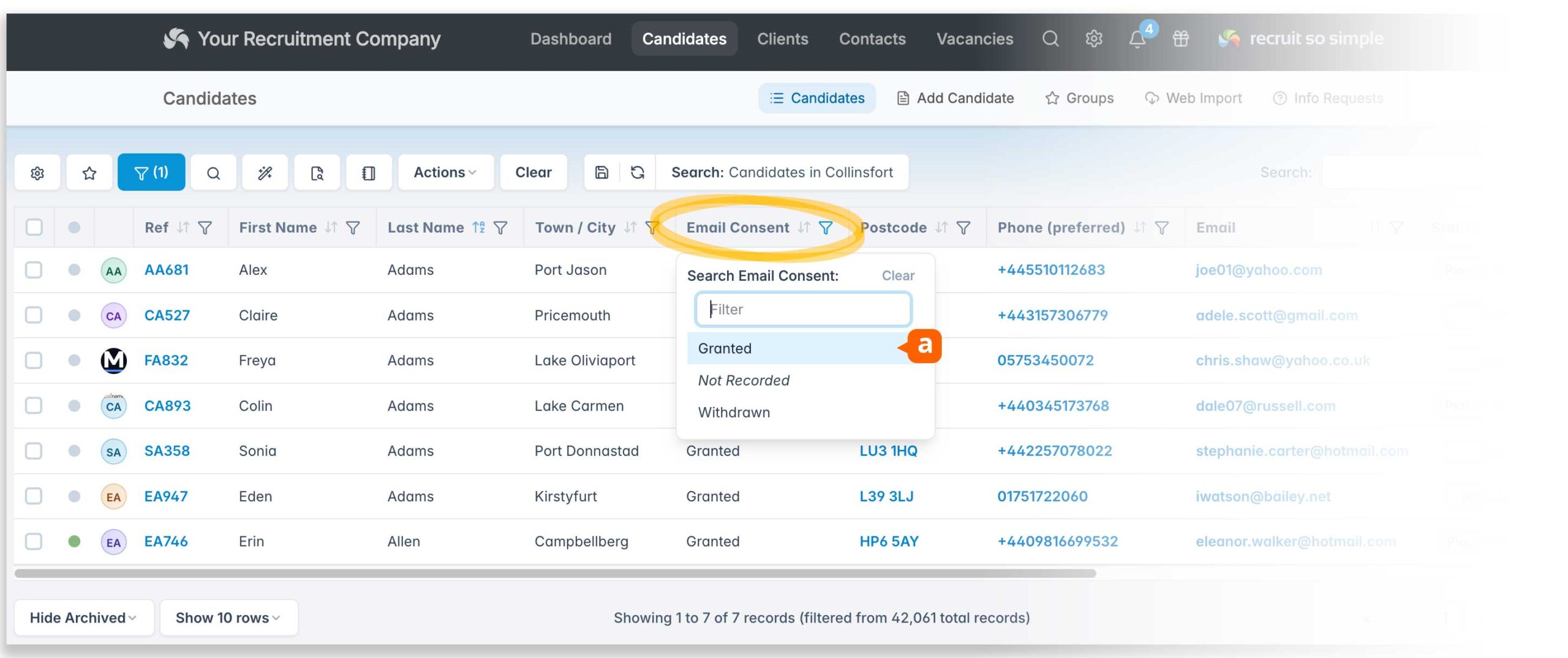
These columns can be filtered by:
- Granted – the candidate has given consent
- Not Recorded – no consent preference has been recorded
- Withdrawn – the candidate has withdrawn their consent
For example, filtering Email Consent to Granted [a] will show only candidates who have given email consent.
You can combine this with other filters on the Candidates Grid, such as tags, location/postcode radius, consultant or other candidate information, to create a more targeted list.
Using Advanced Search
Alternatively, you can use the Advanced Search on the Candidates Grid to include email, SMS or GDPR consent as part of your search criteria.
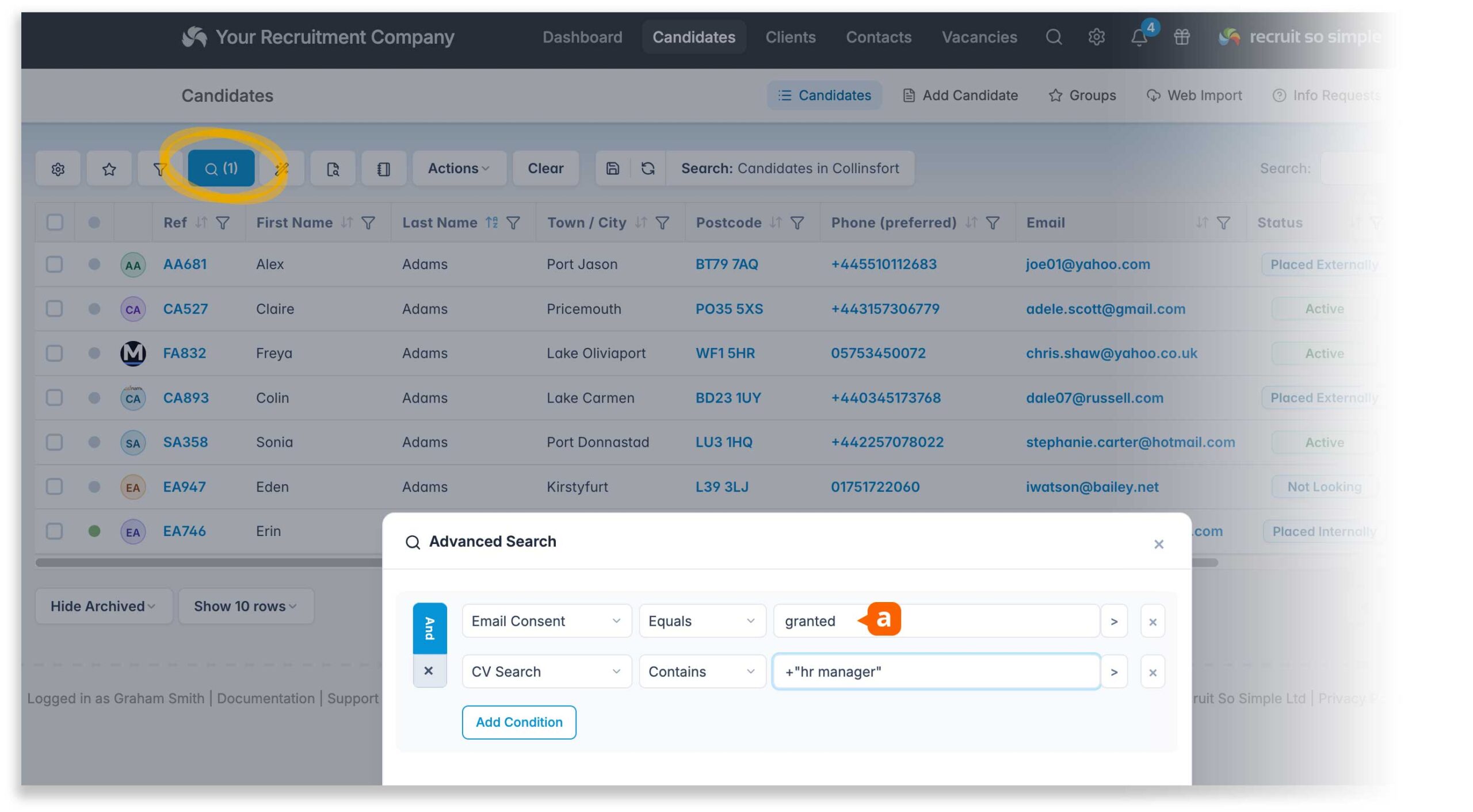
For example, you could create a search for candidates who:
- Have granted email consent [a]
- Include a Boolean CV Search
- …and any other criteria
This allows you to build more detailed searches while ensuring that the results only include candidates with the required consent status.
Using the Advanced Search means you don’t need to use one the maximum 12 columns allowed on the grid.
Saving Your Search
Once you’ve configured the Candidates Grid with the filters you need, you can save the search for future use.
Saved searches retain your selected columns, filters and other grid settings, and you can also set a saved search as your default view.
This can be particularly useful if you regularly need to find candidates who have granted email or SMS consent.
Follow records to receive portal activity alerts
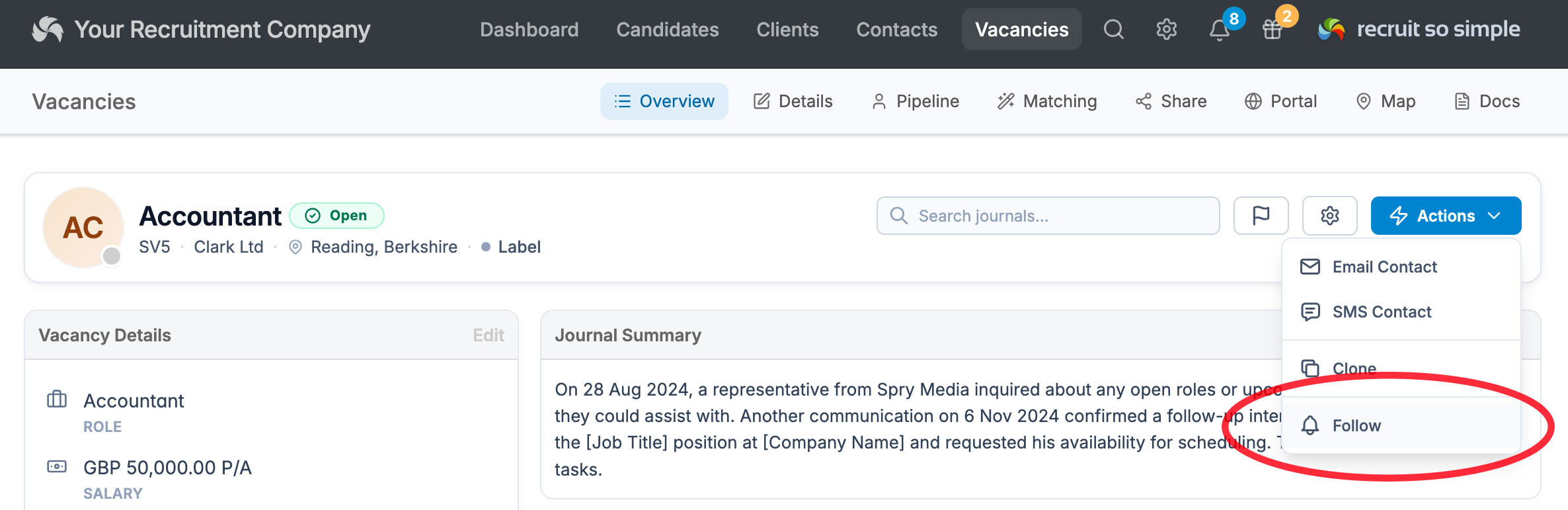
To keep notification alerts and emails manageable for portal activity, you can follow just the client, contact, candidate and vacancy records that you’re interested in.
Follow a candidate record to be alerted when a candidate does something in their or portal. You can choose any or all of the following actions:
- Details updated
- CV Uploaded
- Document uploaded
- Document signed
- Questionnaire completed
- Consent updated
- Deletion requested
Follow a client record to be alerted when a contact does something in their or portal. You can choose any or all of the following actions:
- Shortlist feedback
- Document uploaded
- Document signed
Follow a contact record to be alerted when a contact does something in their or portal. You can choose any or all of the following actions:
- Document uploaded
- Document signed
Follow a vacancy record to be alerted when a contact does something in their or portal. You can choose any or all of the following actions:
- Shortlist feedback
Keeping track of who you are following
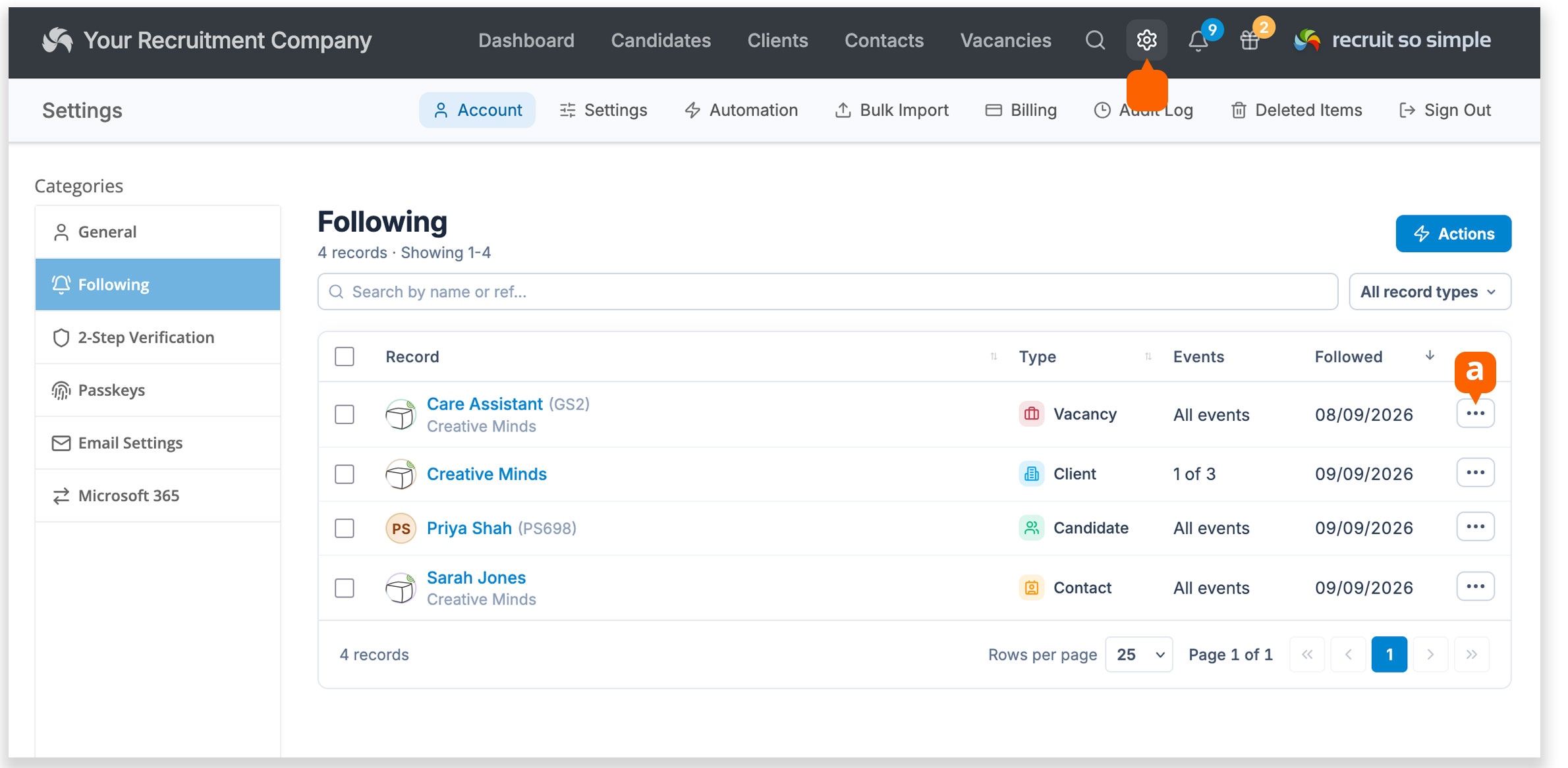
You can review and manage the records you are following from [Settings > Account > Following].
From here, you can choose which events [a] you want to receive alert notifications for, and unfollow any records you no longer need.