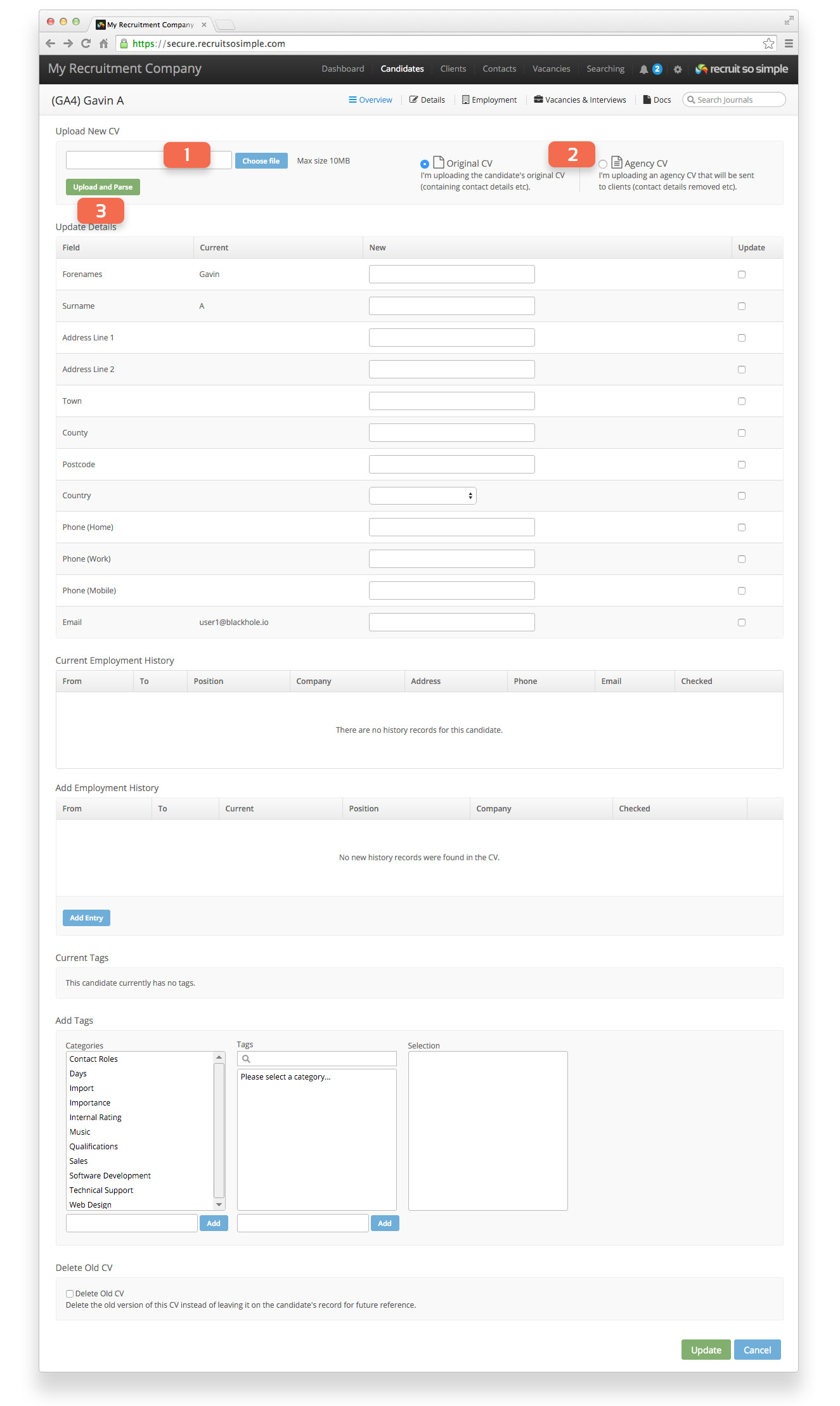
Candidate > Overview > Update CV
Using this feature, you can update a candidate’s record with new information by uploading a newer CV.
- Select a new CV file to upload
- Make sure to choose the type of CV you’re providing, usually this will be the original CV (the version provided by the candidate containing their contact details)
- Click the ‘Upload and Parse’ button
Once the CV has been parsed, the new information will be displayed in the relevant sections:
Update Details
If any of the new information is different from the current information then there will automatically be a tick in the ‘Update’ column for those fields. Only fields that are selected to be updated will be changed on the candidate’s record.
Add Employment History
New employment history entries will be shown here. Only new entries can be added, existing ones can’t be modified. If the candidate already has employment history then new entries will only be shown if they are more recent. If you add a new entry that is set as “current” and the candidate already has one, then the existing one will be unset as “current”.
Add Tags
If any of the tags you’ve created are found within the CV text then they will be shown, unless they are already assigned to the candidate.
Select the Delete Old CV option to have the old version of this CV (either Agency or Original depending on the type you’re uploading) deleted. If you don’t select this, the old version of the CV will be renamed to include “(Old)” at the end of the file name.