
Take advantage of the micro job board included with Recruit So Simple to post vacancies to your social media and make it easy for Google Jobs to find and list your vacancies.
Job Board
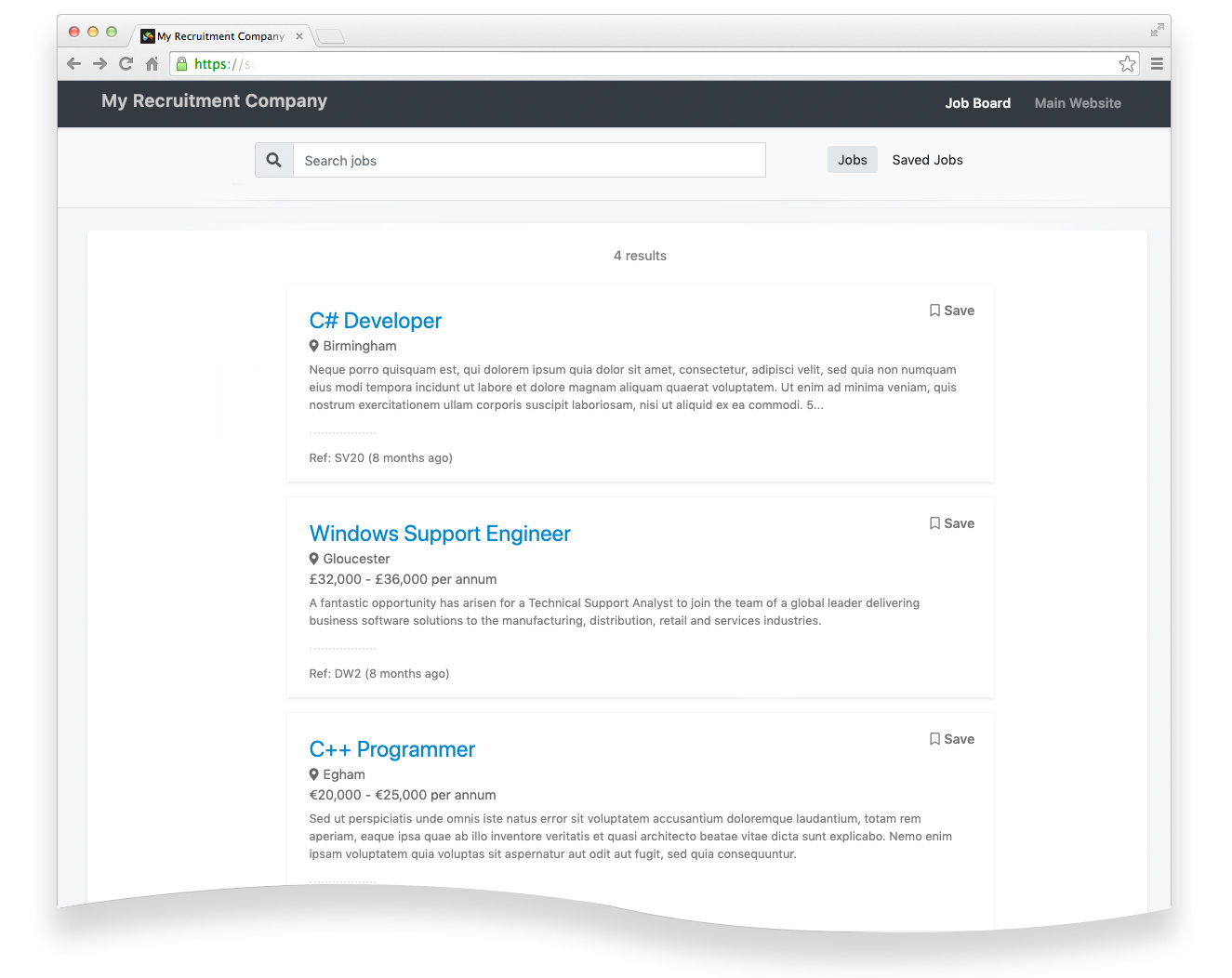
The Job Board is a simple, yet modern, mobile-friendly website, that’s hosted and designed by us. It comes with a basic keyword search, a ‘save job’ feature, and an apply page. Sharing your jobs across social media (LinkedIn, Facebook or Twitter), via email – or by simply sharing a link, is incredibly straightforward. The Job Board also comes with automatic Google Jobs integration.
Google Jobs
Jobs are automatically shared to Google Jobs behind the scenes. To have the best chances of appearing in search results you should aim to fill in as much information as possible. Jobs missing either a location, or a detailed job description (less than 250 characters) will not be included.
We have no control over which jobs Google decides to index or how long it takes, however jobs usually appear within a few days of being posted. To help stay within Google’s guidelines, jobs posted over 30 days ago will not be shared with Google. Removing the job from the job board and then re-posting it, will reset the ‘posted date’ and give you another 30 days.
Getting Started
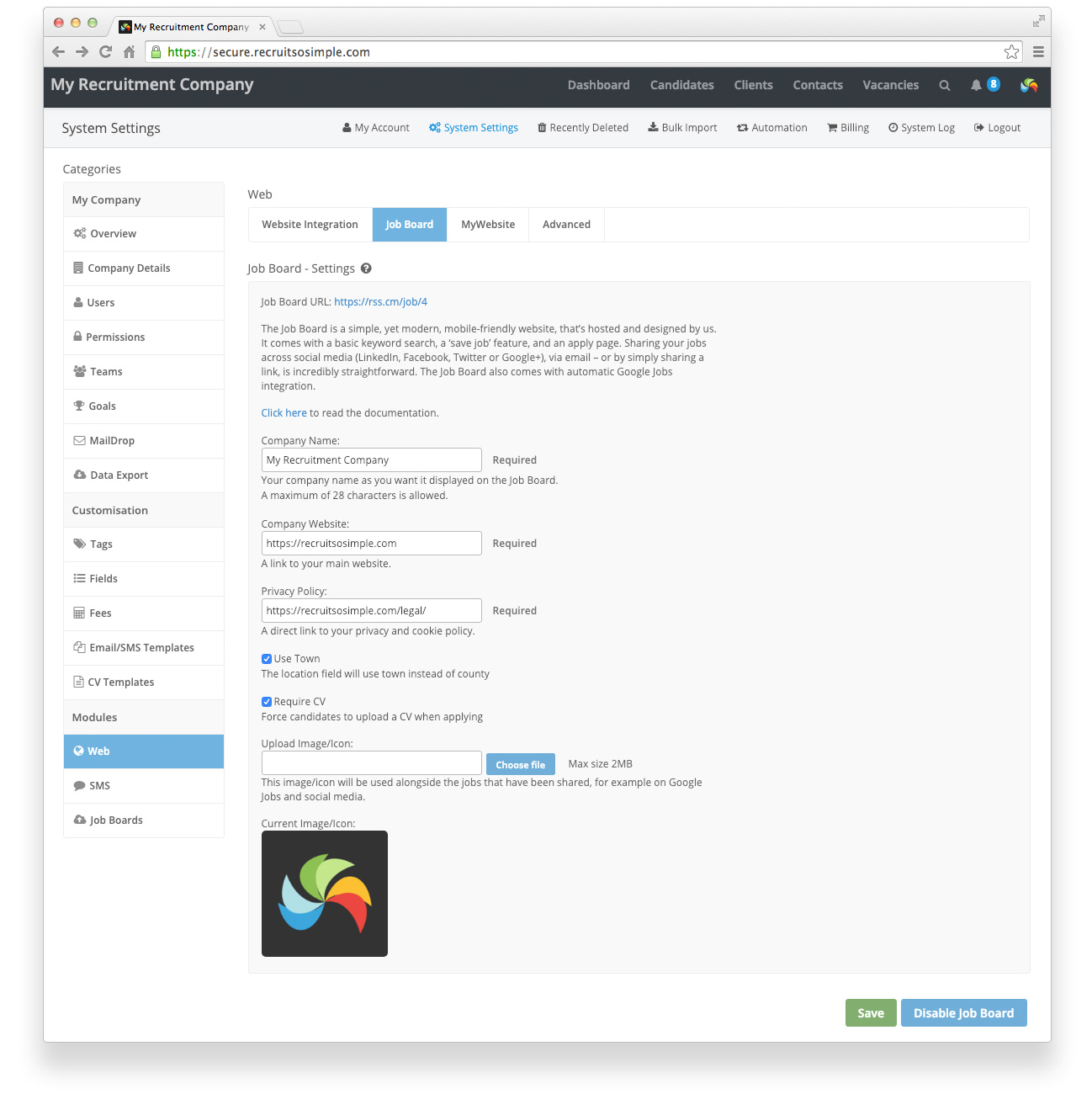
Settings > System Settings > Web > Job Board
You will need to ensure that your company website and privacy policy URLs are set under Settings > System Settings > Company Details before you can enable the job board.
Click the ‘Enable Job Board’ button to enable the Job Board for your account.
Company Name – Your company name as you want it displayed on the Job Board.
Example: ABC Ltd
Use Town – The location field will use town instead of county.
Require CV – Require candidates to upload a CV when applying for a job.
Image/Icon – Will appear alongside the jobs that have been shared, for example on social media.
Registration Terms (Optional)
Settings > System Settings > Web > Advanced
Registration terms can easily be added to the application form if required. Once added, candidates will be required to agree to your chosen terms before submitting the application . This can be useful for confirming/explaining lawful basis in regards to GDPR.
To enable this feature, select Enable Terms, enter your required text, and then click Save. Once a candidate is added to the database, the registration terms will be included in the notes field on the candidate. This helps provide a record of what was agreed and when.
Posting a Job
Vacancy > Share
Head to the vacancy’s Share screen, select Job Board (under Sharing Options) and then click Save. The job will be posted immediately.
To remove the job, simply uncheck the Job Board option and click Save.
The Additional Information field is also supported by the Job Board.
The following information will be displayed on the Job Board (if available):
- Job Title & Reference
- Job Location (town or county depending on your chosen setting)
- Job Type (Permanent / Contract / Full-time / Part-time)
- Salary Information (inc Additional Salary Info)
- Job Description (Website)
- Date Posted (e.g. 1 week ago)
Sharing a Job
Vacancy > Share
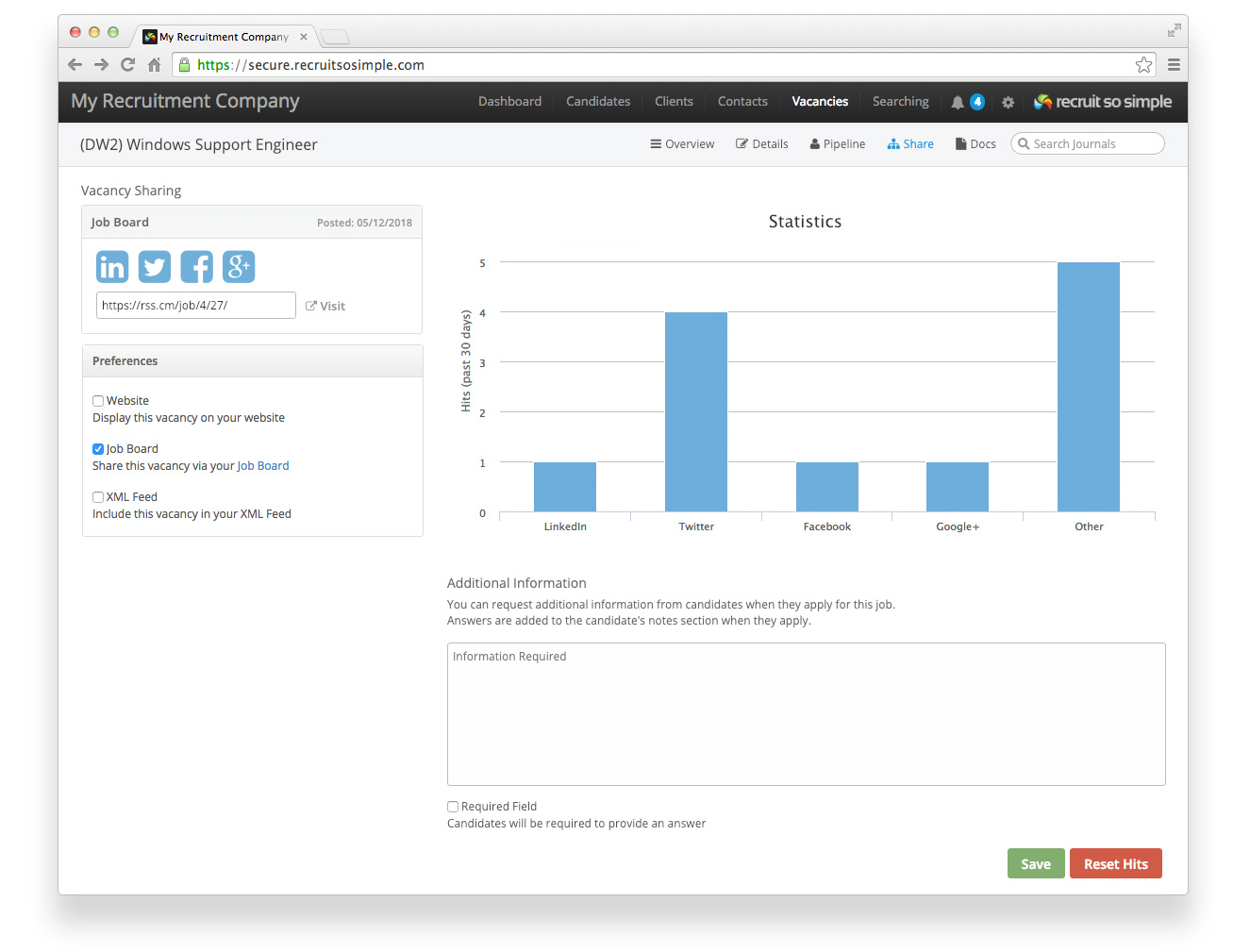
To quickly share your job via social media, head to the vacancy’s Share screen and click one of the relevant icons. A new window will open, and you will be passed to the relevant site with the job details pre-filled in. You should ensure that you are already logged into your business social media accounts before posting.
Alternatively you can copy and paste the link and include it in an email or message.
Statistics
When sharing jobs via social media, each link contains an identifier associated with that site. This is then used to track which sites your visitors are coming from.
‘Other’ shows direct visits that have come from elsewhere, for example from a search engine result or a direct link.
Importing Candidates
Candidates > Web Import
Candidates that have applied via your job board will appear here. Applications can be reviewed before adding them to the database. You can read more about the Web Import screen here.