
Accessed by clicking the magnifying glass [1] in the top menu.
Global Search allows you to quickly find a candidate, client, contact, or a vacancy record. You can search using full or partial matches on names, phone numbers, email addresses, and more – see the table below for a full list.
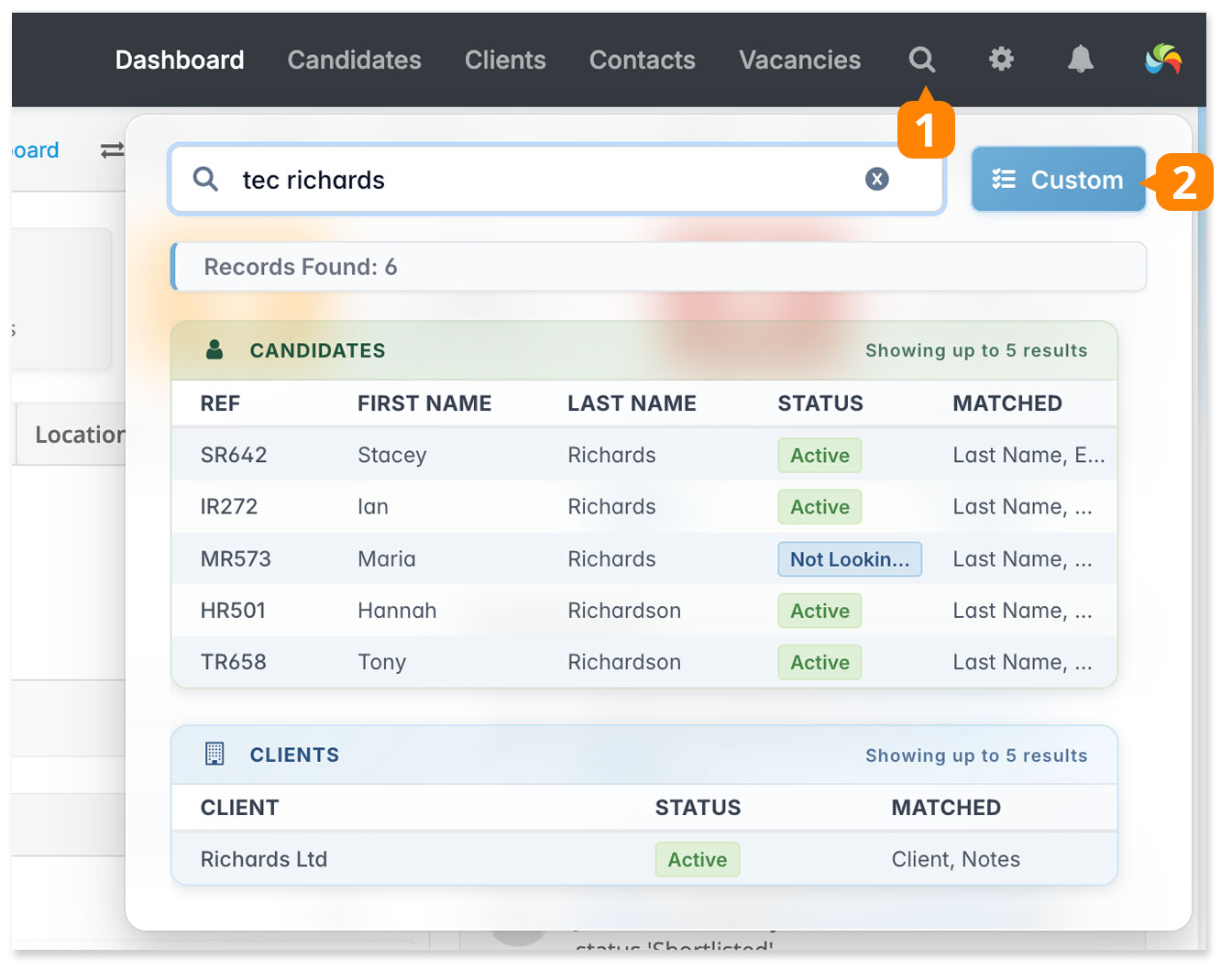
Search Guidelines:
- Search terms can include letters, numbers, and special characters.
- You can enter up to 5 search terms, for example: Smith Rob 078 Leicester @gmail
- Results are returned where each search term appears somewhere in any searchable field – like an AND search.
- Each search word must be at least 3 characters.
- Results are prioritised – fields like names and reference numbers are given higher priority than less specific fields like notes or postcodes.
- The most relevant matches are placed at the top.
- A maximum of 5 results per record type will be displayed.
- The following fields for each record type are searched:
| Data | Candidates | Clients | Contacts | Vacancies |
| Ref | ✅ | – | – | ✅ |
| Name | ✅ | – | ✅ | – |
| Email addresses | ✅ | – | ✅ | – |
| Phone numbers | ✅ | ✅ | ✅ | – |
| Job title* | ✅ | – | ✅ | ✅ |
| Current company | ✅ | – | – | – |
| Postcode / US ZIP | ✅ | ✅ | ✅ | ✅ |
| Notes | ✅ | ✅ | ✅ | ✅ |
| Client name | – | ✅ | ✅ | ✅ |
| Business Area | – | ✅ | – | – |
| Client Ref | – | – | – | ✅ |
| Client Contact | – | – | – | ✅ |
* For candidates – their current job title as set in the candidate record’s employment screen.
The Custom button [2] links to the legacy Search screen for those who wish to use the previous search options. However, we recommend using the powerful searching tools that are built directly into the grids, which allow for quicker, more flexible searching, saved searches and customisable views.