MailDrop
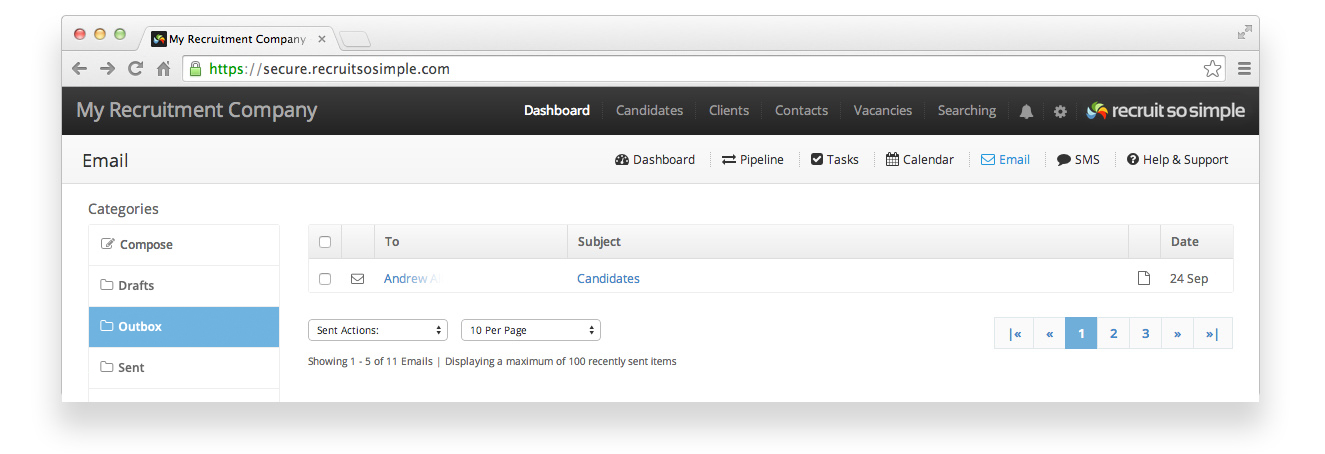
Our MailDrop feature allows you to use your favourite email client (e.g. Outlook, Gmail…) to manage your incoming email. You can read more about MailDrop here.
Composing an Email
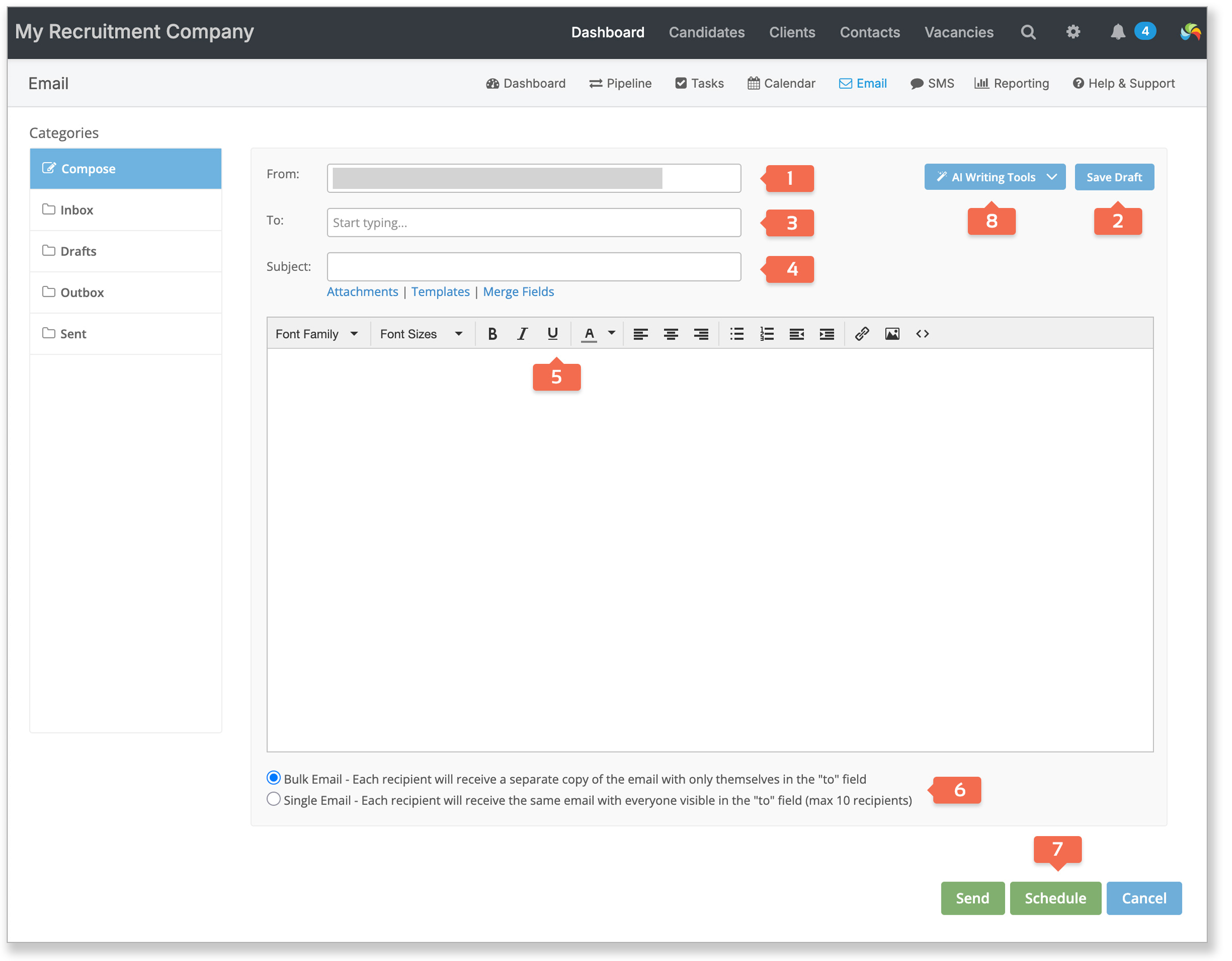
By default, when you send an email from Recruit So Simple, the name and email address that it will be “from” is based on your forenames and surname, and login email address. [1] See [My Account > Email Settings > Advanced Account Settings] for advanced options.
Type the name of a recipient [3] and the system will list suggestions based on records in your database. Alternatively, type a full email address and press Enter on your keyboard to add them to the recipients list.
A range of familiar formatting tools [5] are available to help you compose your email.
Note that emojis / emoticons aren’t supported in the body or subject of an email, these will be automatically removed before the email is sent.
AI Writing Tools [8] allows you to select text and choose a writing style from: friendly, professional, concise, or key points. You can read about our other AI Tools here.
Attachments | Templates | Merge Fields
Additional email tools [4]:
- You can attach a document from your computer or one that is stored on your database. For example, click Attachments and type a candidate’s name to attach their CV. There is a 10MB limit for each attachment. Attachments in total cannot exceed 20MB. If you’re sending an email to more than 500 recipients then attachments can’t be added.
- Create your email from a predefined Template. Email templates can be created in [Settings > System Settings > Email/SMS Templates].
- Merge fields are available for: Title, First Name, Last Name and Full Name. Merge fieldscan be used in the subject as well as the message itself.
Sending Method
You can choose between two methods when sending an email [6]:
- Bulk Email – Each recipient will receive a separate copy of the email with only themselves in the “to” field. You would use this method when you don’t want the recipients to know who else the email was sent to.
- Single Email – Each recipient will receive the same email with everyone visible in the “to” field (max 10 recipients). Use this method when you want the recipients to be able to see who else has been emailed.
Merge fields are not supported when sending a single email (since everyone receives the exact same email).
Scheduling Email
Choose a date and time to commence sending [7]. Sending will adhere to your email throttle.
Saving Drafts
Once you start making changes to a new email, it will be automatically saved every 1 minute. If you wish to save a draft manually then you can click the ‘Save Draft’ button [2]. Draft emails are saved for a maximum of 30 days and can be loaded from the ‘Drafts’ section when you’re ready to continue.
Inbox
Your Recruit So Simple inbox will periodically sync with your usual email inbox – every 15 minutes if using Microsoft 365 and 25 minutes for other providers. The inbox isn’t intended to replace your regular email application, but does include the following features:
- Journaling – email will be journaled on contact or candidate records with a matching email address to the sender
- Add as Candidate or Contact – easily add the sender to your candidates or contacts
- Reply or Forward email
- Assign To Record – manually assign an email to any record (candidate, client, contact or vacancy).
To enable your inbox: Microsoft 365 users should follow the instructions here. If using another provider, follow the instructions here.
Email is automatically deleted from the inbox after 7 days.
Outbox
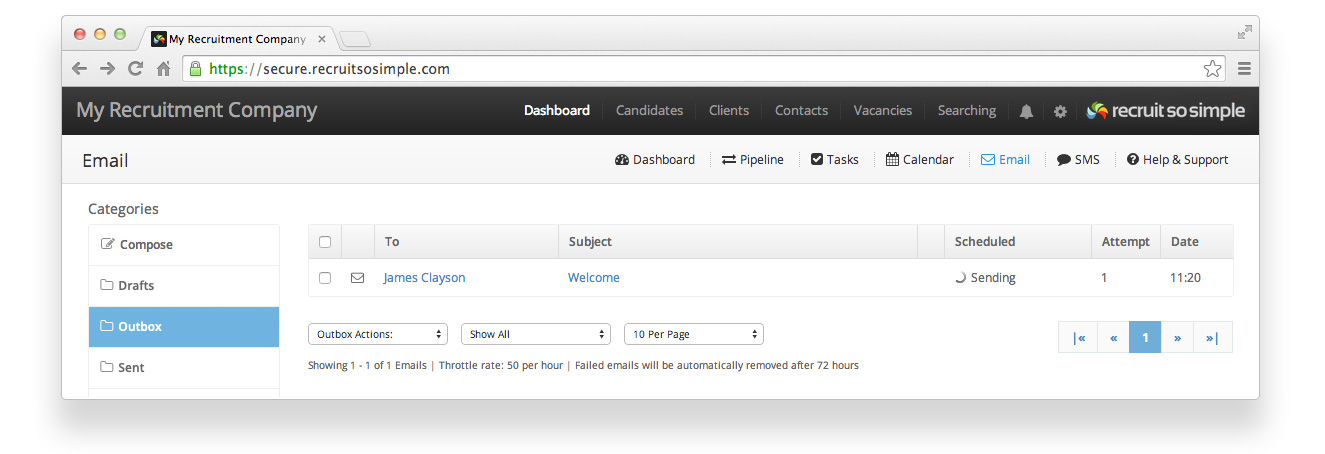
When you send an email from Recruit So Simple, it will be added to the Outbox. Emails will be delivered in line with your throttling limits specified in your email settings. If an email fails to send, it will be rescheduled for delivery at a later time. Emails will attempt to send up to 3 times at which point they will be marked as failed. Failed emails are automatically removed from the Outbox after 72 hours.
Sent
Items sent from Recruit So Simple will be displayed here. The last 100 recently sent emails will be shown as it is designed to be more a quick reference, as every email is journaled automatically already. To have a copy sent to your own email client to keep permanently you can switch on ‘Automatically Copy Sent Emails’ from [Settings > My Account > Email Settings > Advanced Email Settings].Emails that had attachments will display a document icon. Click on the recipient’s name or subject to open the email and download the attachment.