
[Settings > My Account > General]
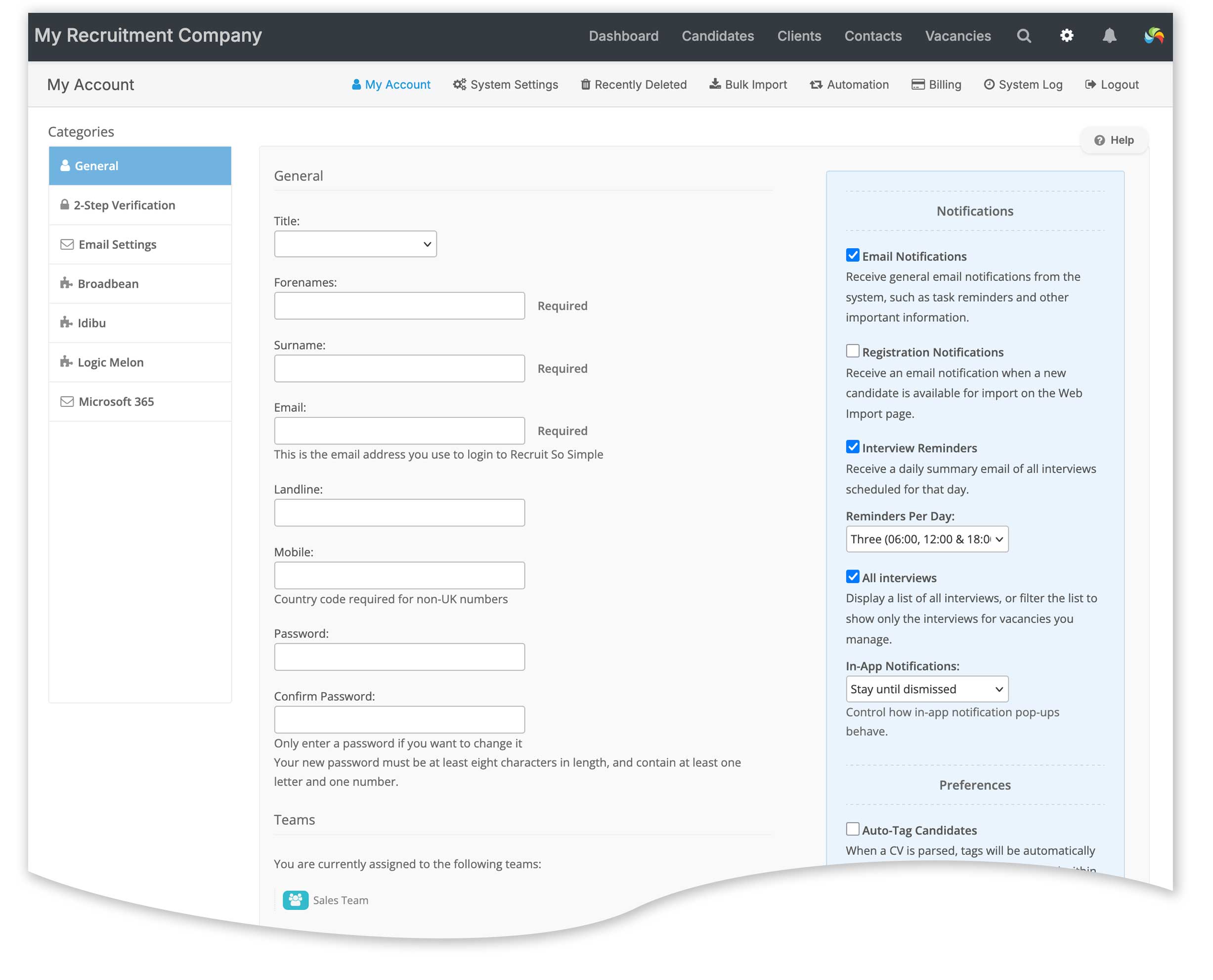
Email Notifications
Disable or enable email notifications.
| Email notification type | Who receives it |
|---|---|
| Task Reminder | Current owner |
| Task Assigned | New owner |
| SMS Credits Low | All users in the ‘Administrators’ group |
| Email Failed to Send | The sender |
| Support Ticket Updated | Any users who have interacted with the ticket |
Registration notifications
Receive an email notification when a candidate application arrives in [Candidates > Web Import]. This occurs when sharing vacancies via the Website Integration module, or sharing jobs on social media using the micro Job Board feature.
Interview Reminders
Receive an email summary of all interviews that are happening on that day:
- 1 reminder at 06:00
- 2 reminders at 06:00 and 12:00
- 3 reminders at 06:00, 12:00 and 18:00
Choose all interviews, or just interviews where you are the managing consultant of the vacancy.
In-App Notifications
You can now choose how in-app notifications behave. These appear in the top-right of the screen for task reminders, ticket updates, and other system alerts. Choose between:
- Disable
- Stay until dismissed
- Auto-fade after 10 seconds
Auto-Tag Candidates
When adding candidates by parsing CVs, the system looks at your existing tags. If a match is found in the CV text, the tag is automatically applied.
Preview Automated Messages
If automated emails or SMS messages are enabled, see a preview of the message before it is sent. This allows you to edit the message further, dismiss or send.
Features
- Recently Viewed: display a list of recently viewed records, allowing you to quickly switch from one record to another
- Currently Viewing: See who is currently viewing the same record as you. This can help avoid edits being overwritten, when multiple users want to make changes at the same time. Currently Viewing can be switched off globally in [Settings > System Settings > Company Details].
- Calendar Feed: Allows tasks and interviews displayed in the system calendar [Dashboard > Calendar] to be synced with an external calendar (e.g. Outlook, Google, Mac…)
- Getting Started Guide: Show or hide the Getting Started Guide shown on the Dashboard
- Phone Number Links: Turn phone numbers into clickable links.