
Introduction
The Data Feeds API can be used to connect Recruit So Simple with your website, Indeed, or other compatible job board. This allows you to post vacancies, to your website and your Indeed account, directly from the vacancy record’s Share screen.
The Data Feeds API is found in [Settings > System Settings > Web > Advanced].
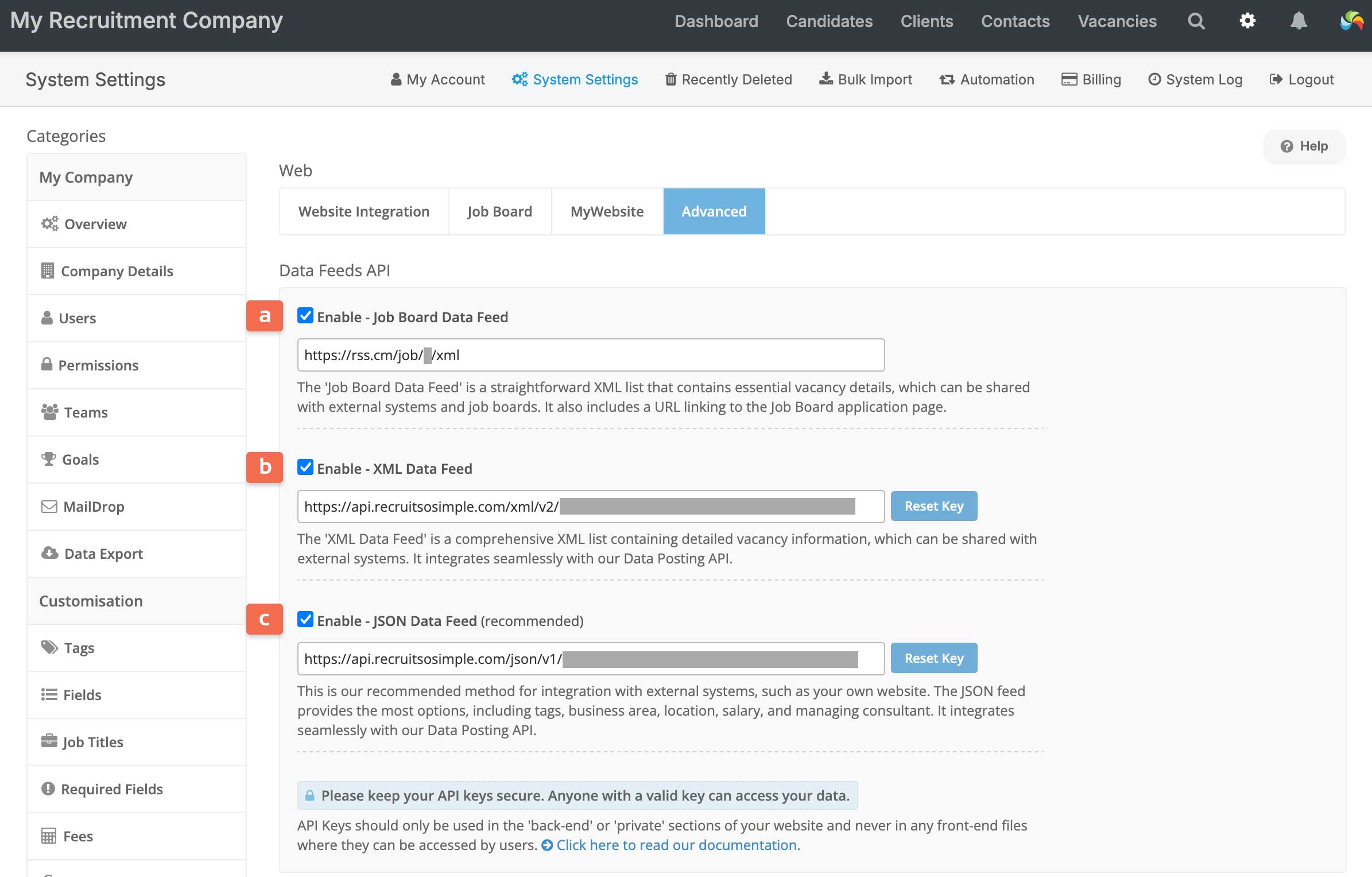
JSON Data Feed, XML Data Feed
The JSON [c] and XML [b] data feeds provide structured vacancy data for your website. You can enable either or both, then share the feed URLs with your web developer to review. They can decide which fits best in your website environment, and integrate as needed.
| Data | JSON | XML | XML/Indeed |
| Job Ref | ✅ | ✅ | ✅ |
| Job title | ✅ | ✅ | ✅ |
| Permanent or contract | ✅ | ✅ | ❌ |
| Full-time / Part-time | ✅ | ✅ | ✅ |
| Start date, end date | ✅ | ✅ | ❌ |
| Job description | ✅ | ✅ | ✅ |
| Consultant name | ✅ | ✅ | ❌ |
| Consultant email address | ✅ | ❌ | ❌ |
| Salary period | ✅ | ✅ | ✅ |
| Salary | ✅ | ✅ | ✅ |
| Currency | ✅ | ✅ | ✅ |
| Additional salary info | ✅ | ✅ | ✅ |
| Town/City | ✅ | ✅ | ✅ |
| County | ✅ | ✅ | ❌ |
| UK postcode or US ZIP code | ✅ | ✅ | ✅ |
| Country | ✅ | ✅ | ✅ |
| Client’s Business Area | ✅ | ✅ | ✅ |
| Business Area ID | ✅ | ✅ | ✅ |
| Question text | ✅ | ✅ | ❌ |
| Question required | ✅ | ✅ | ❌ |
| Tags ID | ✅ | ✅ | ✅ |
| Tags name | ✅ | ❌ | ❌ |
| Tag category | ✅ | ❌ | ❌ |
| Date added (to the database) | ✅ | ✅ | ❌ |
| Date posted | ✅ | ✅ | ✅ |
| Client Ref | ❌ | ❌ | ✅ |
| Vacancy URL (on micro Job Board) | ❌ | ❌ | ✅ |
Adding a vacancy to the feed
Add a vacancy to the JSON, XML, and the Indeed XML feed by enabling Data Feeds API, found under Sharing Options on a vacancy record’s Share screen.
Managing candidate applications
When using the JSON or XML feed to integrate with your website, your web developer can use our Data Posting API to send candidate applications to your database.
Candidate applications via the micro Job Board are automatically sent to your database – and you’ll be notified when that happens.
In both cases, candidate applications will appear in [Candidates > Web Import] where they can be reviewed and added to your database.
Connecting with Indeed
To share your vacancies with Indeed, follow the steps below.
1. Get Your XML Feed URL
Enable the Job Board Data Feed [a] in [Settings > System Settings > Web > Advanced].
https://rss.cm/job/x/xml
To make it compatible with Indeed, simply add /indeed the end, like this:
https://rss.cm/job/x/xml/indeed
2. Submit Your Feed to Indeed
Contact Indeed support and let them know you have an XML feed for your vacancies. Provide the Indeed-compatible feed URL above. They will guide you through the process of adding the feed to your account.
3. Set Up Your Micro Job Board
To ensure candidate applications reach your database, you should also enable your micro Job Board, which is included with your Recruit So Simple account.
For setup instructions, see our documentation: Job Board & Google Jobs. Your Job Board Data Feed (without the Indeed modification) [a] is the URL for your micro Job Board. You can use the link on your website, marketing and social media.
4. Enable Job Sharing on Vacancies
Once your feed is connected and your micro Job Board is set up:
- Open a vacancy record
- Go to the Share screen
- Enable both the Job Board and Data Feeds API
This will add the vacancy to your micro Job Board (allowing candidates to apply) and the Indeed XML feed to send the vacancy details to Indeed.
5. Receive Applications
When a candidate applies, their details will appear in [Candidates > Web Import], and you’ll be notified automatically.
🔁 Bonus Tip
If you’re manually posting vacancies on Indeed or editing existing ones:
- Look for an option to set a custom application URL
- Paste in the short URL shown on the vacancy’s Share screen (visible when the Job Board option is enabled on the vacancy record’s Share screen)
This links directly to your micro Job Board vacancy page, so candidates apply through your system. Candidate applications can be processed in [Candidates > Web Import].