
Candidate, Client, Contact and Vacancy records all have a Details screen. The contents and options set on the details screen are searchable. A vacancy’s details screen contains, and can be used to update, the following information:
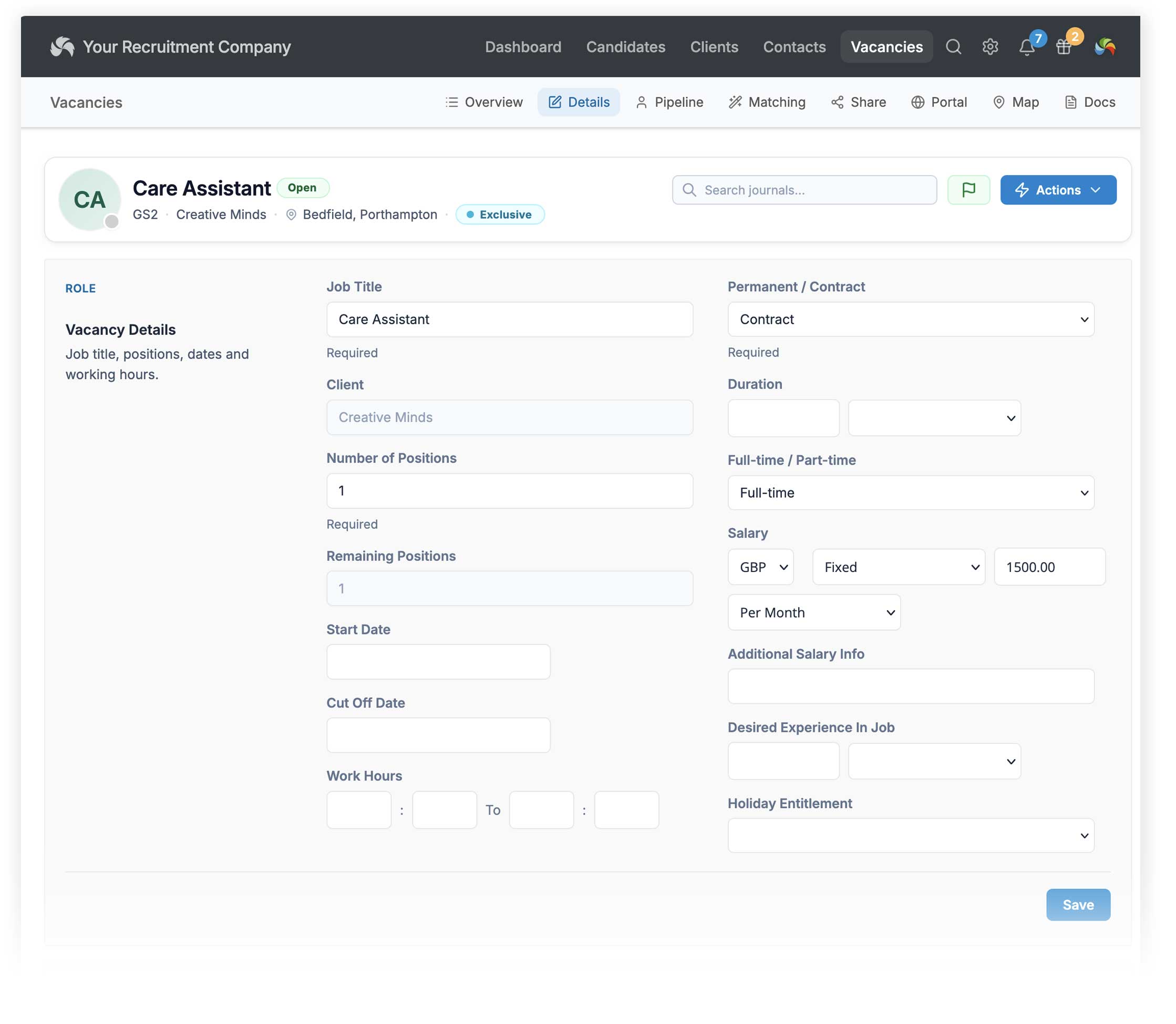
Vacancy details
Complete the vacancy details including job title, salary information, work hours, number of positions and start date. Required fields are:
- Job Title
- Client
- Permanent / Contract
Location
- Client Ref is for your internal use only
- Location (Client Site): choose an address from teh client record’s Sites page. The ‘County’ field is used as the location by default. This can be changed to the Town/City field in [Settings > Web]
- Main Contact: Choose the main client contact for this vacancy.
- Additional Contacts: Add other contacts from the client. When sending a CV from the vacancy or creating an automated email, such as interview details, you can choose whether to send it to the main contact only or to all contacts for the vacancy.
Job Description
Job Description (Private): It is strongly recommended that you add a job description, as this is used when matching candidates. You can create an AI-generated template to get you started. The private job description is not made public; it is just for internal use and candidate matching. You can also choose to copy the text from the Website description.
Job Description (Website): This version is used when posting the vacancy to websites, job boards and social media.
Tags
Tags are custom keywords to help with searching. You can read about Tags here.
Fees
If you’ve set up your standard fees in System Settings, or individual fees for a client, you’ll see them appear here. If you want to set individual fees for this vacancy only, you can either edit an existing fee, or add a new one here.
Rebate
Rebate periods can be used to track the rebate terms that apply to a vacancy or placement.
You can add any number of rebate tiers by entering the number of weeks and the rebate percentage. The candidate’s start date is used as the reference point for calculating where the placement sits within the rebate period. Further details here.
Other Details
- Status (open or closed)
- Managing Consultant: The user who is responsible for this vacancy. If there is shared ownership of a vacancy, you can split fees between consultants.
- Industry: This is chosen automatically when creating the vacancy, but can be changed. Industry is one of a range of criteria that Candidate Matching uses to find suitable candidate for your vacancies. Industry is a fixed list and can’t be edited.
- Notes: For internal use.