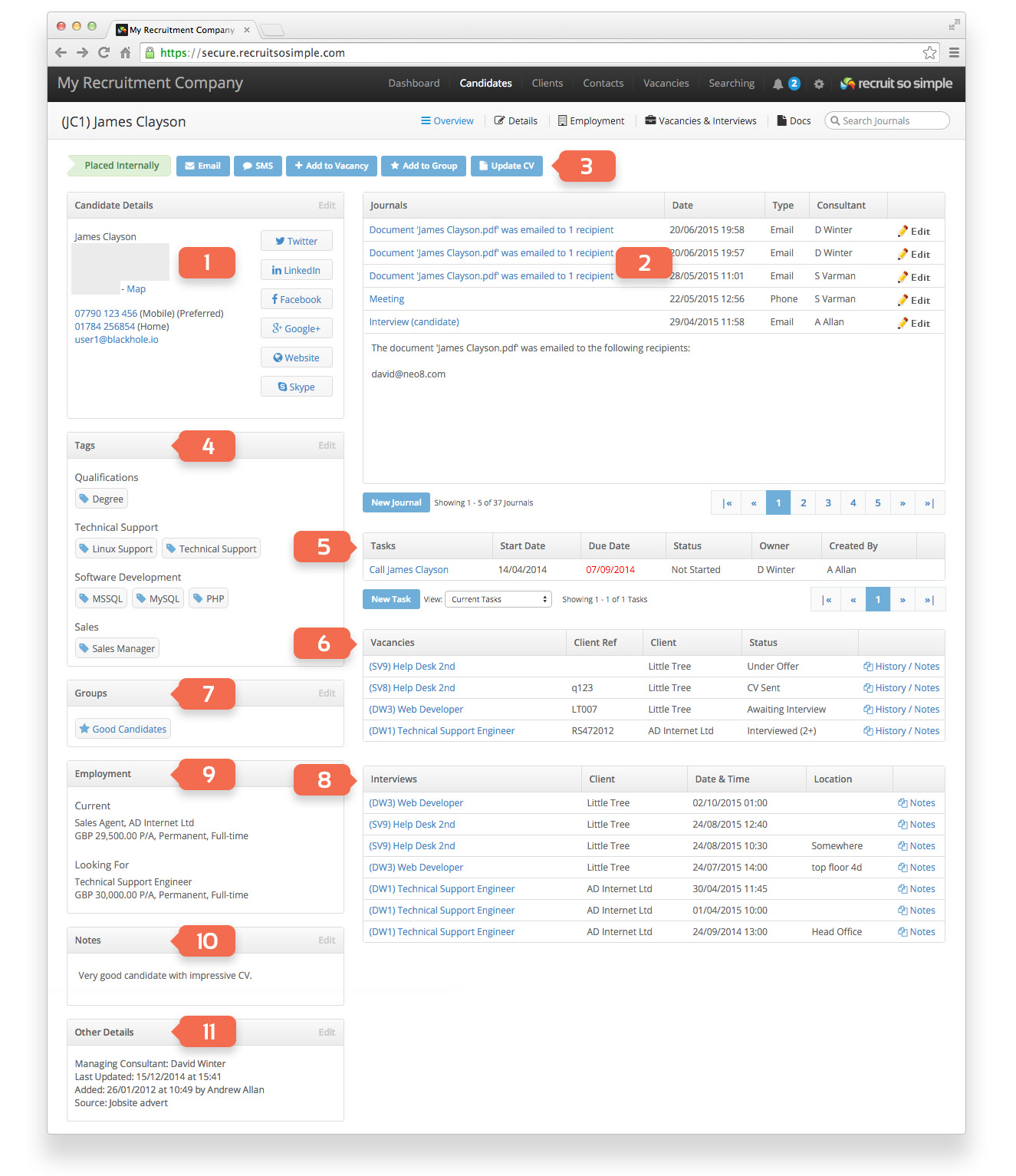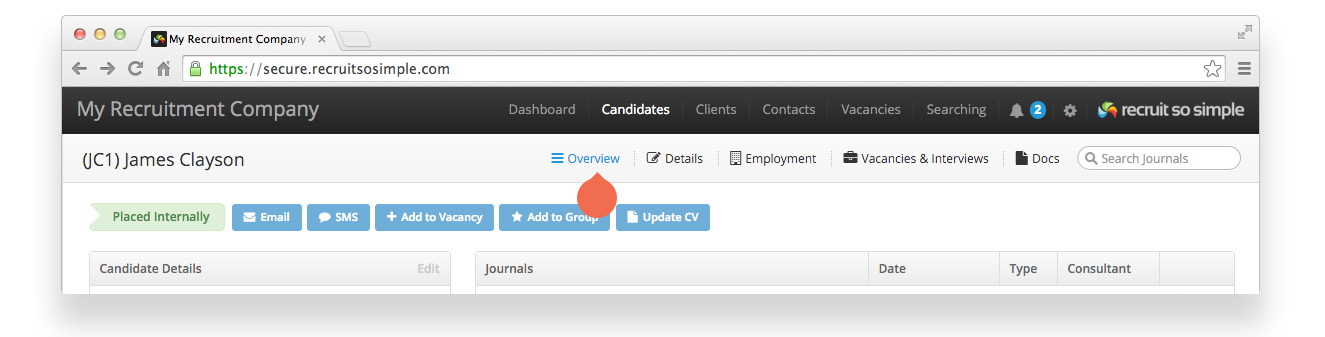
Candidates, Clients, Contacts and Vacancies all share an Overview screen, which shows the following information:
- Details
- Name, address and contact details.
- The Candidate Overview and Client Overview screens include links to their social media.
- The Candidate Overview includes the ability to send an agency version of their CV.
- The Vacancy Overview shows details that include job title, salary and remaining places.
- Journals
- Journals are used to record communications. While emails create journal entries automatically, you can manually add journals to record conversations, meetings or telephone calls. You can add your own journal categories from [Settings > System Settings > Customisation].
- Click on the journal’s subject line to view the contents, or click edit to update the journal.
- A journal entry may be assigned to multiple records (max 10), making it viewable in each of their Overview screens.
- Action Buttons
- Perform common tasks including email or adding the record to a Group.
- Tags
- A list of Tags that have been applied to the record. Tags are our ad hoc labelling system, you can read about Tags here.
- Tasks
- Choose to view current or completed Tasks.
- Vacancies / Candidates
- Lists all vacancies associated with the record (Candidate, Client and Contact overview screens only).
- On the Vacancies Overview screen this section is replaced with ‘Candidates’.
- Groups (not present on the vacancy overview screen)
- Displays all groups that the record belongs to.
- If the record doesn’t belong to any group s this section won’t be visible.
- Interviews
- Lists all interviews associated with the record.
- Employment / Main Contact / Client & Contact
- Employment (Candidate Overview only) shows the candidate’s current and required jobs.
- Main Contact (Client Overview only).
- Client and Contact (Vacancy overview only).
- Notes
- Free text, add additional information as required.
- Other details
- Various information depending upon the record type (Candidate, Client, Contact or Vacancy)